VMware Cloud Foundation in a Lab

VMware Cloud Foundation (VCF) is basically a package containing vSphere, vSAN, NSX-T, and vRealize Suite elegantly managed by something called SDDC Manager. Everything is installed, configured and upgraded automatically without much user intervention. VCF is based on VMware Validated Design, so you get a well-designed, thoroughly tested and consistent deployment. Upgrading is also a lot easier as you don’t have to check interoperability matrices and upgrade order of the individual components – Just click on the upgrade button when a bundle is available. For someone who has implemented all these products manually many times, VCF is a blessing. Tanzu and Horizon are also supported to run on VCF, and almost everything else you can run on vSphere. Many cloud providers are powered by VCF, for instance VMware Cloud on AWS.
VCF requires at least four big vSAN ReadyNodes and 10 gigabit networking with multiple VLANs and routing, so how can you deploy this is in a lab without investing in a lot of hardware? VMware Cloud Foundation Lab Constructor (VLC) to the rescue! VLC is a script that deploys a complete nested VCF environment onto a single physical host. It can even set up a DHCP server, DNS server, NTP server and a router running BGP. It is also very easy to use, with a GUI and excellent support from its creators and other users in their Slack workspace. It is created by Ben Sier and Heath Johnson.

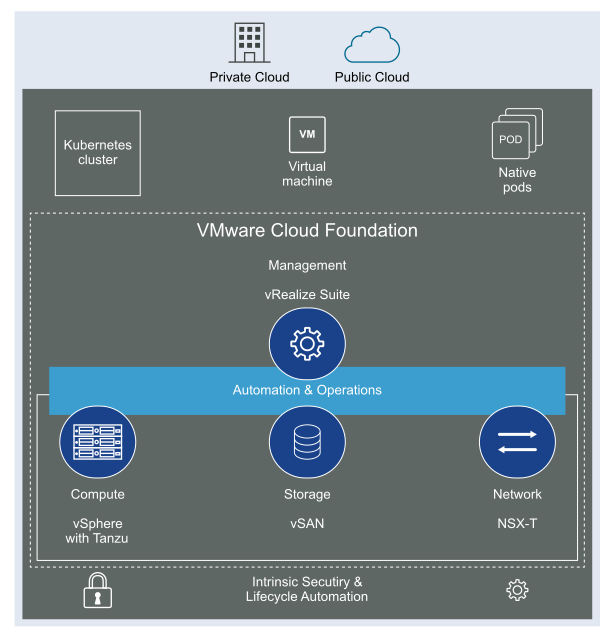
Here is a nice overview taken from the VLC Install Guide:

VLC requires a single physical host with 12 CPU cores, 128 GB RAM, and 2 TB of SSD. I am lucky enough to have a host with dual Xeon CPUs (20 cores) and 768 GB RAM. I don’t use directly attached SSD, but run it on an NFS Datastore on a NetApp FAS2240-4 over 10 gig networking. I can deploy VCF 4.2 with 7 nested ESXi hosts in 3 hours and 10 minutes on this host.
 
VLC lets you choose between three modes: Automated, Manual and Expansion Pack. Automated will deploy VCF including all dependencies, while Manual will deploy VCF, but you will have to provide DNS, DHCP, NTP and BGP. Expansion Pack can be used to add additional ESXi hosts to your deployment after you have installed VCF, for instance when you want to create more clusters or expand existing ones.
 
This is what the VLC GUI looks like:
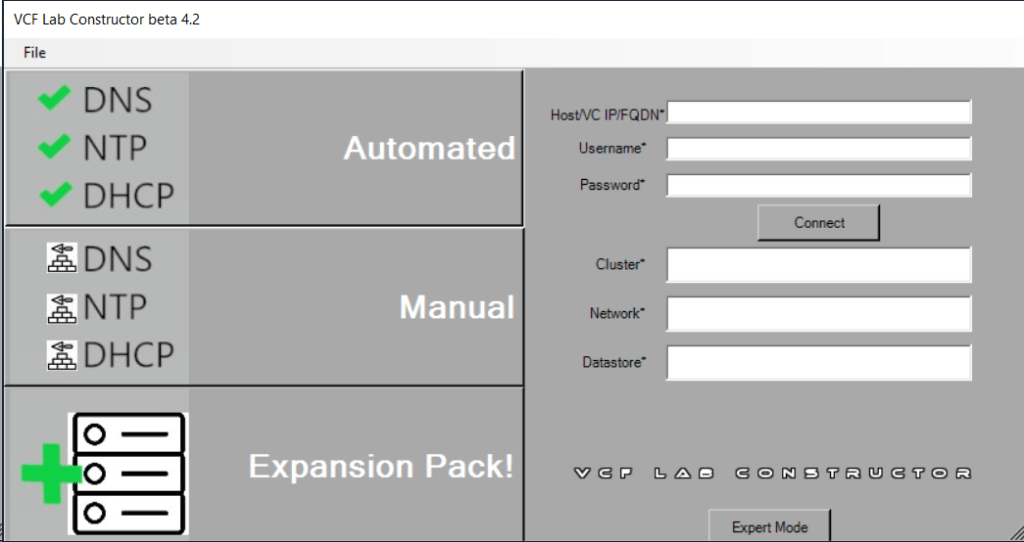
So far, I have only used the Automated and the Expansion Pack modes, and they both worked flawlessly without any issues. Just make sure you have added valid licenses to the json file like the documentation tells you to do. Some people also mess up the networking requirements, so please spend some extra time studying that in the Installation Guide and reach out if you have any questions regarding that.

It can also be challenging for some to get the nested VCF environment to access the Internet. This is essential to be able to download software bundles used to upgrade the deployment, or to install software like vRealize Suite. Since VLC already requires a Windows jump host which is connected to both my Management network as well as the VCF network, I chose to install “Routing and Remote Access” which is included in Windows Server. Then I set the additional IP address 10.0.0.1 on the VCF network adapter. This IP is used as the default gateway for the router deployed in VCF if you also typed it into the “Ext GW” field in VLC GUI. The last step was to configure NAT in “Routing and Remote Access” to give all VCF nodes access to the Internet. I could then connect SDDC Manager to My VMware Account and start downloading software bundles.

Here are some of the things I have used VLC to do:

Deployed VCF 3.10, 4.0, 4.1 and 4.2 with up to 11 ESXi hosts

Being able to deploy earlier versions of VCF has been very useful to test something on the same version my customers are running in production. Many customers don’t have proper lab gear to run VCF. It has also been great to be able to test upgrading VCF from one version to another.

Experimented with the Cloud Foundation Bring-Up Process using both json and Excel files

The bring-up process is automated, but it requires the configuration, like host names, cluster names, IP addresses and so on, to be provided in an Excel or json file. All required details can be found in the Planning and Preparation Workbook.

Stretched a cluster between two Availability Zones

All my VCF customers are running stretched clusters so beings able to run this in my lab is very useful. This requires at least 8 vSAN nodes, 4 per availability zone. Currently this must be configured using the VCF API, but it is not that difficult, and SDDC Manager includes a built in API explorer which can be used to do this directly in the GUI if you want to.

Created additional Clusters and Workload Domains

Creating more clusters and workload domains will be required by most large customers and also by some smaller ones. It is supported to run regular production workloads in the management workload domain, but this is only recommended for smaller deployments and special use cases.

Commissioned and decommissioned hosts in VCF

Adding and removing ESXi hosts in VCF requires us to follow specific procedures called commissioning and decommissioning. The procedures validate that the hosts meet the criteria to be used in VCF so that it is less likely that you run into problems later. I have had some issues decommissioning hosts from my Stretched Cluster, and VMware has filed a bug to engineering to get this resolved in a future release. The problem was that the task failed at “Remove local user in ESXi host”, which makes sense since the host went up in flames. Workaround was to deploy a new host with the same name and IP, then decommissioning worked. Not a great solution. It is also possible to remove the host directly from the VCF database, but that is not supported. If you run into this issue in production, please call VMware Support.

Expanded and shrunk Clusters – including Stretched Clusters

Adding ESXi hosts to existing clusters, or removing hosts, requires you to follow specific procedures. Again, stretched clusters must be expanded and shrunk using the VCF API.

Upgraded all VCF components using the built-in Lifecycle Management feature

Upgrading VCF is a fun experience for someone used to upgrade all the individual VMware products manually. The process is highly automated, and you don’t have to plan the upgrade order or check which product version is compatible with the others. This is taken care of by SDDC Manager. I have successfully upgraded all the products in VCF including the vRealize Suite.

Tested the Password and Certificate Management features

VCF can automate changing the passwords on all its components. This includes root passwords on ESXi hosts, vCenter SSO accounts and administrative users for the various appliances. You can choose to set your own password or have VCF set random passwords. All passwords are stored in SDDC Manager and you can look them up using the API or from the command line. This requires that you know SDDC Manager’s root password and a special privileged user name and the privileged password. These are obviously not rotated by SDDC Manager.

Changing SSL certificates is a daunting task, especially when you have many products and appliances like you do in VCF. SDDC Manager has the option to replace these for you automatically. You can connect SDDC Manager directly to a Microsoft Certificate Authority or you can use an OpenSSL CA which is built in. If you don’t want to use either of those, there is also support for any third-part CA, but then you have to generate CSR files, copy those over to the CA, generate the certificate files, copy those back and install them. This also requires all the files to be present in a very specific folder structure inside a tar.gz file, so it can be a bit cumbersome to get it right. Also note that all the methods seems to generate the CSR for NSX-T Manager without a SAN, so unless you force your CA to include a SAN, the certificate for NSX-T will not be trusted by your web browser. This has been an issue for several years, so I am puzzled that it still hasn’t been resolved. When generating CSRs for NSX-T in environments without VCF, I never use the CSR generator in NSX-T Manager to avoid this issue. vSphere Certificate Manager in VCSA works fine for this purpose.

Tested the NSX-T Edge Cluster deployment feature

SDDC Manager has a wizard to assist in deploying NSX-T Edge Clusters including the Edge Transport Nodes and the Tier-1 and Tier-0 Gateways required to provide north-south routing and network services. The wizard makes sure you fulfil all the prerequisites, then it will ask you to provide all the required settings like names, MTU values, passwords, IP addresses and so on. This helps you to get a consistent Edge Cluster configuration. Note that VCF is not forcing you to deploy all NSX-T Edge Clusters using this wizard, so please reach out if you want to discuss alternative designs.

Deployed vRealize Suite on Application Virtual Networks (AVN)

All the vRealize Suite products are downloaded in SDDC Manager like any VCF software bundle. You then have to deploy vRealize Suite Lifecycle Manager, which will be integrated with SDDC Manager. VMware Workspace ONE Access must then be installed before you can deploy any of the vRealize Suite products. It is used to provide identity and access management services. It is downloaded as an install bundle in SDDC Manager, but it is actually deployed from vRealize Suite Lifecycle Manager, same as the rest of the products like vRealize Log Insight, vRealize Operations and vRealize Automation. Application Virtual Networks (AVN) is just NSX-T Overlay networks designed and automatically deployed for running the vRealize Suite. This gives you all the NSX-T benefits like load balancing, mobility, improved security and disaster recovery. AVN is optional as you can choose to deploy the vRealize Suite on VLAN backed networks as well.

Deployed Workload Management and Tanzu Kubernetes Cluster

Deploying Tanzu in VCF is not an automated process, but there is a wizard helping you to fulfil the following prerequisites:

  • Proper vSphere for Kubernetes licensing to support Workload Management
  • An NSX-T based workload domain deployed
  • At least one NSX-T Edge cluster
  • IP addresses for pod networking, Services, Ingress and Egress traffic
  • At least one Content Library

You have to select an NSX-T based, non-vLCM enabled workload domain, and the wizard will then search for any compatible clusters in this domain. It will then validate the cluster, and if it is ok you are directed to complete the deployment in the vSphere Client manually. The VCF docs have specific instructions on how to do this.

VLC has been very helpful when troubleshooting certain issues for my VCF customers, and when preparing for the VMware Cloud Foundation Specialist exam.

You can download the latest version of VLC, which is 4.2, from here.

Please make sure to read the Install Guide included in the zip file.

It is also possible to download earlier versions of VLC, which can be really useful for testing upgrades, or if you want to simulate a customer’s environment.

VLC VersionDownload Link
4.10https://tiny.cc/getVLC410bits
4.0.1https://tiny.cc/getVLC401bits
4.0http://tiny.cc/getVLC40bits
3.91-3.10http://tiny.cc/getVLC310bits
3.8.1-3.9http://tiny.cc/getVLC38bits

If you give VLC a go and successfully deploy a VCF instance, please send a screen shot of your installation to SDDC Commander in the VLC Support Slack workspace, and he will send you some awesome stickers!
I highly recommend the following articles for more information about VLC:

Deep dive into VMware Cloud Foundation – Part 1 Building a Nested Lab

Deep dive into VMware Cloud Foundation – Part 2 Nested Lab deployment

If you don’t have licenses for VCF, I recommend signing up for a VMUG Advantage membership which gives you a 365 days evaluation license, and a lot more.

Cheers.

Introduction to my Labs

Yes, I intentionally wrote Labs, as this post will introduce you to both my home lab and to the lab environment running in my employers data centers.

I have just built a small home lab for the first time in many years. A lab is very important for someone like me who is testing new technology on a daily basis. During the last few years, my employers have provided lab equipment, or I have rented lab environments in the cloud, so the need for an actual lab running in my house was not there. My current employer, Proact, has an awesome lab which I will tell you more about later.

There are two reasons why I built a small lab at home now:

  1. I want to be able to destroy and rebuild the lab whenever I want to without impacting anything in the corporate lab which we run almost like an enterprise production environment with lots of dependencies. This is a good thing most of the time, but can be limiting some times, for example when I want run the very latest version of something without having time to do much planning and coordination. And since it is a lab after all, something may break from time to time, and that usually happens when I urgently need to test something.
     
  2. I want to set up Layer 2 VPN from my home lab to the corporate lab to test and demonstrate real hybrid cloud use-cases. I can then migrate workloads back and forth using vMotion. We have this already set up in the corporate lab and my colleague Espen is using the free NSX-T Autonomous Edge as an L2 VPN Client to stretch several VLANs between his home lab and the corporate lab.

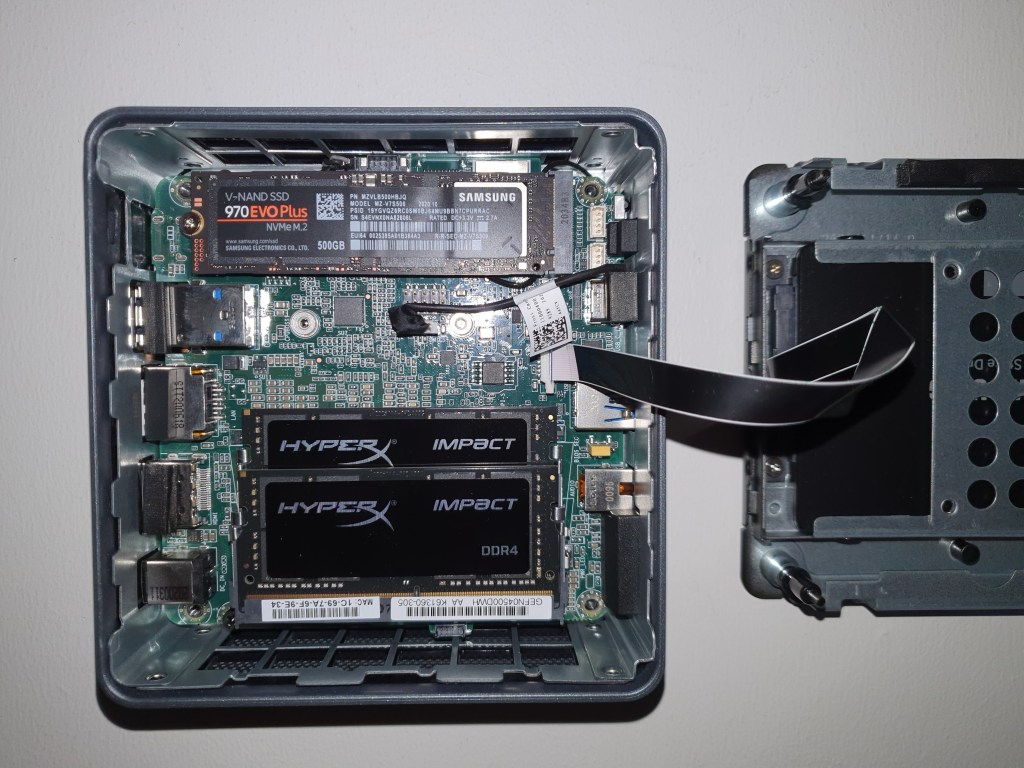
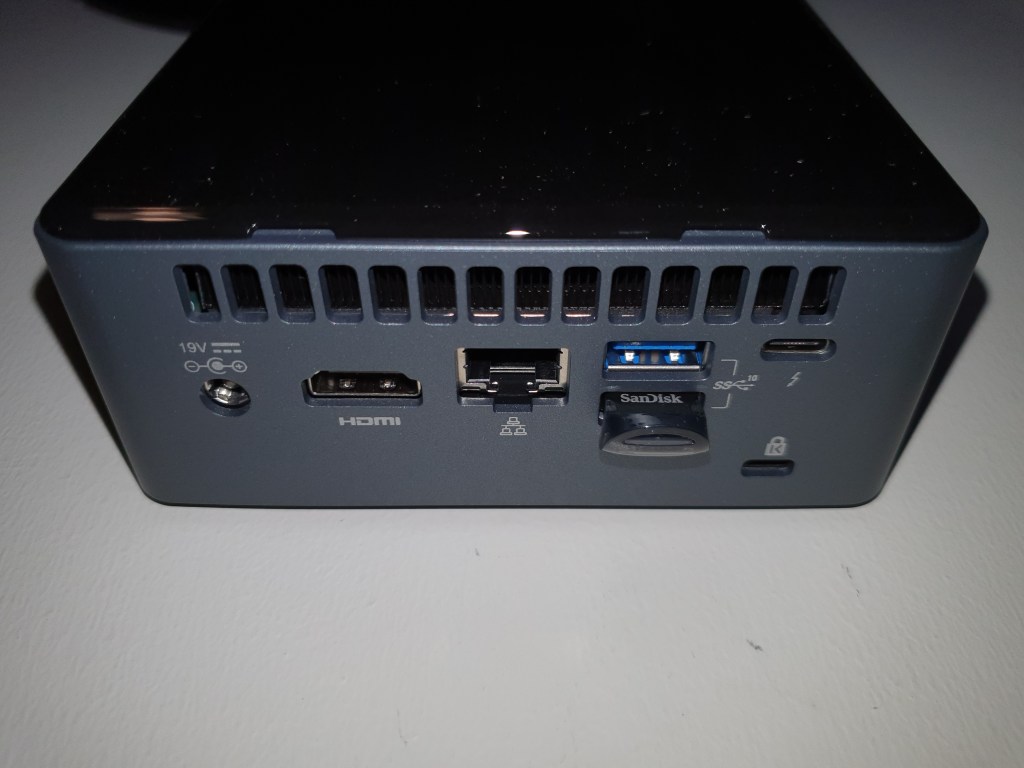
I didn’t spend a lot of time investigating what gear to get for my home lab, and I also wanted to keep cost at a sensible level. I came up with the following bill of materials after doing some research on what equipment would be able to run ESXi 7.0 without too much hassle. 

  • 2 x – NUC Kit i7-10710U Frost Canyon , NUC10i7FNH
  • 2 x – Impact Black SO-DIMM DDR4 2666MHz 2x32GB
  • 2 x – SSD 970 EVO PLUS 500GB
  • 2 x – 860 EVO Series 1TB
  • 2 x – CLUB 3D CAC-1420 – USB network adapter 2.5GBase-T
  • 2 x – SanDisk Ultra Fit USB 3.1 – 32GB

First I had to install the disk drives, the memory, and upgrade the NUCs firmware. All that went smoothly, and the hardware seemed to be solid, except for the SATA cable which is proprietary and flimsy. Be careful when opening and closing these NUCs to avoid breaking this cable. Then ESXi 7.0 was installed on the SanDisk Ultra Fits from another bootable USB drive. The Ultra Fits are nice to use for boot drives since they are very small physically. After booting ESXi for the first time, I installed the “USB Network Native Driver for ESXi” to get the 2.5 Gbps USB NICs to work. The NICs were directly connected without using a switch, since my switch doesn’t support 2.5GBase-T. This was repeated on both my NUCs as I wanted to set them up in a two node cluster.

vCenter Server 7.0 was installed using “Easy Install” which creates a new vSAN Datastore and places the VCSA there. Quickstart was used to configure DRS, HA and vSAN, since I felt lazy and hadn’t tested this feature before. vSAN was configured as a 2-Node Cluster and the Witness Host was already installed in VMware Workstation running on my laptop. I configured Witness Traffic Separation (WTS) to use the Management network for Witness traffic.

I configured the vSAN Port Group to use the 2.5 Gbps NICs and then used iperf in ESXi to measure the throughput. They managed to push more than 2 Gbps so I am satisfied with that, but latency was a bit higher than expected at round-trip min/avg/max = 0.244/0.748/1.112 ms. I was also not able to increase the MTU higher than the standard 1500 bytes which is a bit disappointing, but these NICs were almost half the price of other 2.5GBase-T USB NICs so I guess I can live with this for now since I only plan to use them for vSAN traffic. I will buy different cards if I need to use them with NSX in the future, since Geneve requires at least 1600 bytes MTU. There are several USB cards which have been proven to work with ESXi 7.0 supporting 4000 and even 9000 MTU.

This is all I have had time to do with the new home lab so far, but will post updates here when new tings are implemented, like NSX-T with L2VPN.

I have spent a lot more time in the corporate lab running in Proact’s data centers, and here are some details on what we have running there. This is just a short introduction, but I plan to post more details later. This lab is shared with the rest of the SDDC Team at Proact, like Christian, Rudi, Espen, and a few others.

Hardware

  • 16 x Cisco UCS B200 M3 blade servers, each with dual socket Intel(R) Xeon(R) CPU E5-2680 v2 @ 2.80GHz and 768 GB RAM.
  • 3 x Dell vSAN Ready Nodes (currently borrowed by a customer, but Espen will soon return them to the lab).
  • Cisco Nexus 10 Gigabit networking.
  • 32 TB of storage provided by NFS on NetApp FAS2240-4.
  • Two physical sites with routed connectivity (1500 MTU).

Software

  • vSphere 7.
  • 3 x vCenter Server 7.
  • vRealize Log Insight 8.1.1.
  • vRealize Suite Lifecycle Manager.
  • vRealize Operations 8.1.1.
  • vRealize Automation 7.6 with blueprints to deploy stand-alone test servers, as well as entire nested lab deployments including ESXi hosts, vCenter and vSAN.
  • phpIPAM for IP address management.
  • Microsoft Active Directory Domain Services, DNS and Certificate Services.
  • NSX-T Data Center 3.1.
    • Logical Switching with both VLAN backed and Overlay backed Segments.
    • 2-tier Logical routing.
    • Load Balancing, including Distributed Load Balancer to support Tanzu.
    • Distributed Firewall.
    • Layer 2 VPN to stretch L2 networks between home labs and the corporate lab.
    • IPSec VPN to allow one site to access Overlay networks on the other site.
    • NAT to allow connectivity between public and private networks.
    • Containers configured with Tanzu.
  • vSphere with Tanzu running awesome modern containerized apps like Pacman.
  • Horizon 8 providing access to the lab from anywhere.
  • Veeam Backup & Replication 10.
  • VMware Cloud Foundation (VCF) 4.2 – 8 nodes Stretched Cluster.

That’s it for now – Thanks for reading, and please go to the Contact page to reach out to me.

VCF 9 licenses now available for VMUG Advantage members

For a long time, access to personal-use VCF licenses have been available to anyone with a VMUG Advantage membership as long as they also pass a VCP-VCF certification. However, until recently these licenses were only available for VCF 5.x, but now we also get licenses for VCF 9. I have tested them in my lab and they work fine.

More details about the VMUG Advantage membership can be found here: https://www.vmug.com/membership/vmug-advantage-membership/

Deploy an NSX Edge Cluster in VCF 9

For the vSphere Supervisor that I deployed in my last post to work I needed to deploy an NSX Edge Cluster. This can now be done in the vSphere Client so that is what I chose to do to get some experience with this process.

This is done by going to the vCenter for the Workload Domain and select Networks, Network Connectivity and click on Configure Network Connectivity.

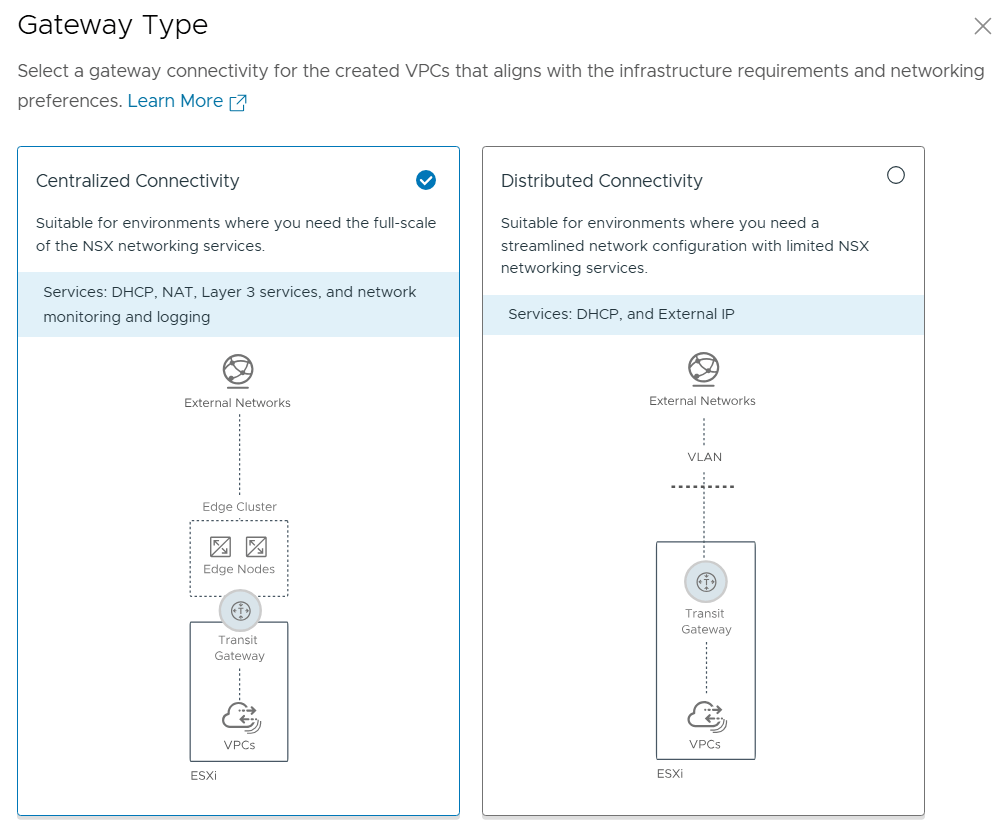
We get the choice between Centralized Connectivity and Distributed Connectivity. Centralized Connectivity is required to use VCF Automation All Apps and vSphere Supervisor so that is what I chose.

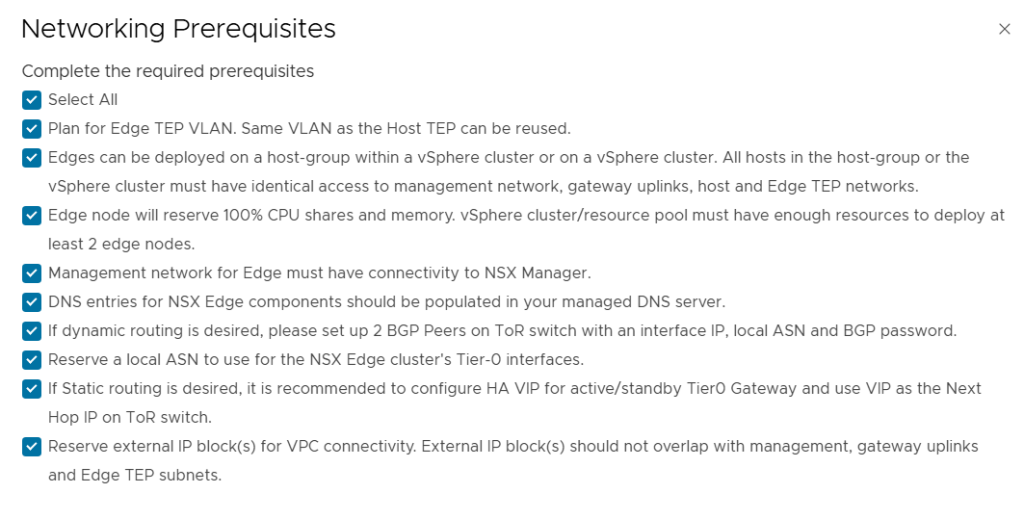
I reviewed and accepted all the prerequisites and clicked on continue.

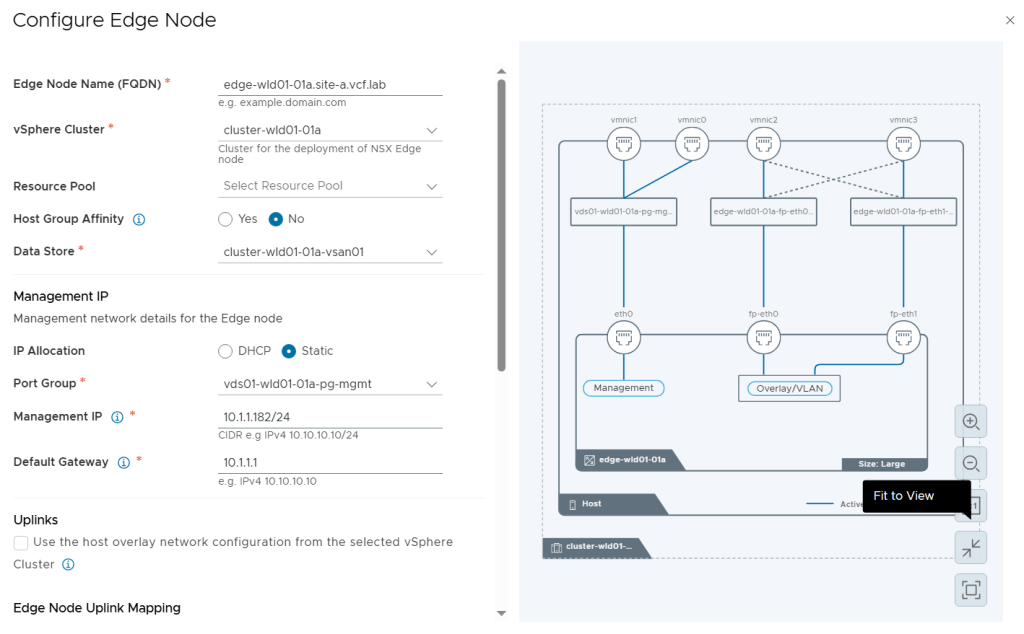
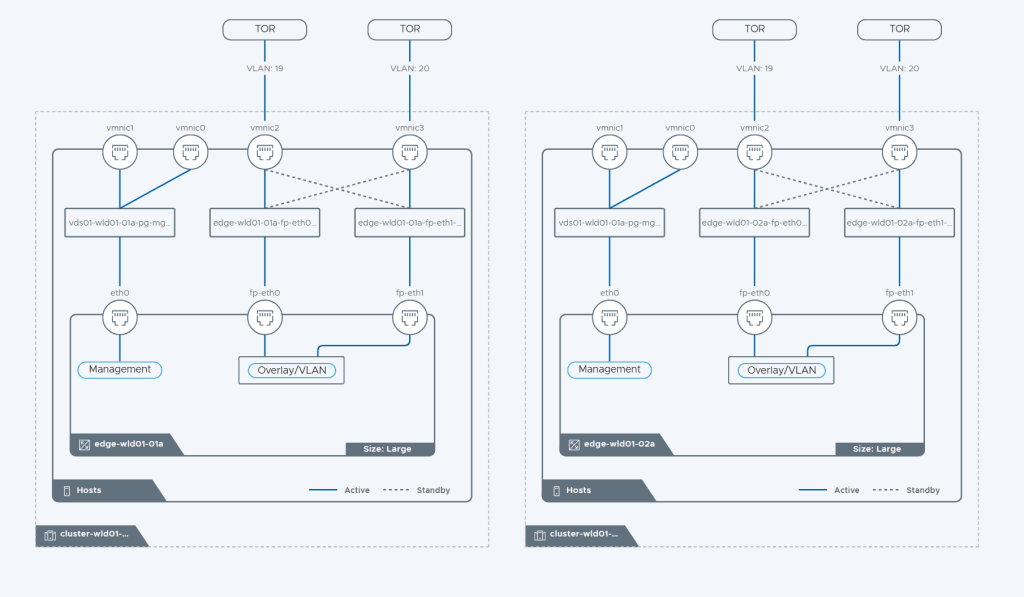
While configuring the Edge Nodes we get this nice diagram view on the right side showing us what it will look like.

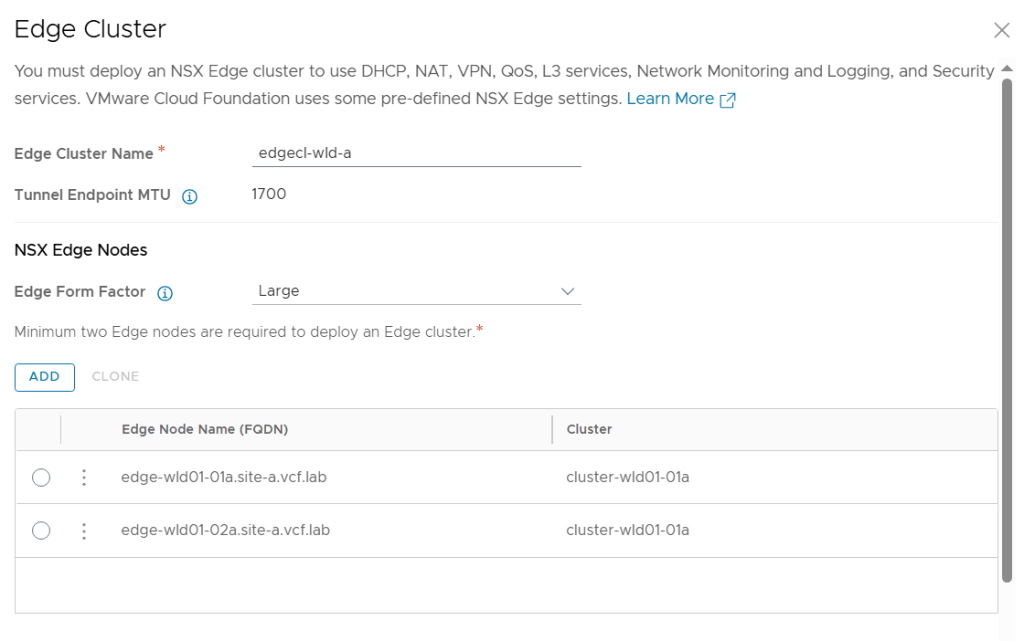
I configured two Large Edge Nodes.

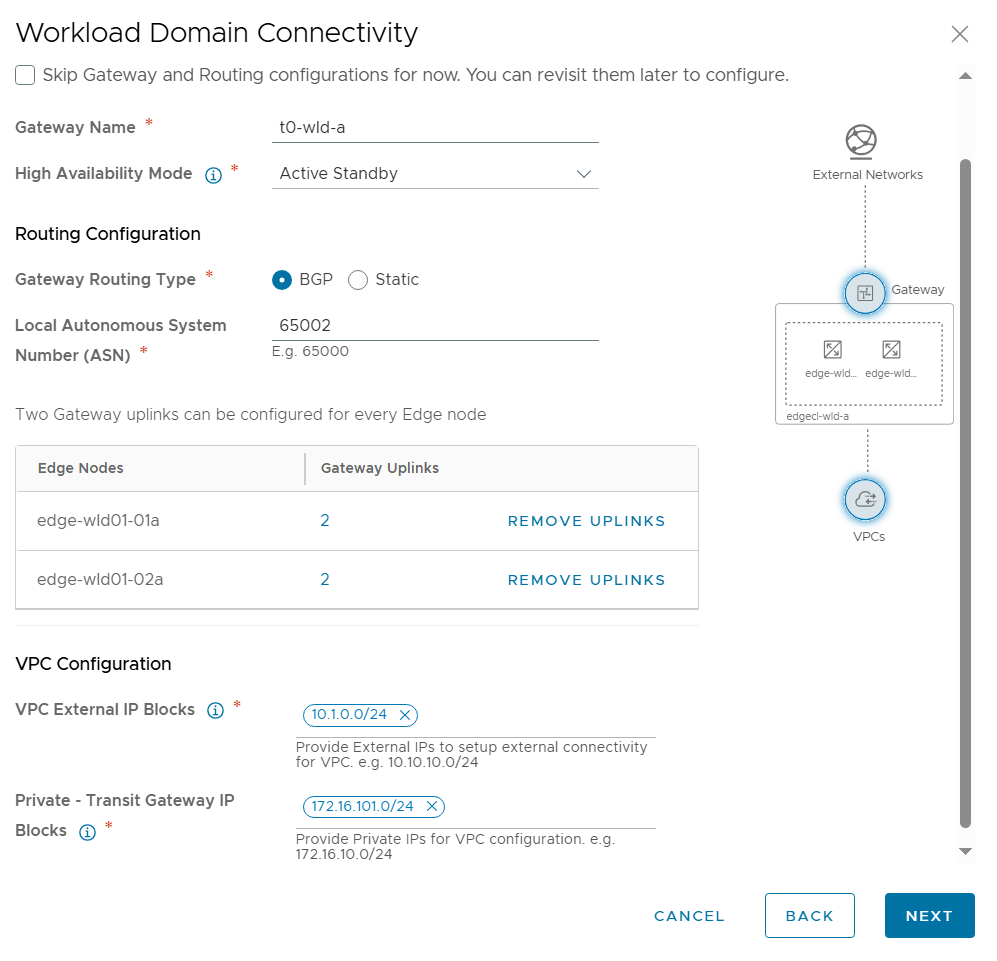
Next was to configure Workload Domain Connectivity. The Gateway Name here is the name of the Tier-0 Gateway in NSX to be created. Note that I selected Active Standby since that is also a requirement to use VCF Automation All Apps and the vSphere Supervisor.

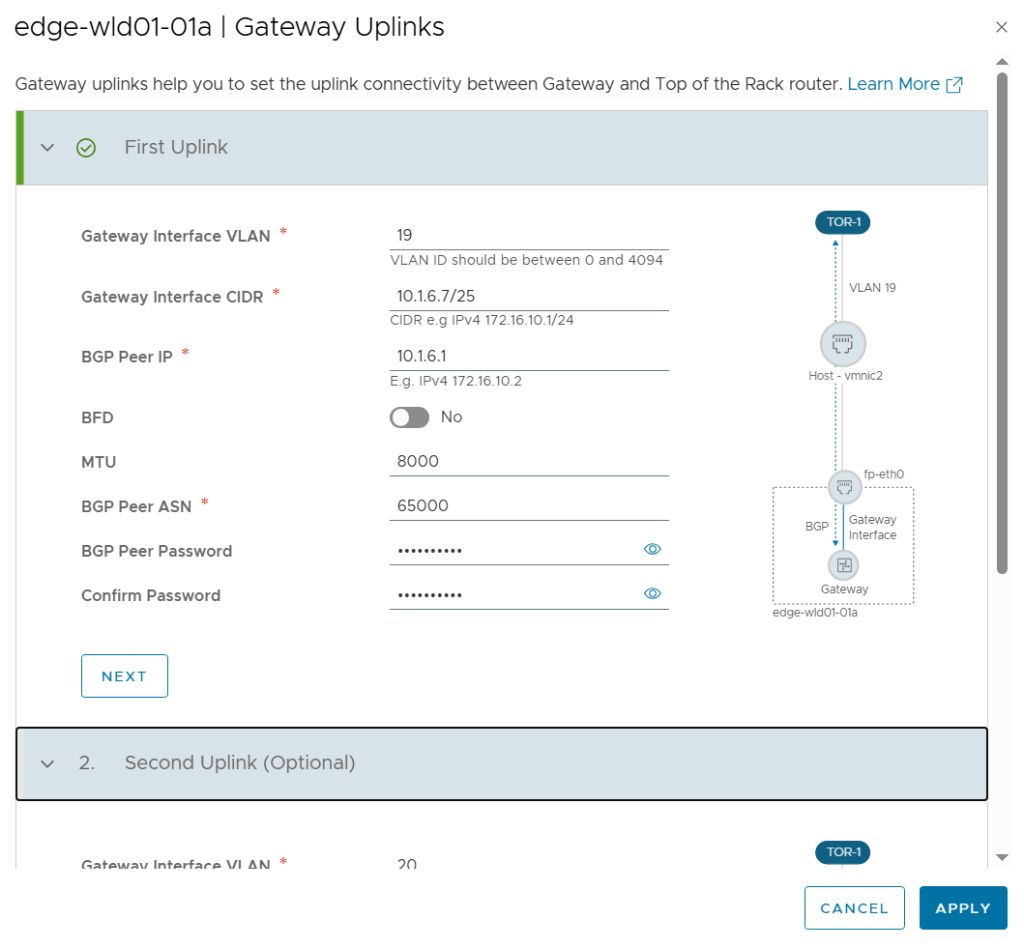
I also had to configure the Gateway Uplinks. This was pretty much the same as doing the configuration from SDDC Manager or from NSX Manager, but the terminology is a bit different. Gateway Interface was used to be called Uplink interface.

On the review page of the wizard we get this beautiful diagram showing us how the Edge Cluster will be built.

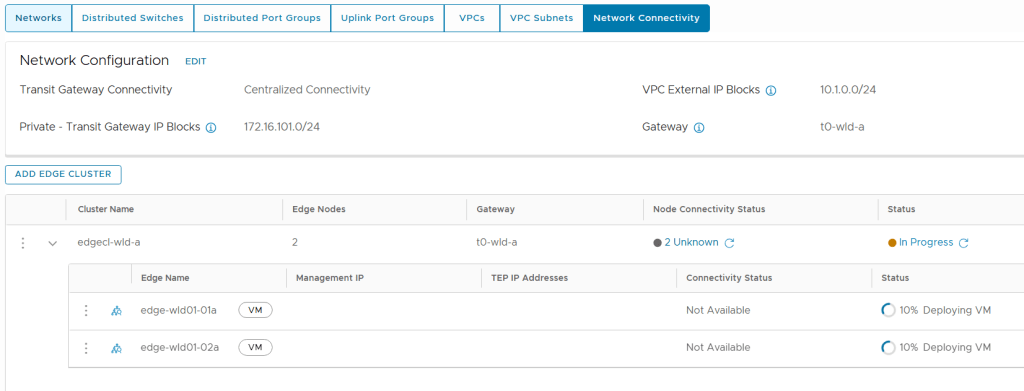
During deployment we can follow the status directly in the vSphere Client. But it is still NSX Manager who is doing all the heavy lifting here so we can also check status there.

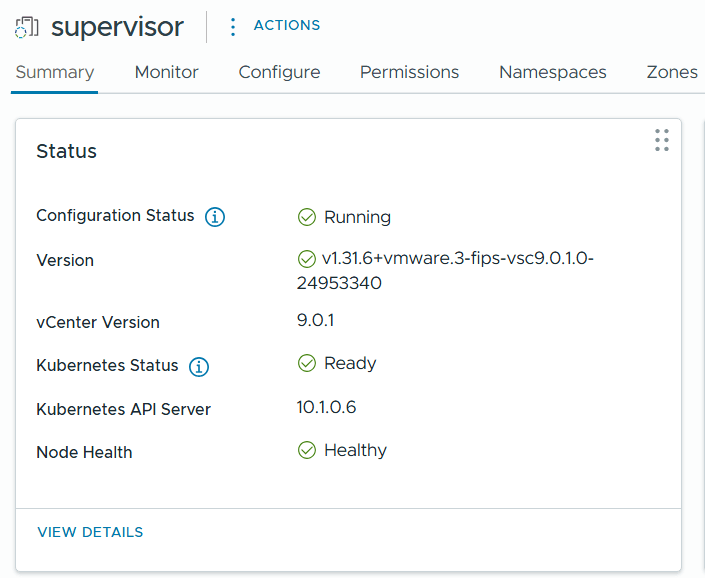
After a while the Edge Cluster deployment finished successfully and when checking Supervisor Management in the vSphere Client I could see that it was still configuring, but after some time that also completed successfully.

Deploy a Workload Domain with vSphere Supervisor in VCF 9

This post will show you how I deployed a new Workload Domain in VMware Cloud Foundation 9 (VCF 9) with the vSphere Supervisor enabled. vSphere Supervisor lets me provision and manage virtual machines, containers and full Kubernetes clusters through vSphere Kubernetes Service (VKS) on my VCF platform.

Broadcom’s documentation has a nice summary of what vSphere Supervisor provides:

“Having a Kubernetes control plane on the vSphere clusters enables the following capabilities in vSphere:

  • As a vSphere administrator, you can create namespaces on the Supervisor, called vSphere Namespaces, and configure them with specified amount of memory, CPU, and storage. You provide vSphere Namespaces to DevOps engineers.
  • As a DevOps engineer, you can run Kubernetes workloads on the same platform with shared resource pools within a vSphere Namespace. You can deploy and manage multiple upstream Kubernetes clusters created by using vSphere Kubernetes Service. You can also deploy Kubernetes containers directly on the Supervisor inside a special type of VM called vSphere Pod. You can also deploy regular VMs.

  • As a vSphere administrator, you can manage and monitor vSphere Pods, VMs, and VKS clusters by using the vSphere Client.

  • As a vSphere administrator, you have full visibility over vSphere Pods, VMs, and VKS clusters running within different namespaces, their placement in the environment, and how they consume resources.

Having Kubernetes running on vSphere clusters also eases the collaboration between vSphere administrators and DevOps teams, because both roles are working with the same objects.”

More details here: What Is vSphere Supervisor?

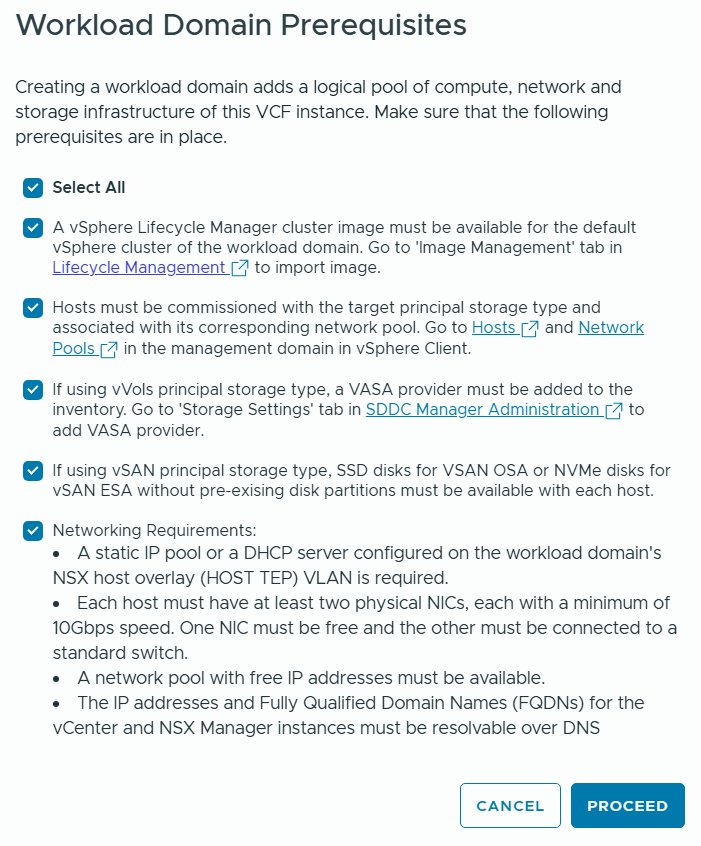
Deploying a new Workload Domain has the following two prerequisites:

  • A vSphere Lifecycle Manager cluster image must be available for the default vSphere cluster of the workload domain.
  • Hosts must be commissioned with the target principal storage type.

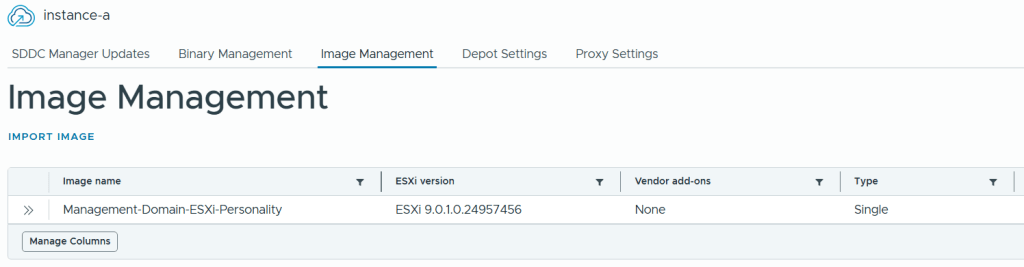
I already had a Lifecycle Manager cluster image in VCF Operations so I used that for my new Workload Domain.

To be able to commission new hosts in my instance, I first had to deploy them. Since I use Holodeck 9 that was easily done with this command:

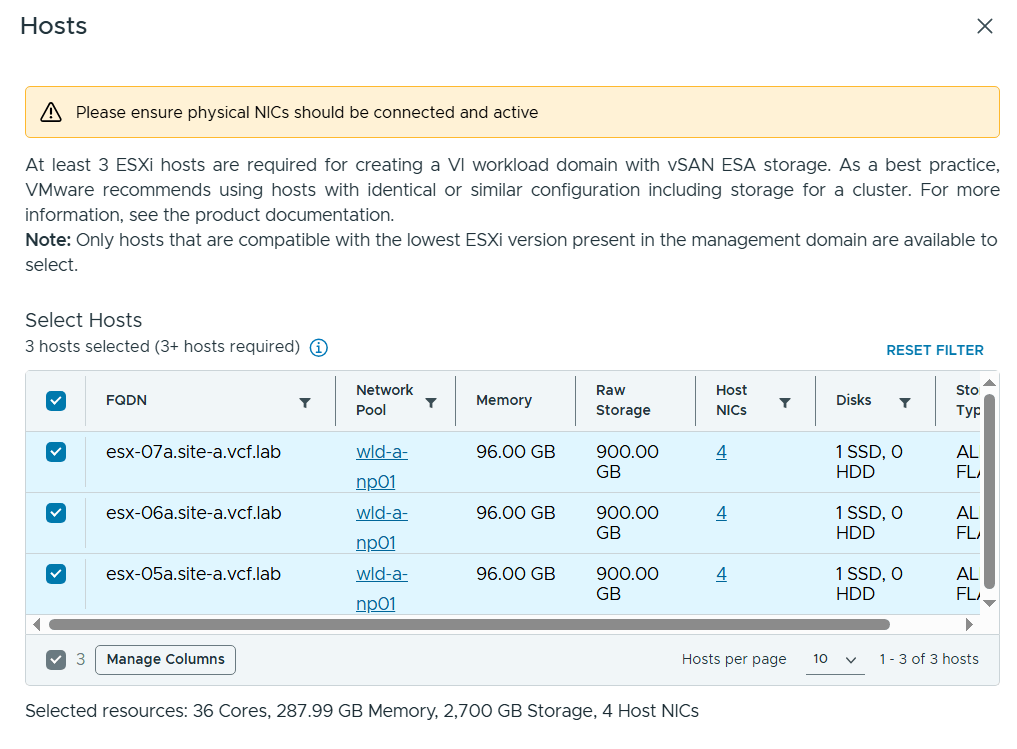
New-HoloDeckESXiNodes -Nodes "3" -CPU "12" -MemoryInGb "96" -Site "a" -vSANMode "ESA"

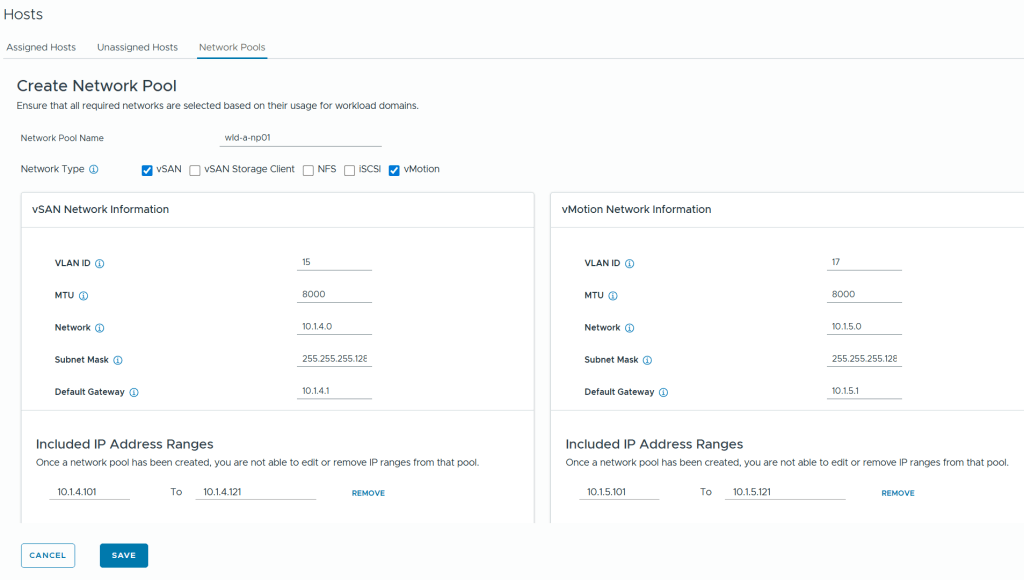
Then I had to create a new Network Pool to be used by the hosts in the new Workload Domain. This used to be done in SDDC Manager but now it is done in the vSphere Client by going to Global Inventory Lists, Hosts, Network Pools.

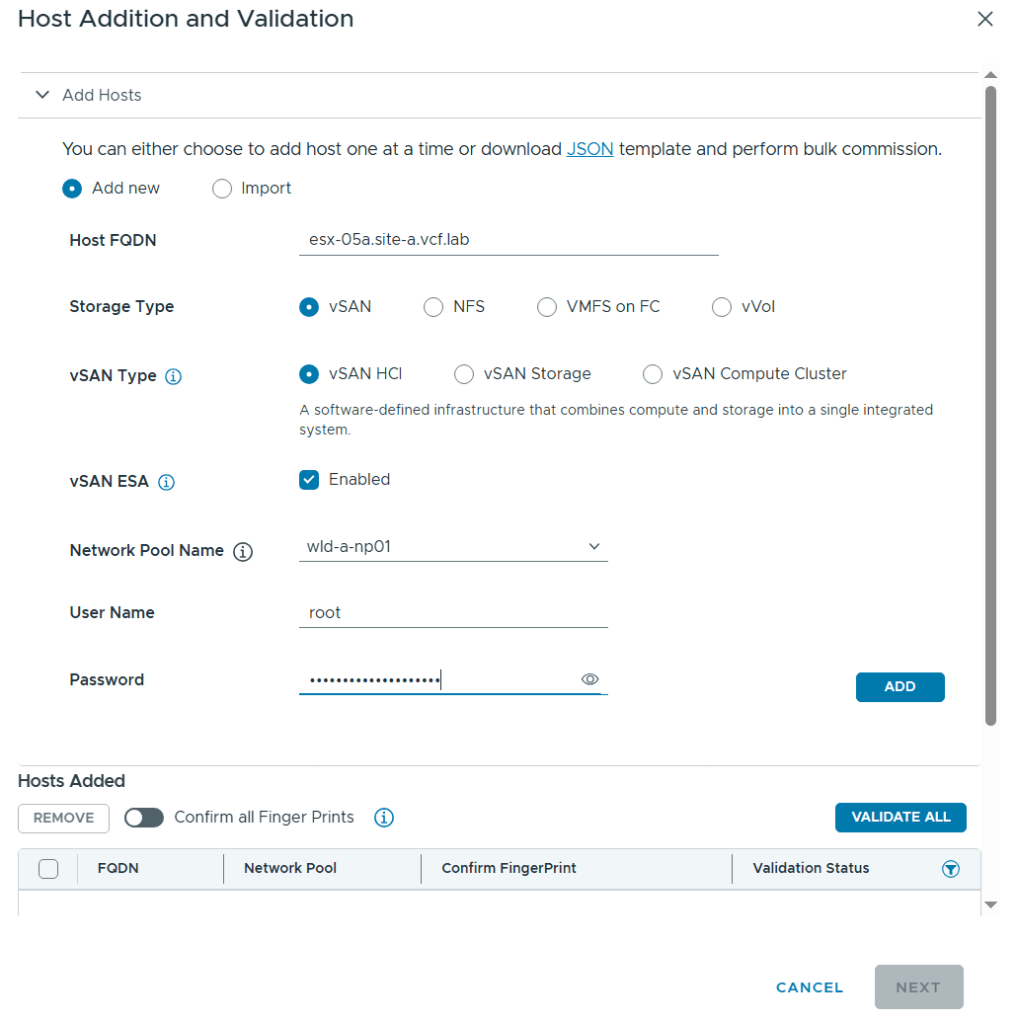
Host commissioning is also done in the vSphere Client now by going to Global Inventory Lists, Hosts, Unassigned Hosts.

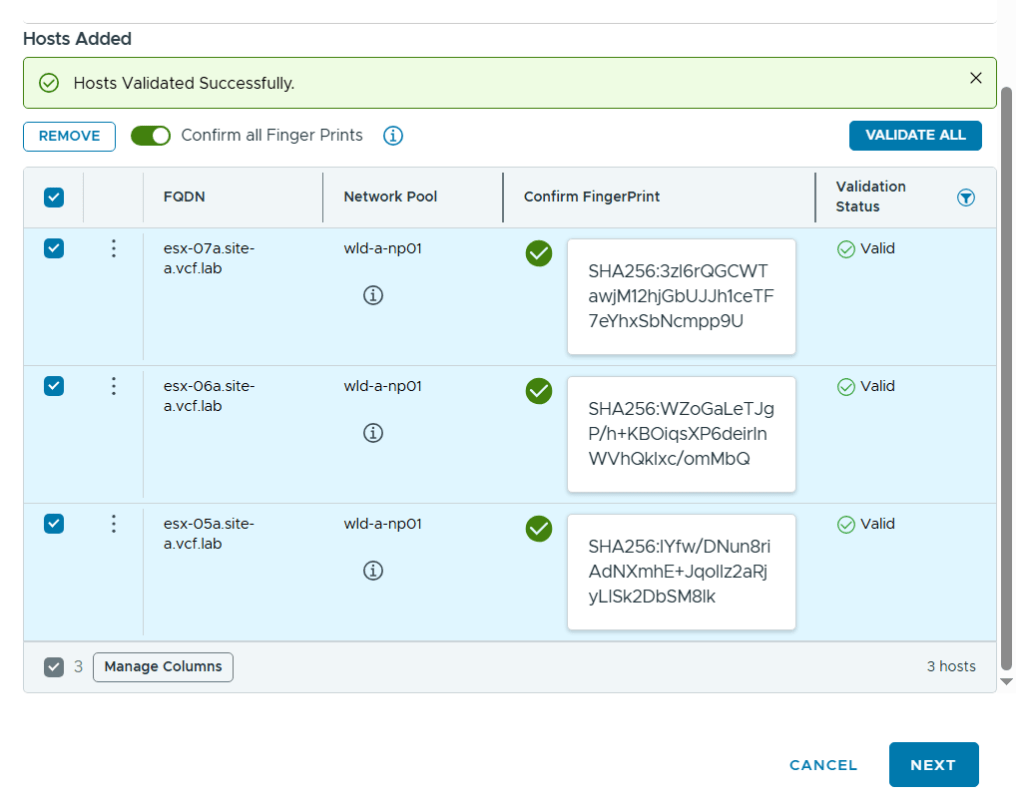
After adding all my hosts in the wizard I had to confirm their fingerprints and choose to validate them by clicking on Validate All.

After clicking Next, and then Commission after reviewing the configuration, it kicks off a task that can be monitored in the vSphere Client, in the VCF Operations user interface and in the SDDC Manager user interface. The vSphere Client gives you the least amount of details as you can’t see all the subtasks.

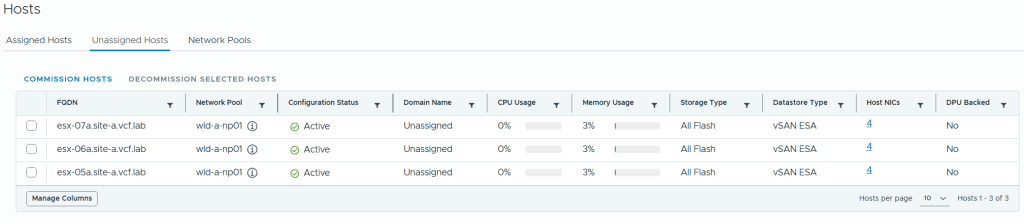
After the task completed successfully I could see my new hosts under Unassigned Hosts in the vSphere Client.

Creating a new Workload Domain is done in VCF Operations by going to Inventory, Detailed View, expand VCF Instances and browse to the VCF instance in which you want to create a new workload domain, then click on Add Workload Domain and Create New.

I was then presented with the following prerequisites checklist which I reviewed and chose to proceed.

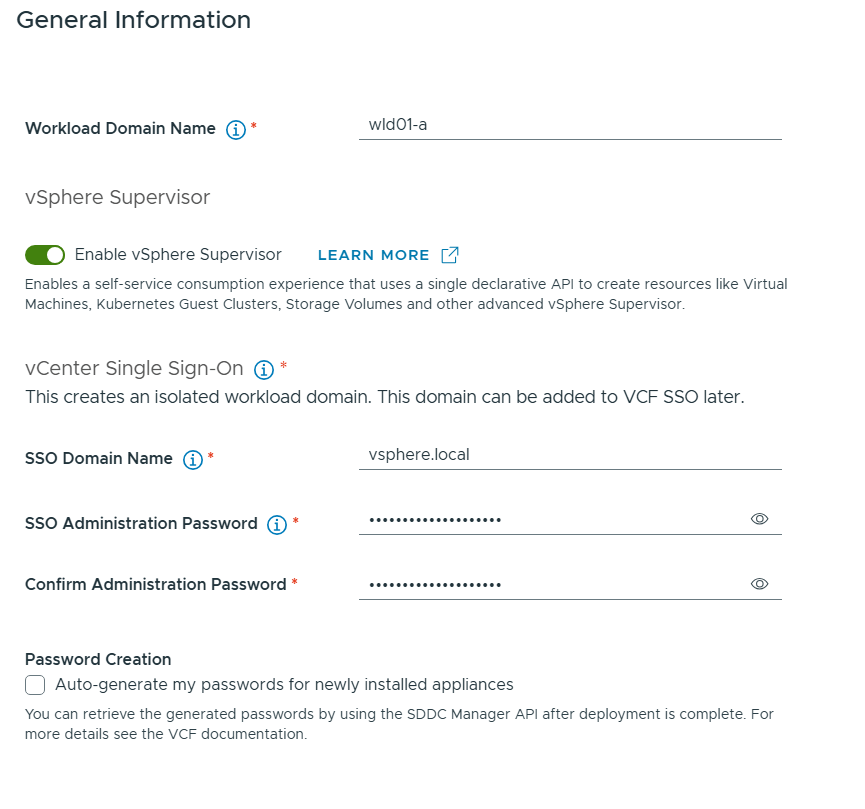
Then I had to enter some general information about my new Workload Domain.

Note that I have selected to enable vSphere Supervisor which will provide a platform for running Kubernetes workloads in vSphere as well as Virtual Machines.

You can see that I will get and isolated workload domain meaning no Enhanced Linked Mode with the vCenter in the Management Domain. This is the only way going forward. We can still use the same SSO Domain Name.

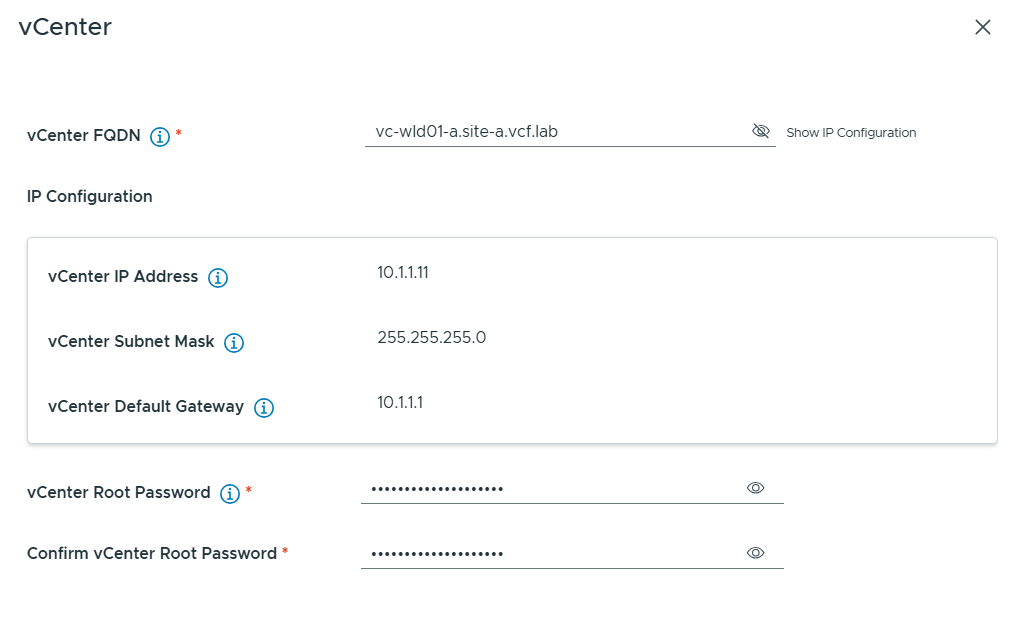
Next I had to provide the FQDN and password for the vCenter in my new Workload Domain. Note that the wizard looks up in DNS to find the IP address so make sure that is configured in advance.

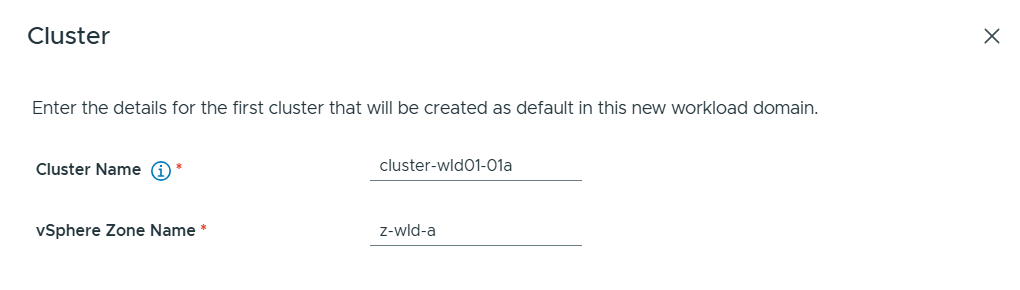
Then I had to provide Cluster details. vSphere Zone Name is used by the vSphere Supervisor to map to the vSphere cluster.

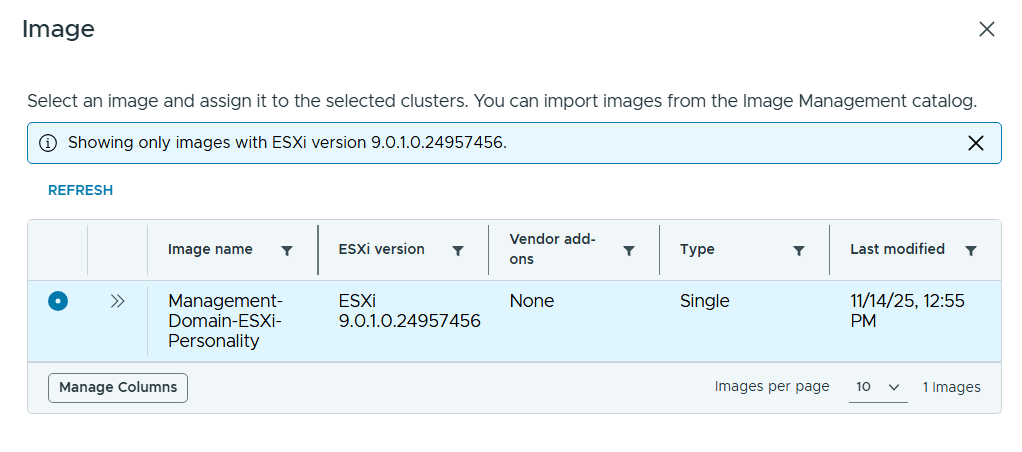
I selected the same image I used for my Management Domain.

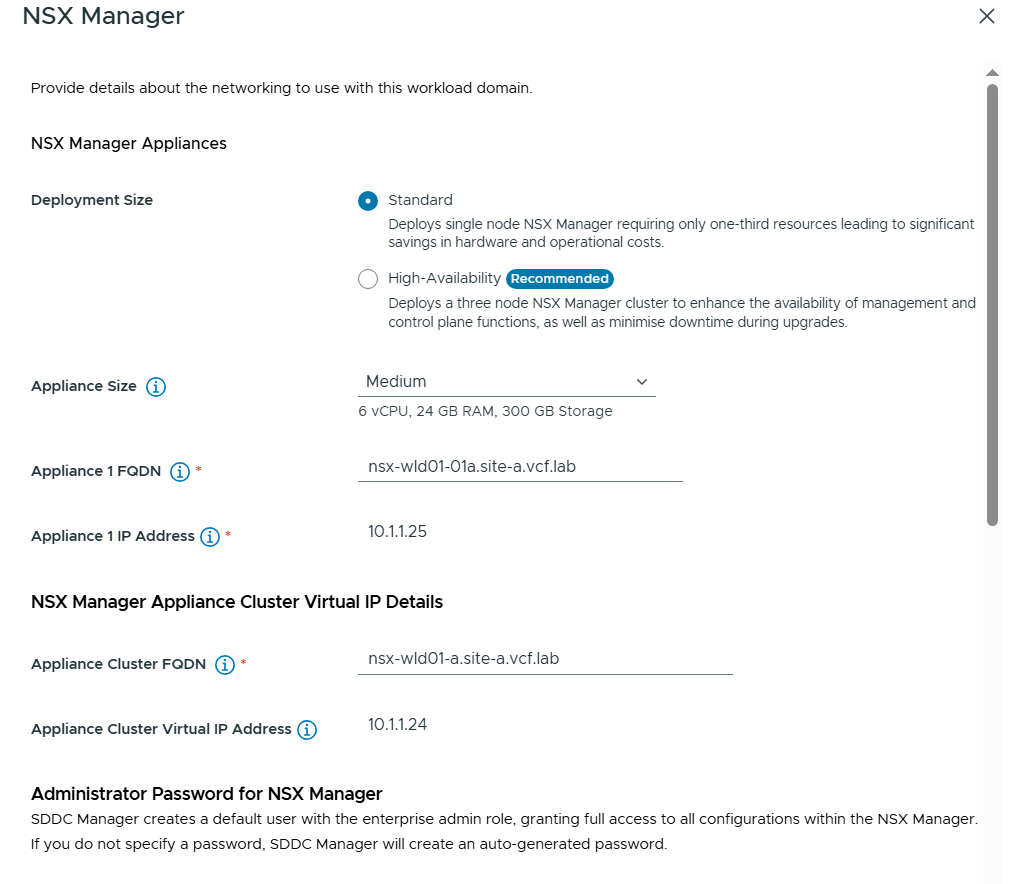
Next I had to enter details about NSX Manager. I chose to use the Standard deployment size since this was a lab deployment and I wanted to save some resources. Note that I still have to configure an Appliance Cluster FQDN and VIP so that we can easily expand the deployment into a three node cluster later if needed.

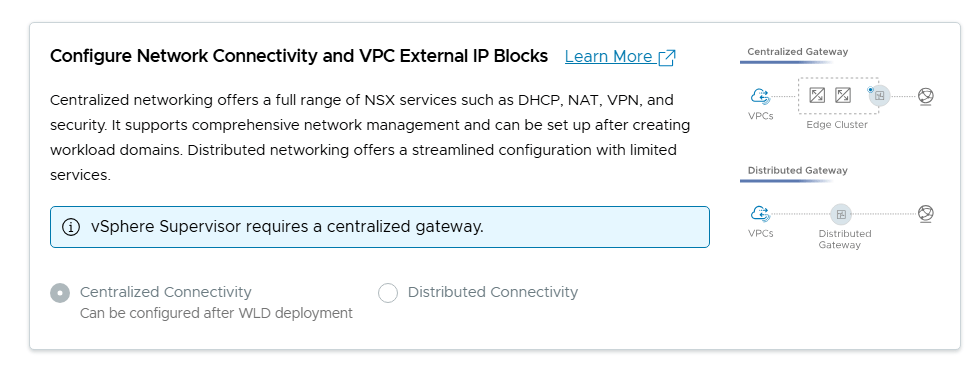
By scrolling down I could see that it was mandatory to configure the network connectivity with Centralized Connectivity since this is required by the vSphere Supervisor.

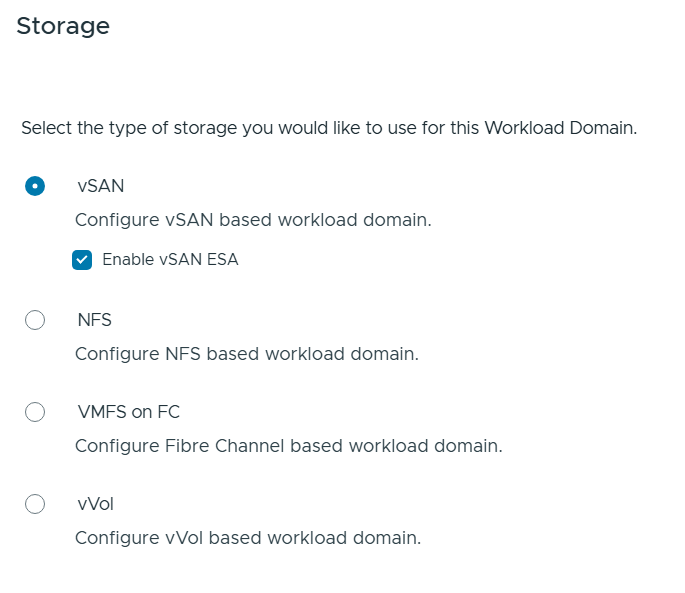
Then I had to choose my Storage type for the Workload Domain and since vSAN ESA is awesome I selected that.

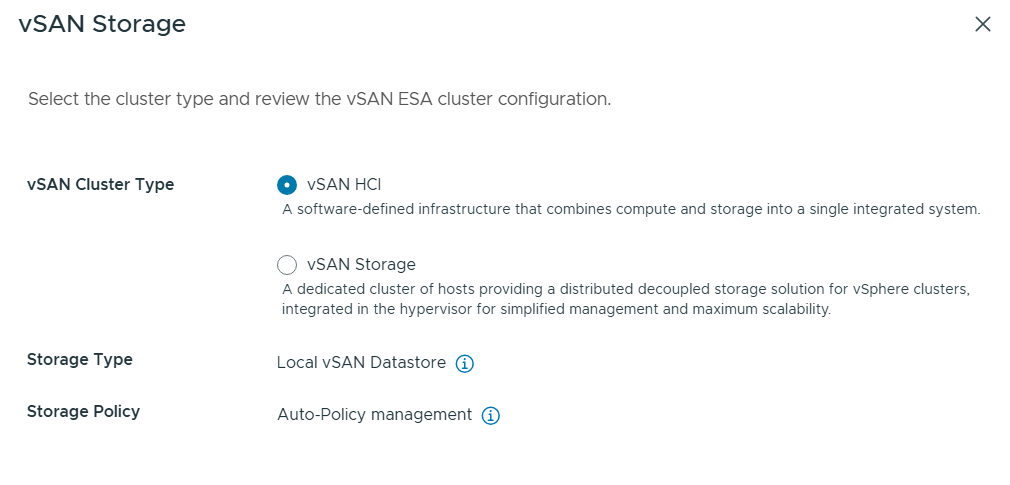
I also had to choose the type of vSAN Storage to use and selected vSAN HCI.

Next I had to select my three newly commissioned hosts to be used by the new Workload Domain.

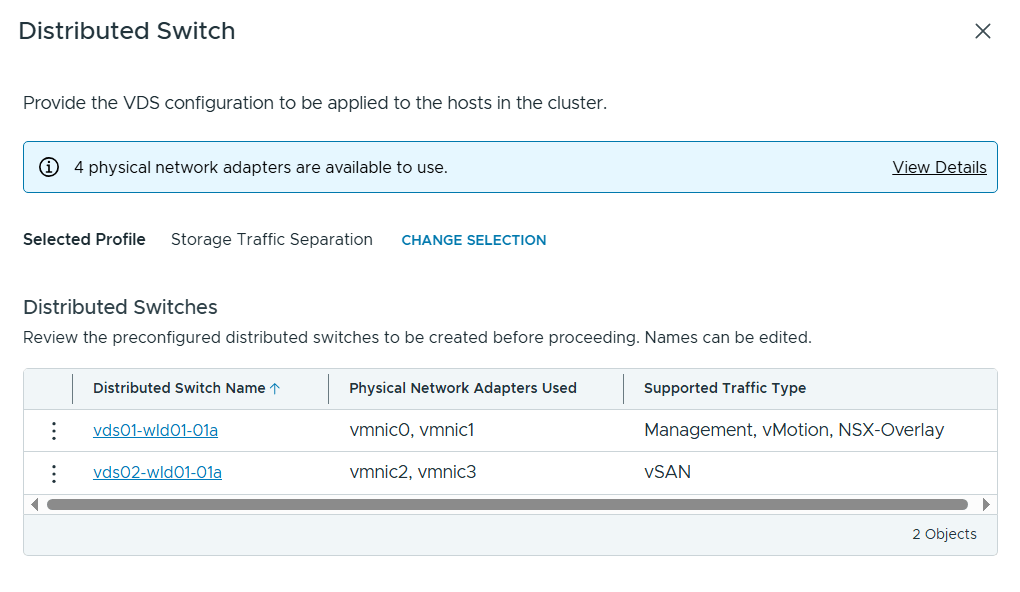
When configuring the Distributed Switch (VDS) I selected the Storage Traffic Separation profile to get vSAN traffic onto a separate VDS. I also had to edit the first VDS to specify my host transport VLAN for NSX.

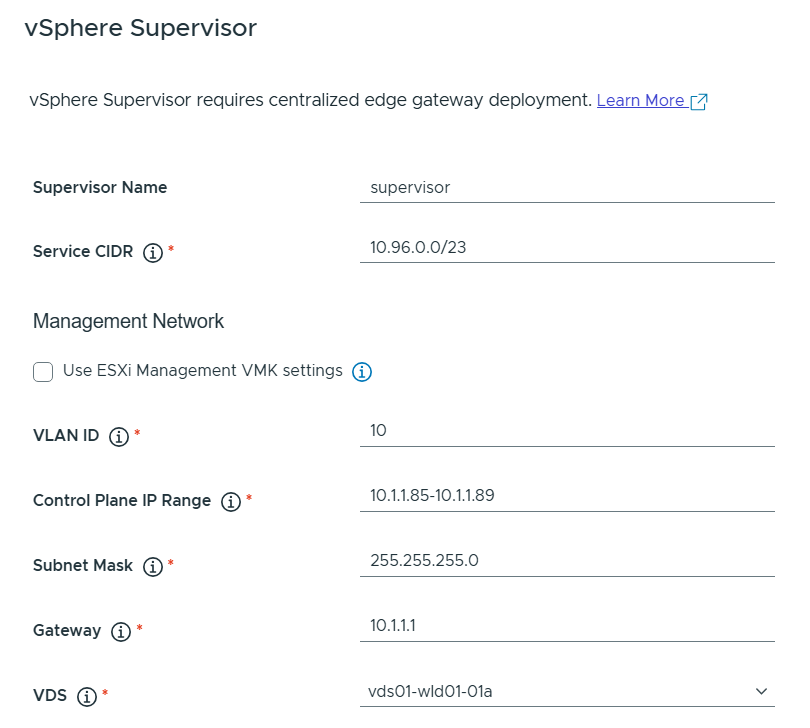
vSphere Supervisor was then configured like this.

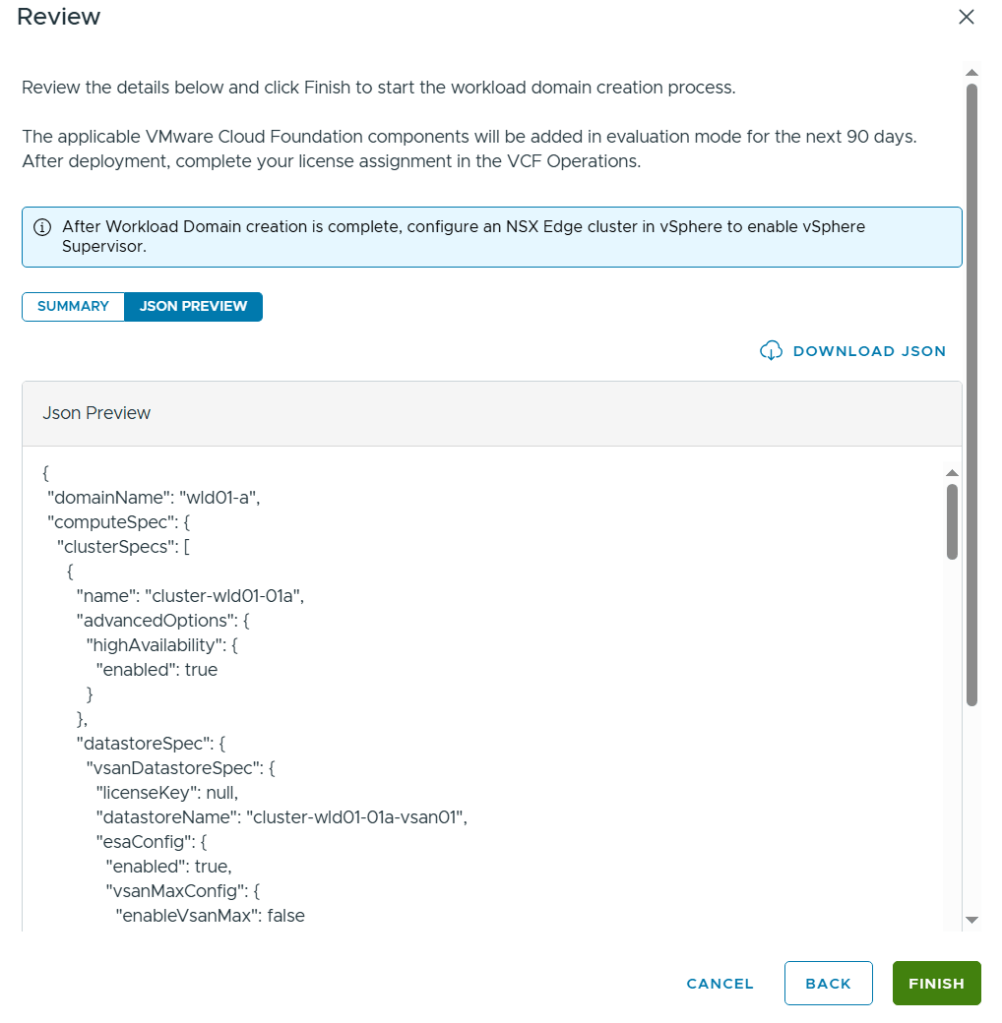
In the end I was able to review all my settings in a summary and also able to get a json preview as well as downloading the json file. The json file can be edited and used to deploy a Workload Domain in one step and is how I usually do it, but I wanted to get experience with all the steps in the wizard in VCF 9 first.

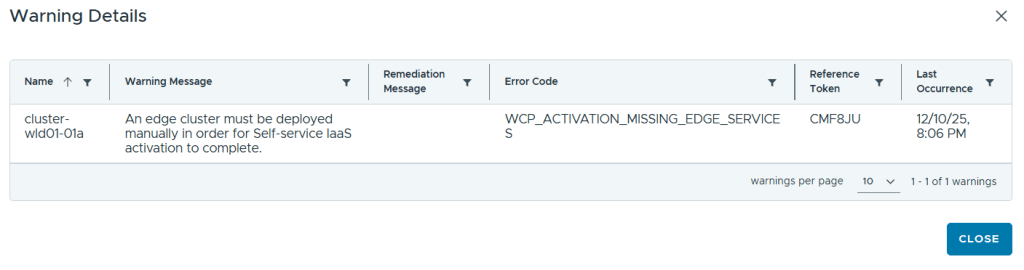
After clicking on Finish it kicks of a task and after some time the deployment is done. I got the following warning, but that was expected since I knew that Centralized Connectivity requires an NSX Edge Cluster.

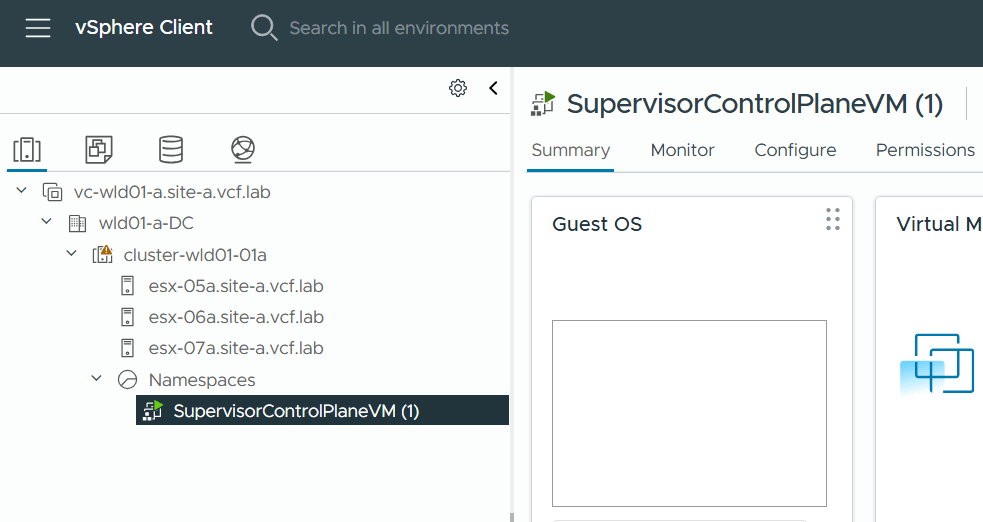
Logging into the new Workload Domain vCenter showed that I had one SupervisorControlPlaneVM running.

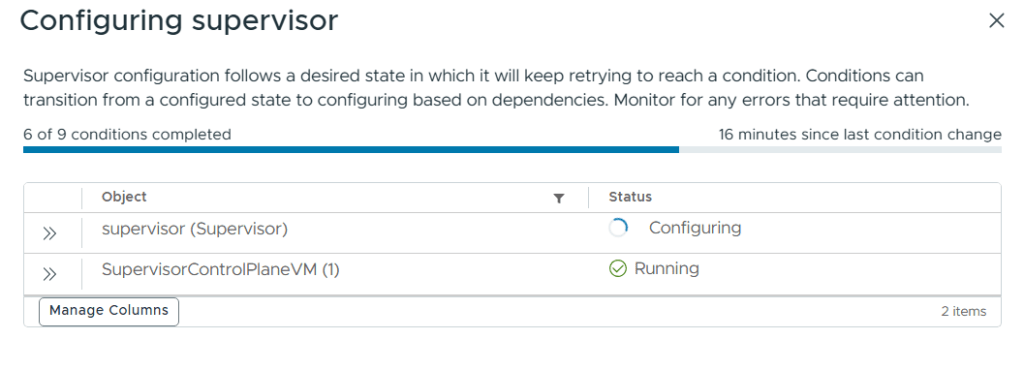
I went to Supervisor Management and could see that it was still configuring.

Next up is deploying the NSX Edge Cluster and looking into creating an All Apps Org in VCF Automation.

Deploying VCF Operations for Logs in VCF 9

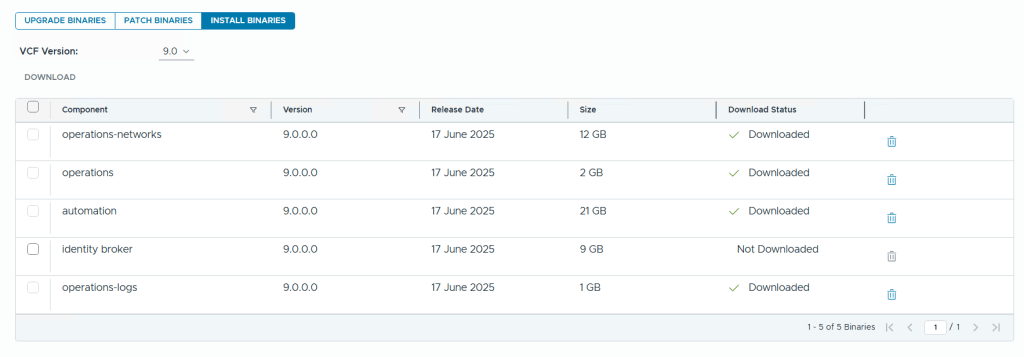
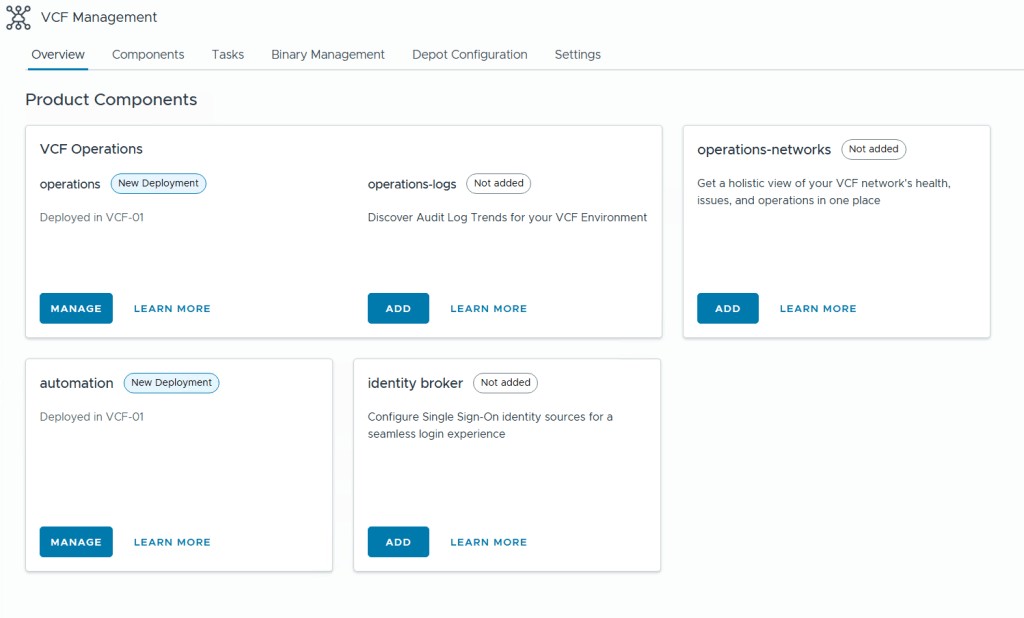
When deploying a new VCF Fleet, Operations for Logs is not deployed and needs to be done using VCF Operations later. As you can see from the image below, VCF Operations and VCF Automation (automation) are labeled with “New Deployment” since they are deployed, while VCF Operations for Logs (operations-logs), VCF Identity Broker (identity broker) and VCF Operations for Networks (operations-networks) are not deployed (Not added).

To be able to add product components we first have to add the binaries by going to Binary Management and download the required install binaries. Note that you can also download Upgrade Binaries and Patch Binaries here. After deployment you can choose to delete the binaries here to free up disk space on you Fleet Manager appliance.

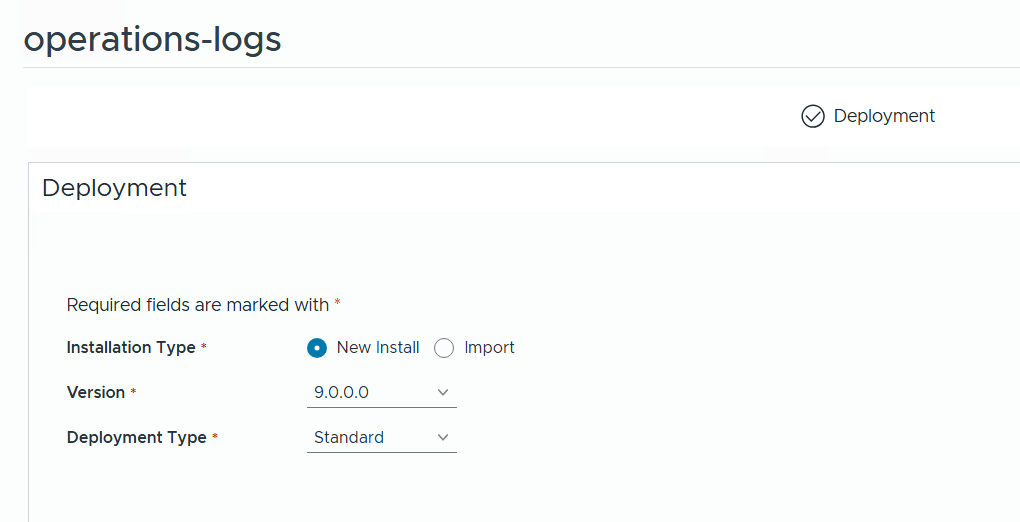
To deploy Operations for Logs we go back to the Overview page and click on Add which takes us to this page where we can choose between a new install, importing an existing deployment, what version we want, and if we want a standard or clustered deployment.

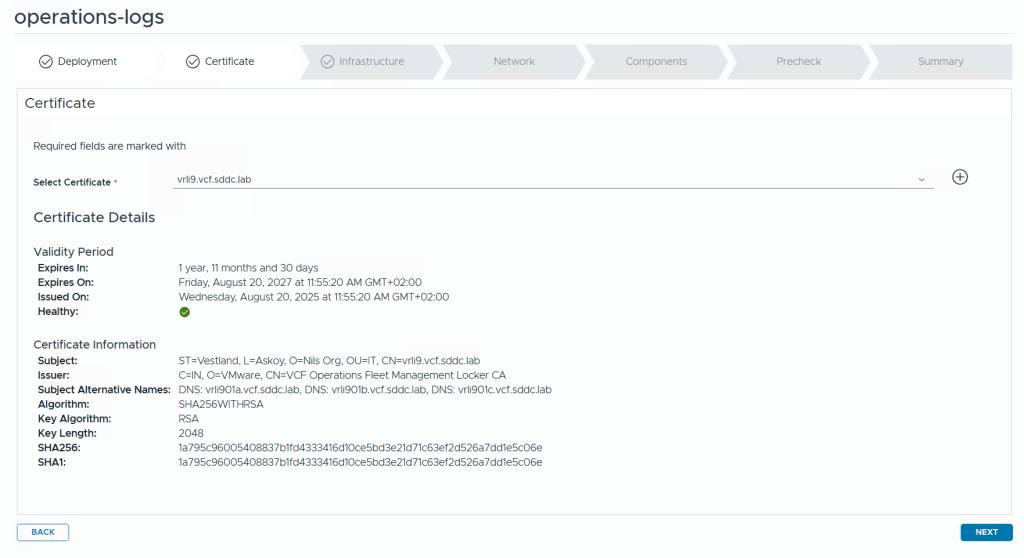
The first step is to select a certificate. If you don’t already have one you can click on the plus icon to create a new one directly in the wizard.

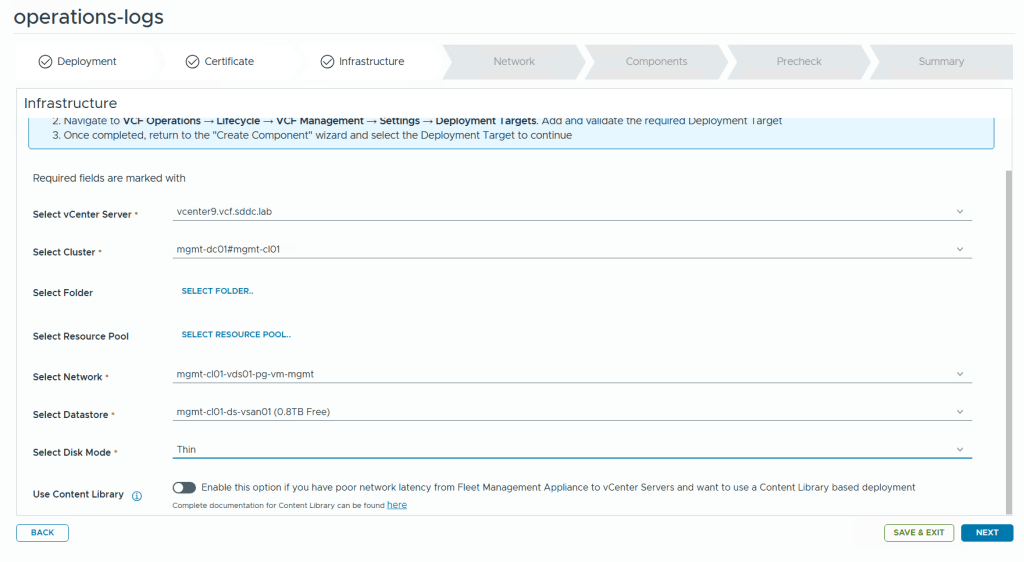
The next step needs details about the infrastructure you want to deploy to. Most of the information is populated automatically.

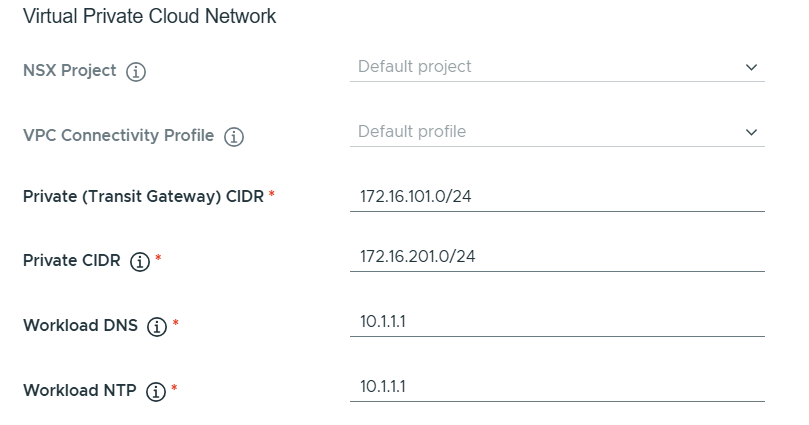
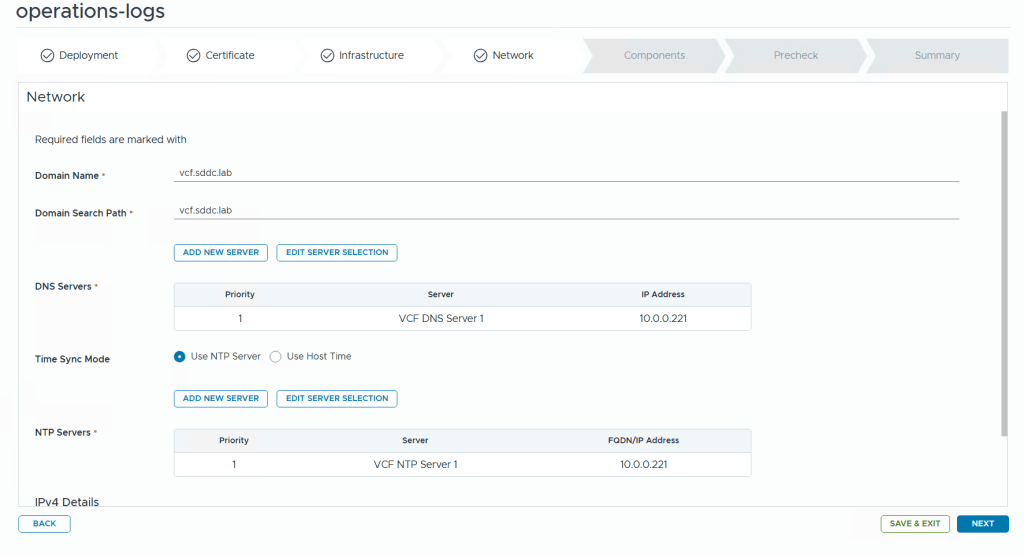
We are then asked to configure network settings like DNS domain name, DNS Servers, NTP Servers and so on.

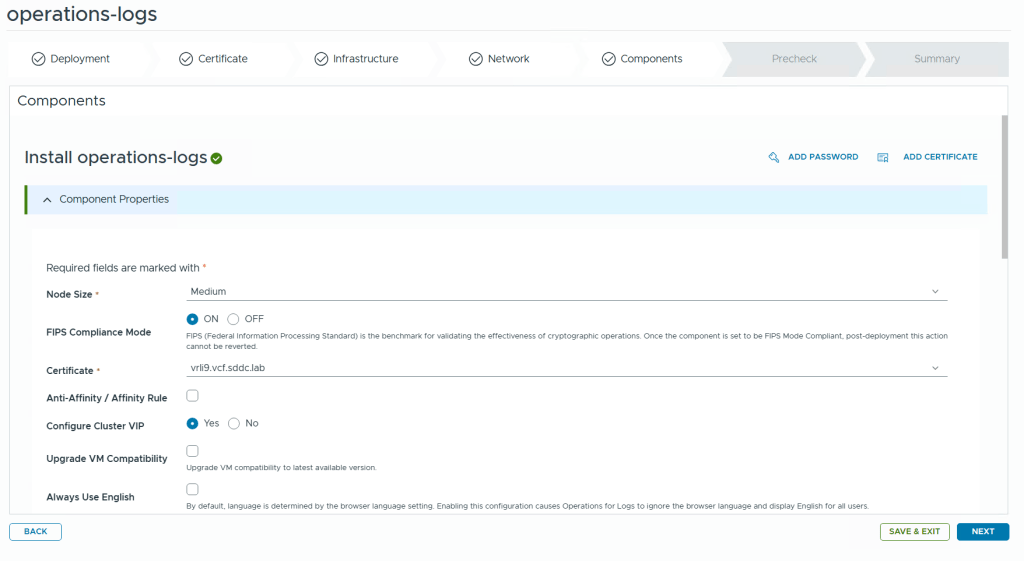
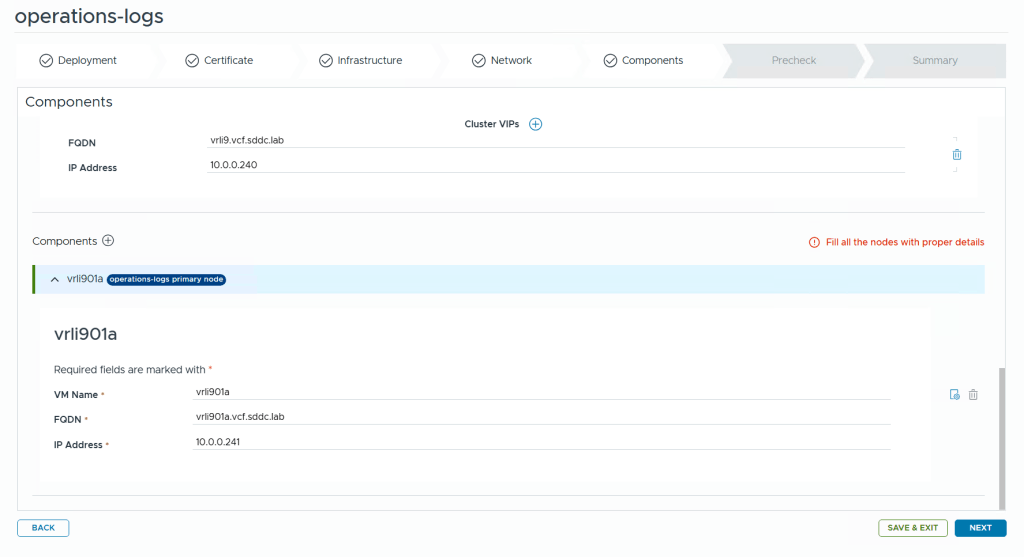
Finally we get to the components page where details about the appliance nodes are requested. Note that there is a tiny icon with a gear on the right side where you configure the VM name. Clicking on this takes us to the advanced settings where we can set things like root password and also choose a different network for each node if you deploy multiple nodes. This can be very useful when deploying other components like VCF Operations or VCF Operations for Networks where you also deploy collector nodes which often is to be deployed in a different network than the platform nodes.

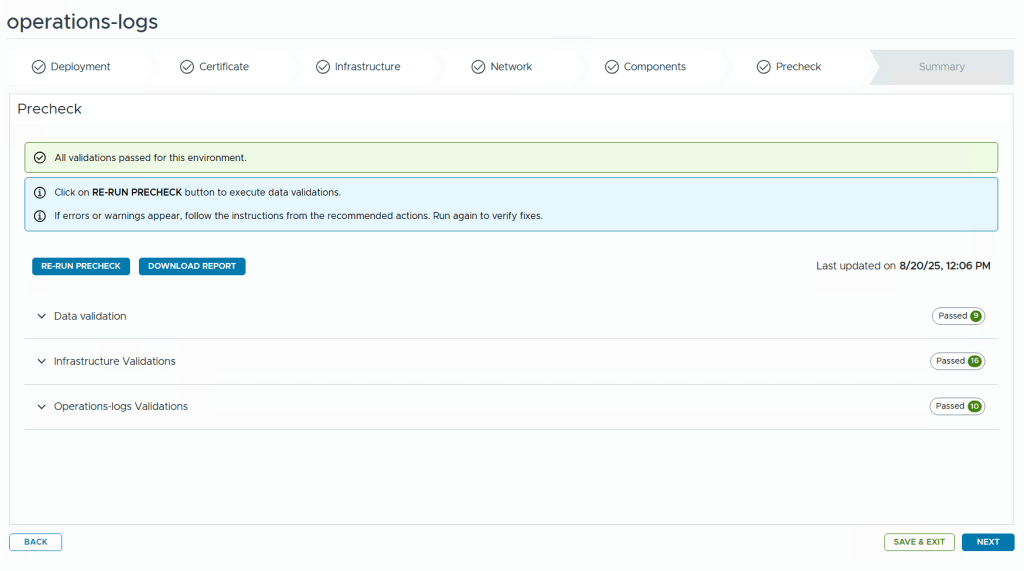
Before kicking off the deployment we get to run a pre-check. I highly recommend fixing any warnings or errors detected before starting the deployment or you will most likely be sorry later.

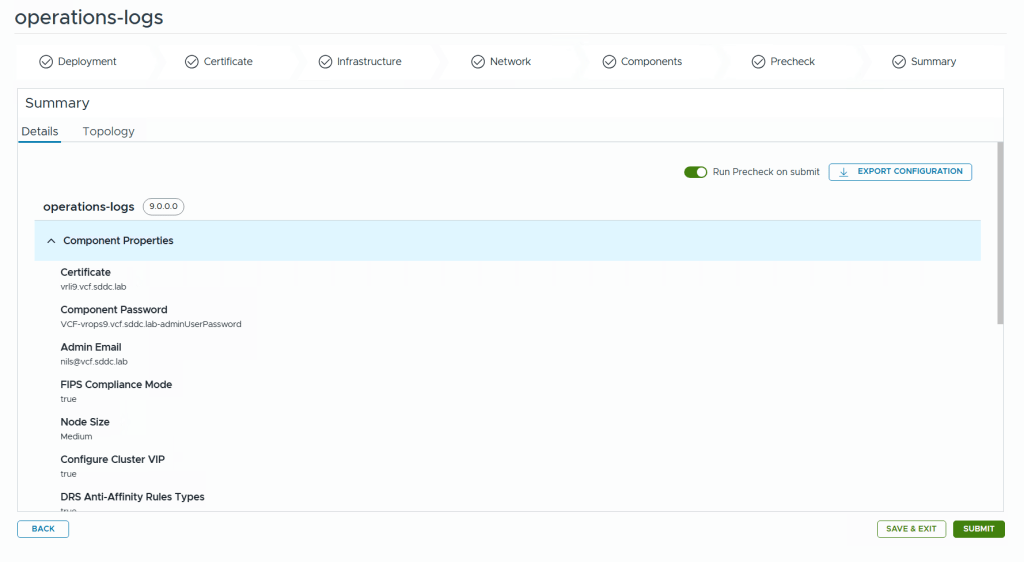
Note that you can export the configuration to a json file before submitting. You can also choose to Save and exit the wizard and continue at a later time.

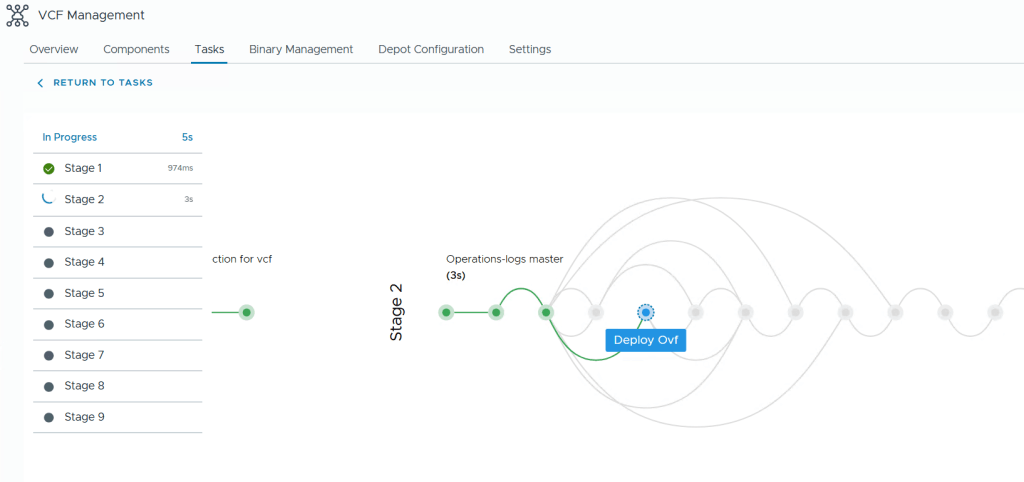
During the deployment you get this beautiful status page with fancy animations showing you how far it is in the process and a few words about what is currently doing.

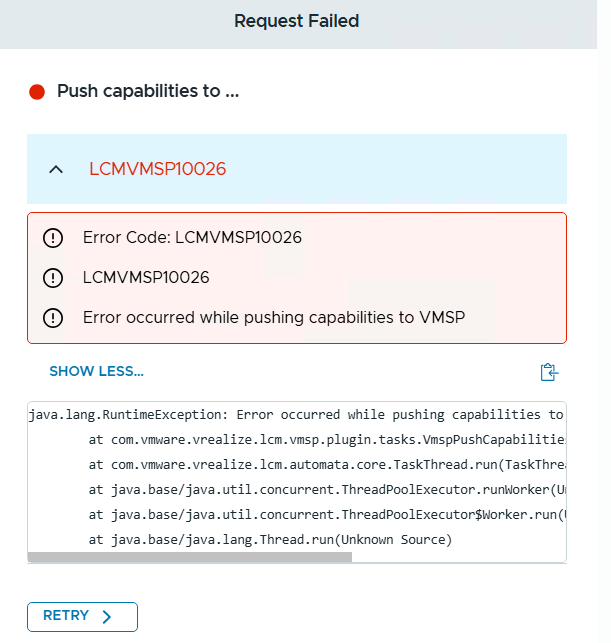
When it fails though, like it did in my lab, the error messages are not very beautiful, but rather cryptic.

Even though we were logged into the VCF Operations interface, it is the VCF Fleet Manager appliance who is doing all the lifecycle work like deploying Operations for Logs. The log file /var/log/vrlcm/vmware_vrlcm.log on my Fleet Manager appliance showed me that it timed out trying to connect to 10.0.0.234 which is my VCF Automation appliance which was powered off at this time to save some resources. Looking back at which stage it failed on, I could see that it was when trying to “Push Capabilities to services platform”. Starting up VCF Automation and retrying the task made the deployment task complete successfully.

Deploying VCF 9 using a JSON Specification File

I wanted to redeploy my VCF 9 lab and thought I would use the JSON spec file that I exported when deploying it using the wizard the first time.

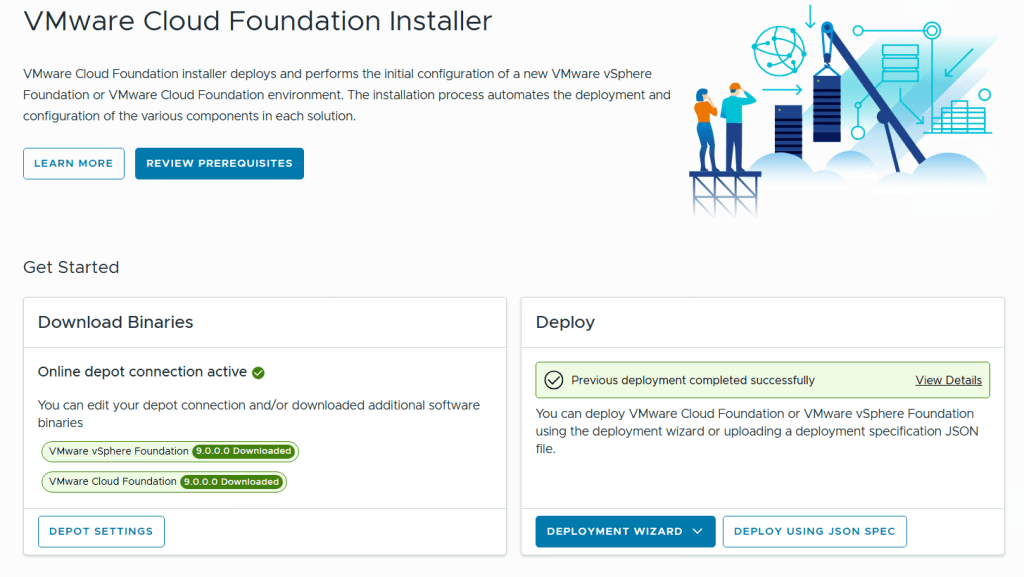
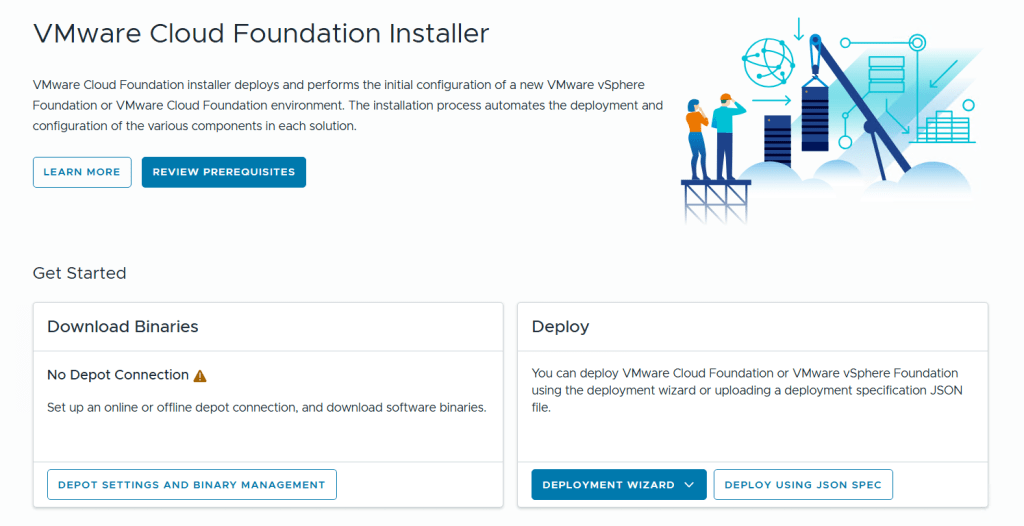
I started with logging in to the VCF Installer Appliance and selected Deploy Using JSON Spec instead of Deployment Wizard.

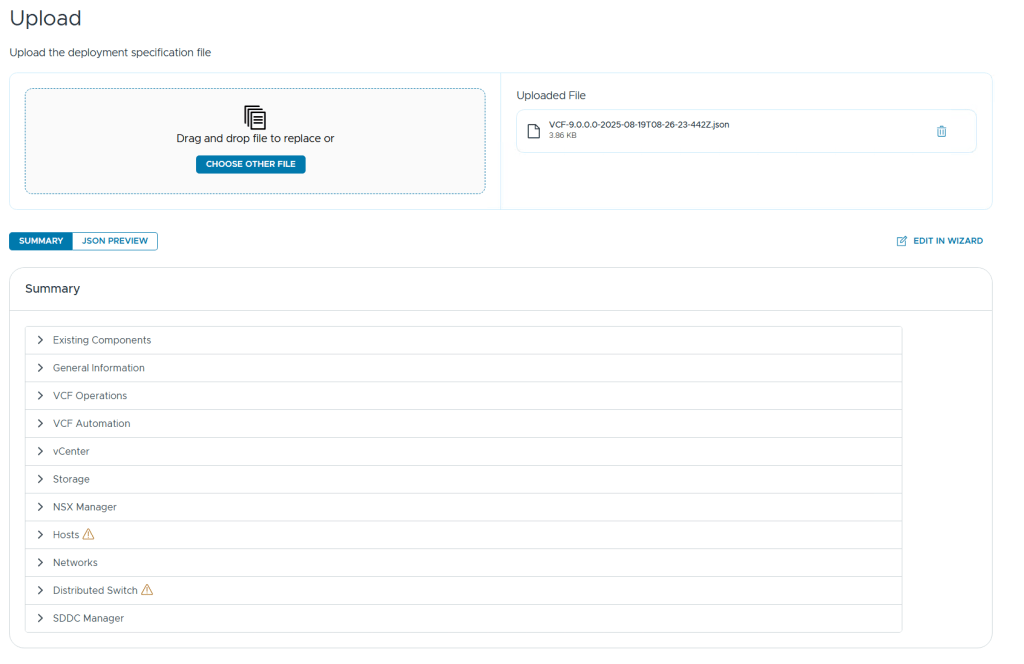
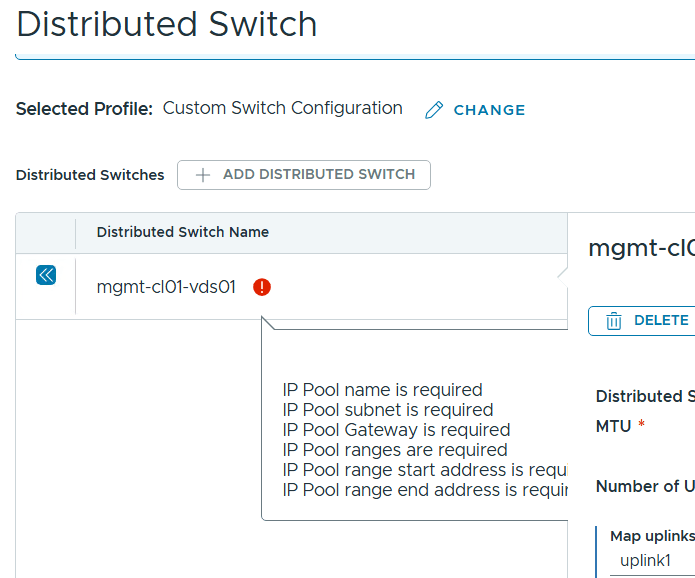
After uploading my JSON spec file it was validated and I saw two categories with a warning symbol next to it, Hosts and Distributed Switch.

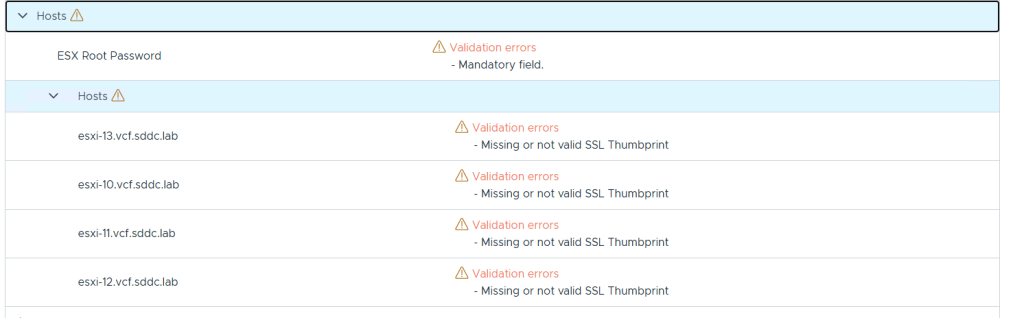
Expanding the Hosts category gave me more details telling me that the root passwords and SSL thumbprints were missing, and this made sense since they are not exported to the json file for security reasons.

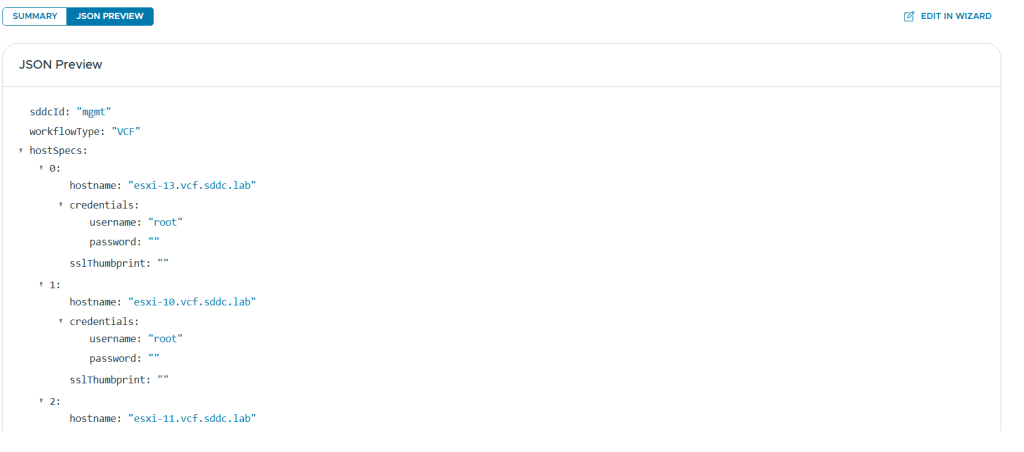
There is also a nice JSON Preview button to quickly check the content without opening it in a separate editor.

After adding the root passwords and the SSL thumbprints to my json file, these warnings were cleared, but expanding the Distributed Switch category didn’t give me any indications why that also had a warning present.

There is an Edit in Wizard function that let us go through the deployment wizard with the uploaded JSON spec file as input parameters. When using this I found what was causing the warning. It is expecting IP Pool details, but since I use DHCP for IP Assignment (TEP) I omitted the entire ipAddressPoolSpec part of the json file. In previous versions of VCF this would make it use DHCP but I haven’t found out how to do this in VCF 9 yet. I am planning on switching from DHCP to IP Pool soon anyway so not a big deal for my lab use.
Manually switching from IP Pool to DHCP in the wizard worked fine and VCF 9 was deployed successfully four hours later, including VCF Operations and VCF Automation.

Deploying VMware Cloud Foundation (VCF) 9 in my Lab

VCF 9 was released this week with a lots of news you can read about here:
https://blogs.vmware.com/cloud-foundation/2025/06/17/whats-new-in-vmware-cloud-foundation-9-0/

Since I work a lot with VCF I wanted to see if my lab was able to run the new version. My newest server has 512 GB RAM, 2 x Intel Xeon Gold 6138 processors and 2 x 2 TB NVMe.

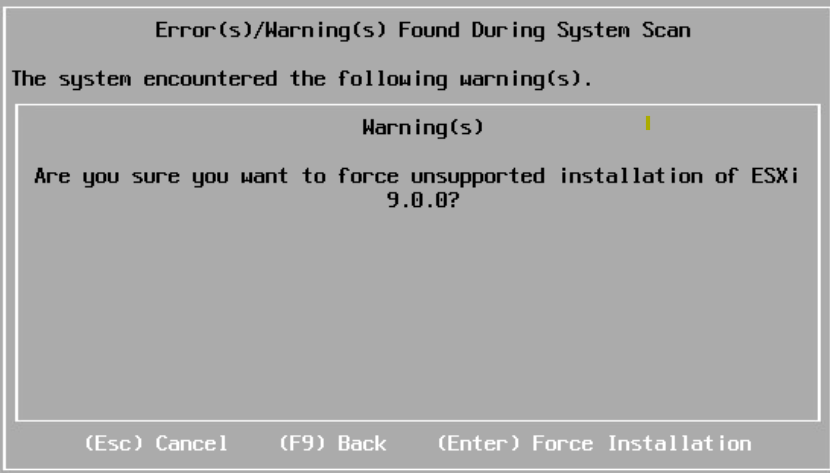
I started with deploying 4 nested ESXi 8 hosts with 24 vCPUs, 128 GB RAM and a 300 GB NVMe disk each. Note that 24 vCPUs are required to run VCF Automation, and while you can get a VCF 9 lab running without it you will miss out on a lot of private cloud functionality. The hosts were then upgraded to ESX 9 by booting on the iso. It complained about my CPU being unsupported but I could choose to force it to upgrade and I have not noticed any issues so far.

To be able to use vSAN ESA on nested hosts I followed this blog post:
https://williamlam.com/2025/02/vsan-esa-hardware-mock-vib-for-physical-esxi-deployment-for-vmware-cloud-foundation-vcf.html

Since I already have a nested VCF 5.2 lab running I decided to reuse some of the components like a virtual router and DNS server to save some time.

I started with deploying the VMware Cloud Foundation Installer on vSphere 8 and point a browser to its FQDN.

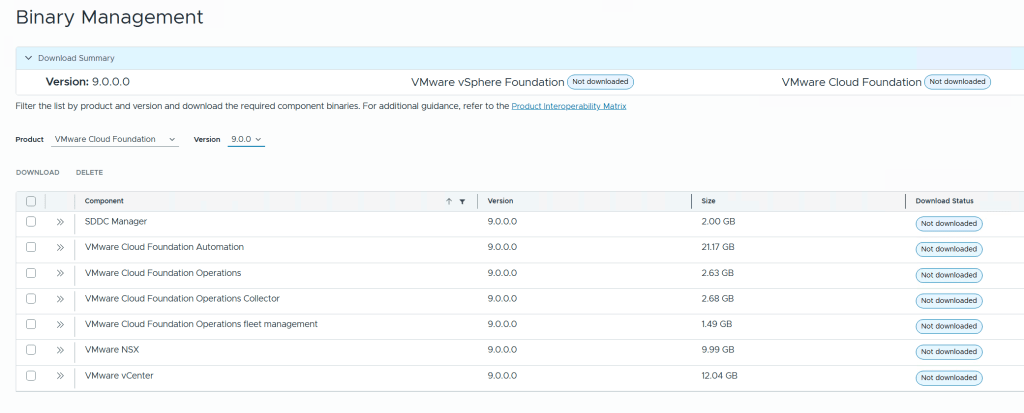
Before we can deploy anything we need to download binaries for all the components either directly from the Internet or from an offline depot. I chose to download directly from the Internet, then selected all the components and clicked on the Download button.

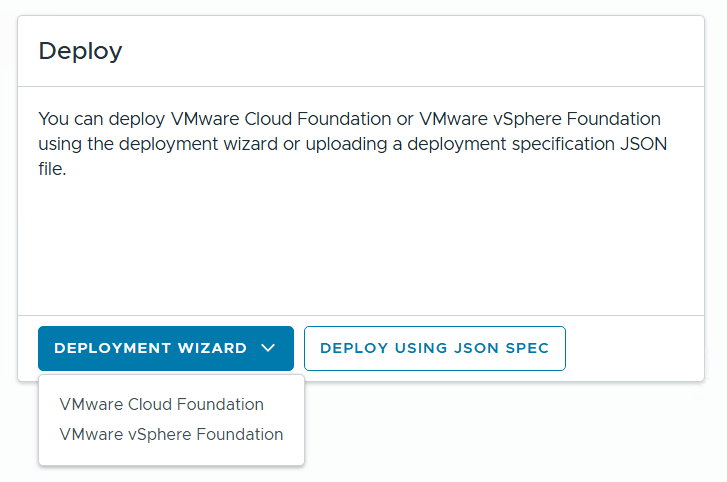
The installer lets you choose between Deploying VMware Cloud Foundation or VMware vSphere Foundation, and you can decide if you want to use a deployment wizard where you are guided through all the input parameters in the user interface or deploy using a json file. I chose to deploy VCF using the wizard this time.

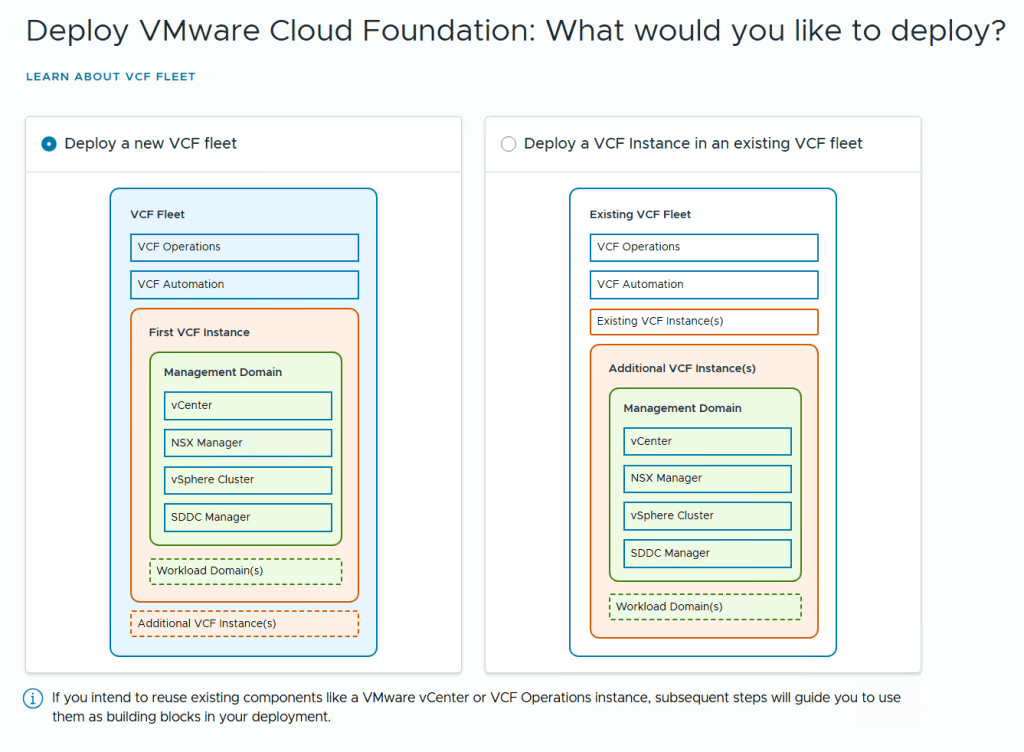
The next step lets you choose between deploying a new VCF Fleet or a new VCF Instance in an existing VCF Fleet. Since I don’t have an existing fleet I chose to deploy a new fleet. The fleet concept is new in VCF 9 and you can read more about it here:
https://blogs.vmware.com/cloud-foundation/2025/06/17/modern-infrastructure-operations-vcf-9-0/

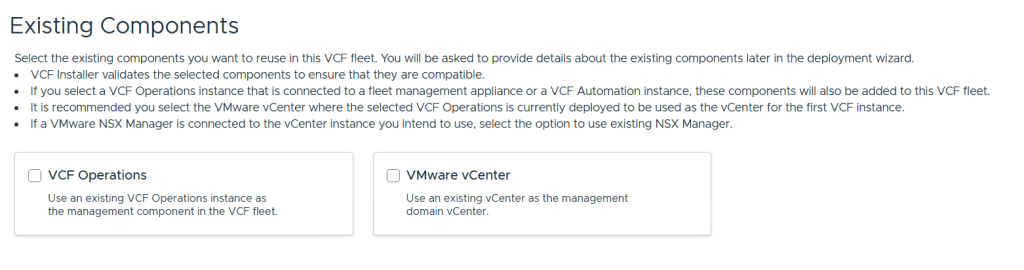
We are then able to point to existing VCF Operations and vCenter instances to use in this fleet. I didn’t select any of them since I wanted to deploy brand new ones.

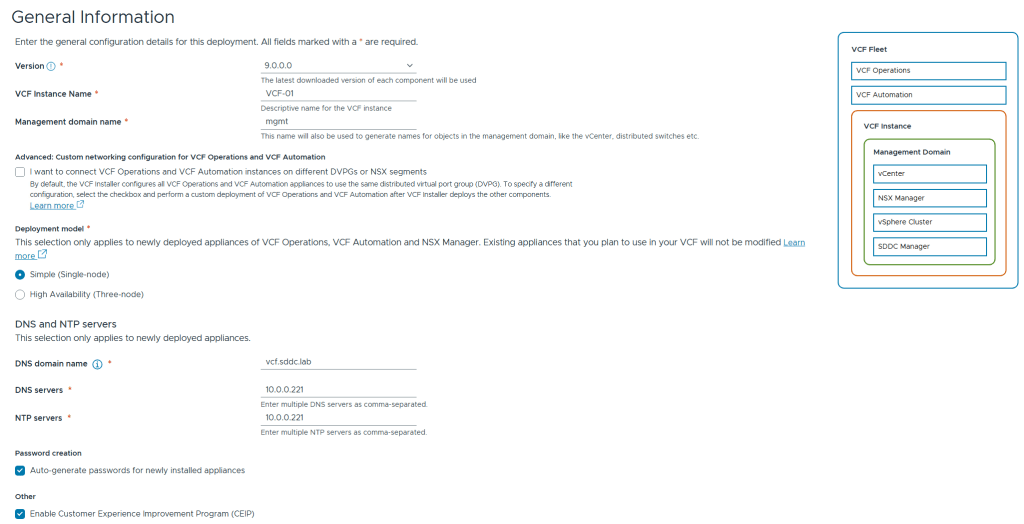
We are then presented with the following screen asking for general information. To save on resources I chose the Simple deployment model which deploys a single node of each appliance instead of three nodes for high availability. I also chose to have all the passwords auto-generated. These are presented in the user interface at the end of the deployment including user names and FQDNs for each product in VCF 9.

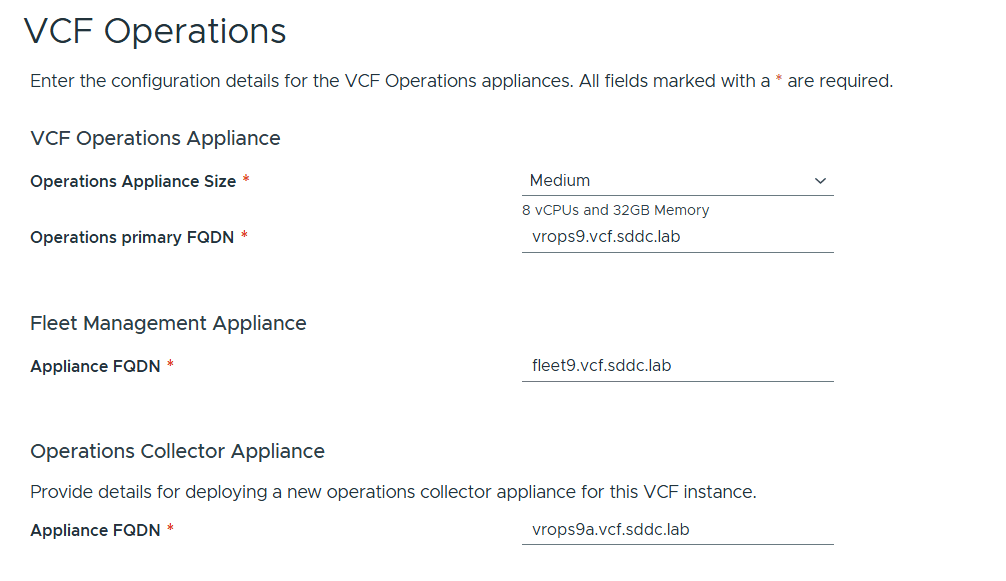
VCP Operations is mandatory in VCF 9, and so is also the Fleet Management Appliance which is based on Aria Suite Lifecycle but with more features. You also have to deploy an Operations Collector Appliance. Note that you don’t have to provide any IP addresses as they are populated by looking up from DNS so make sure those are present and correct, both forward and reverse records.

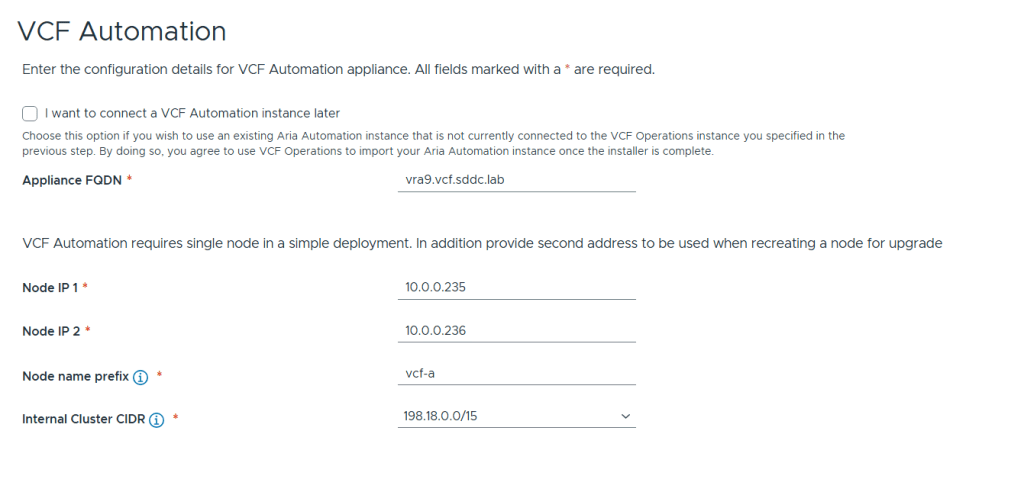
Next up is VCF Automation configuration which has the option to be skipped and connected later. I chose to deploy it now since I wanted a proper private cloud as fast as possible 🙂

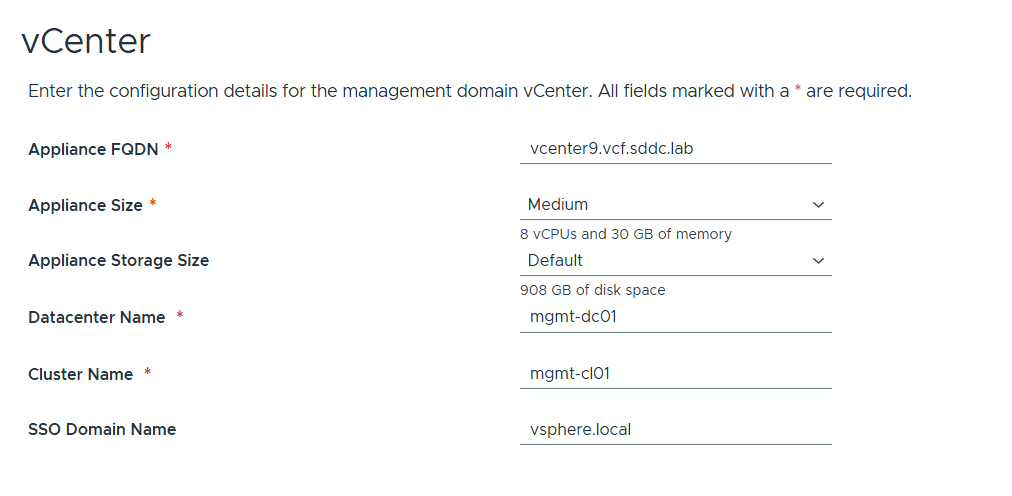
vCenter configuration is straight forward and nothing new here. I chose Medium size since I have bad experience with anything smaller than that and would like to avoid having to scale up later.

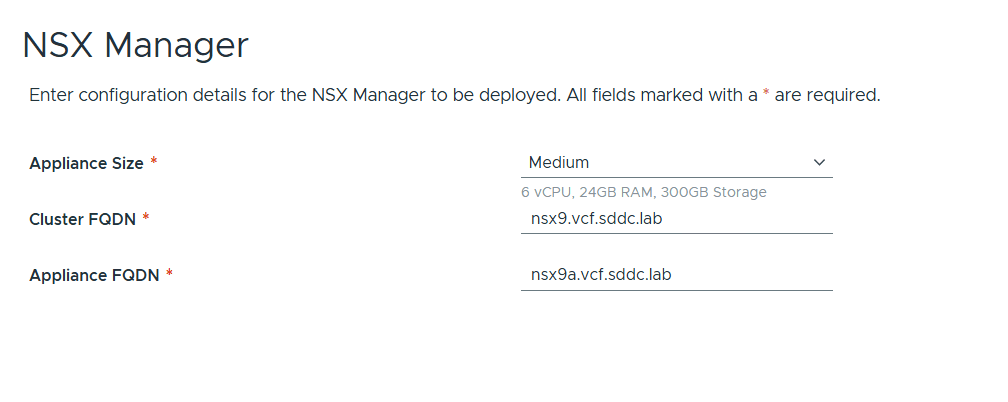
NSX Manager configuration is also very simple. Note that only a single node is supported but not recommended for a productions environment due to lack of redundancy. I also chose Medium size here to avoid performance issues down the road. NSX Manager is mandatory but NSX Edges are not and also not part of this initial deployment.

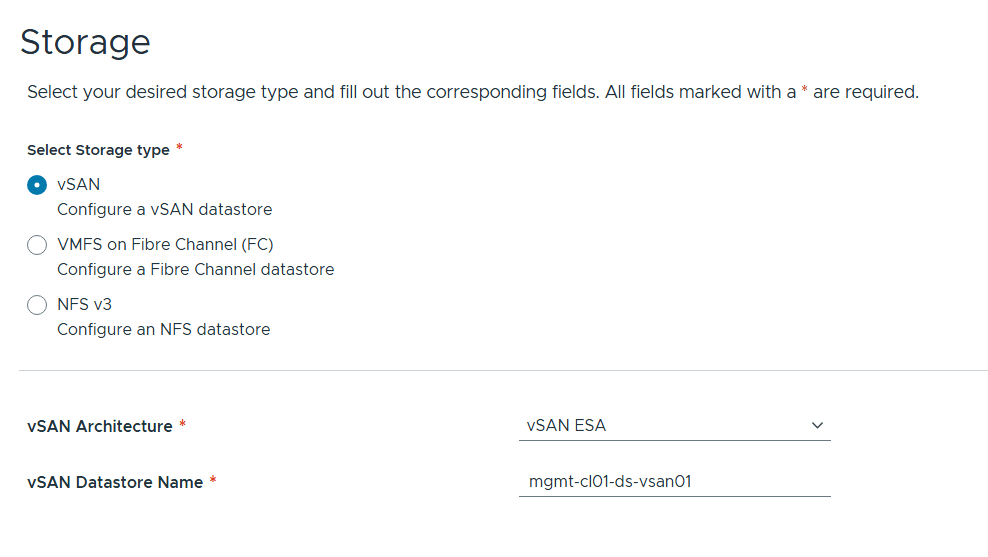
You have three options for Storage as pictured above. I chose vSAN ESA as that is the new improved standard for vSAN that I want to get more experience with.

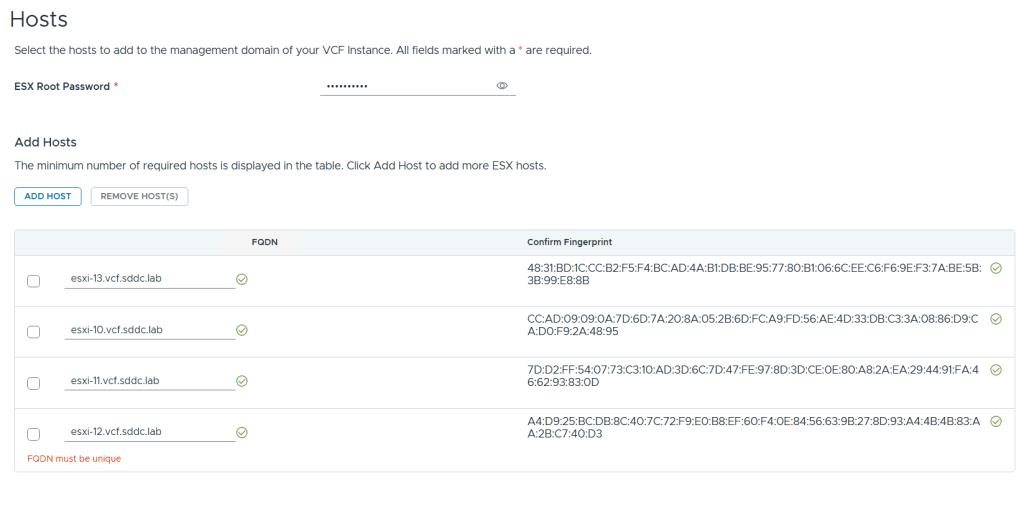
Adding ESX hosts is straight forward. Simply provide the root password, FQDNs and confirm the fingerprints (if they match your hosts :-).

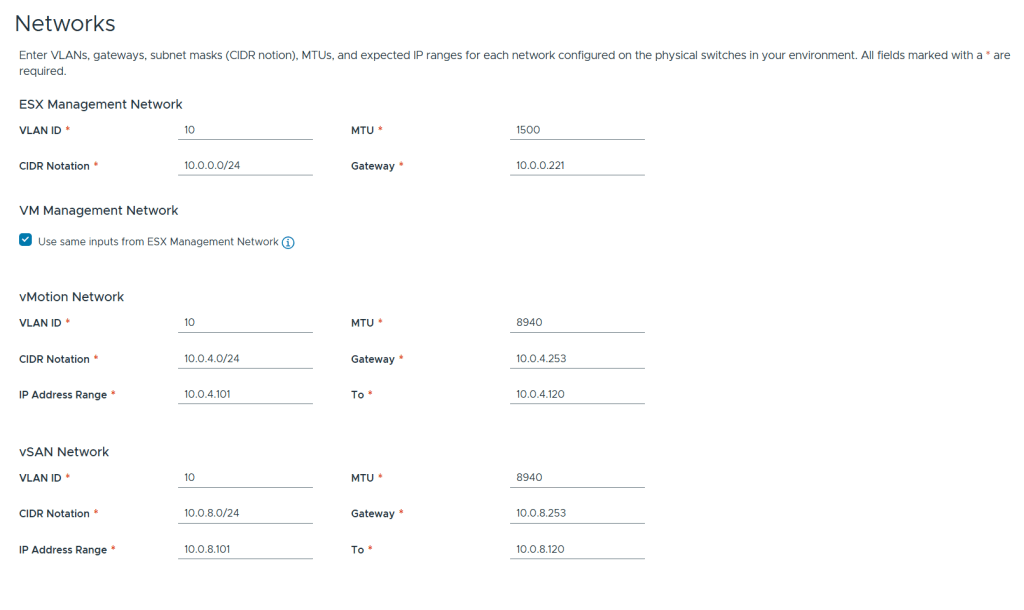
There is nothing new regarding networks configuration. I chose to use the same VLAN ID for all the networks for simplicity in my lab but in a production deployment these should be unique. I use 8940 MTU for vMotion and vSAN since this is a nested lab. The VDS use the standard 9000 MTU.

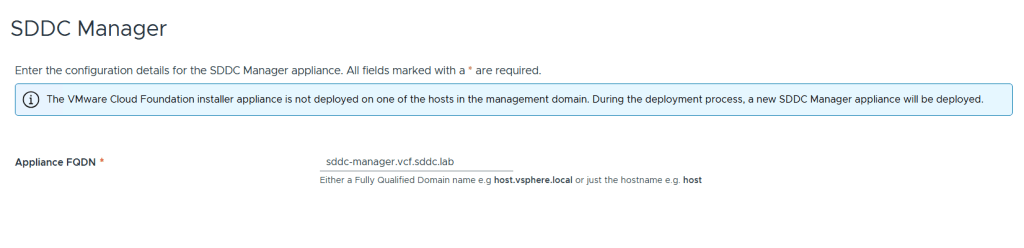
All that is needed for SDDC Manager is the FQDN. Note that it is possible to turn the VCF Installer appliance into the SDDC Manager appliance during the deployment. I wanted them to be two separate appliances since I will probably use the VCF Installer many times.

We are then presented with a Review screen where we get a summary of the configuration, the option to see a json preview and also the option to download the json spec as a file. This file can be edited and imported into the VCF Installer again for another deployment. Another nice detail about the VCF Installer is that you can close it at any time during the configuration process and it will let you save the progress so that you can continue at a later time.

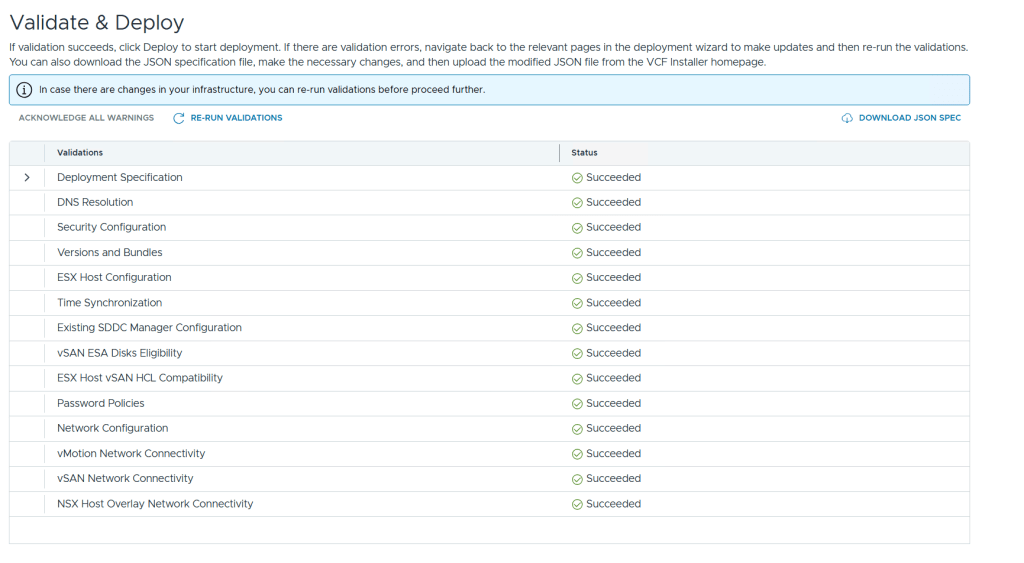
Before you can start the deployment you must run a validation. If the validation detects any errors you will have to resolve those before it allows you to deploy, but any warnings can be acknowledged so that you may still start the deployment. Lucky for me I didn’t get any warnings or errors.
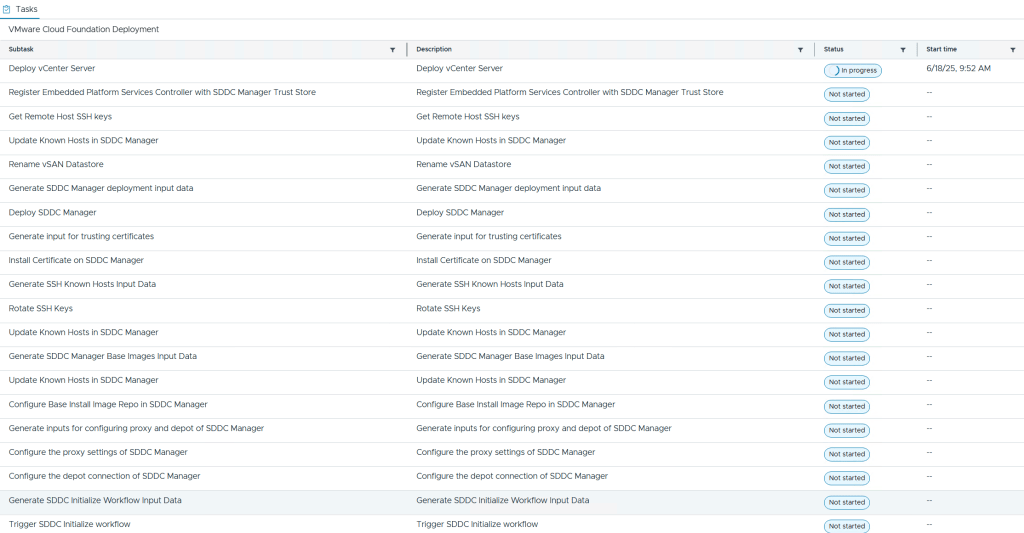
During the deployment you are able to see each subtask with their status. I also recommend that you follow the domainmanager.log file on the VCF Installer appliance so you can spot and fix problems before they cause the VCF Installer to time out with an error message. My deployment failed once after it deployed VCF Automation due to running out of disk space. After freeing up disk space I could choose to retry the deployment and it started again at the point where it failed and didn’t need to start from the beginning. Note that it was my local datastore hosting the nested ESX hosts that ran out of disk space so 300 GB was enough for each nested ESX host. The vSAN ESA datastore consumed less than 50% after the deployment.
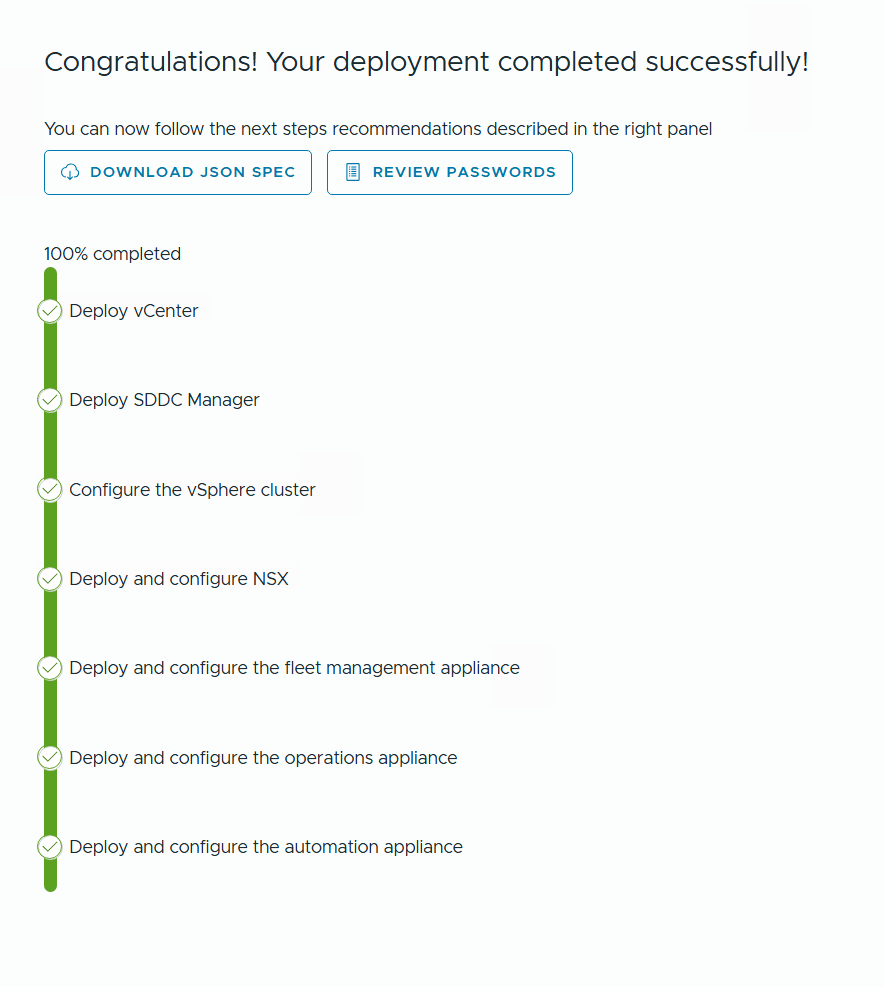
After a few hours I was presented with this happy message and by clicking on Review Passwords I could see how to log into my brand new VCF 9 lab.

The effect of using MAC Learning in ESXi nested labs

When using nested ESXi we have to enable either Promiscuous mode or MAC Learning on the VDS on the physical host running the nested environment. Forged transmits is also required to be enabled. I changed to MAC Learning long ago since I knew Promiscuous mode had a performance impact. I have had great results running a nested VCF lab but keep hearing about others having performance issues, and sometimes it comes down to slow storage, low memory or weak processors, but not always. I was wondering what kind of performance impact Promiscuous mode vs MAC Learning could have in my lab so I tested it using iperf3 and here is the result.

Note that if you are using vSphere Standard Switches (VSS) instead of vSphere Distributed Switches (VDS), you are stuck with using Promiscuous mode. I would recommend deploying a vCenter and set up a VDS if you want to use nested ESXi, especially if you want to run nested VCF.

Promiscuous mode

[root@esxi-2:~] /usr/lib/vmware/vsan/bin/iperf3.copy -i 1 -t 10 -c 10.0.0.101
Connecting to host 10.0.0.101, port 5201
[  5] local 10.0.0.102 port 30109 connected to 10.0.0.101 port 5201
iperf3: getsockopt - Function not implemented
[ ID] Interval           Transfer     Bitrate         Retr  Cwnd
[  5]   0.00-1.00   sec  35.2 MBytes   296 Mbits/sec    0   0.00 Bytes
iperf3: getsockopt - Function not implemented
[  5]   1.00-2.00   sec  14.5 MBytes   122 Mbits/sec    0   0.00 Bytes
iperf3: getsockopt - Function not implemented
[  5]   2.00-3.00   sec  24.2 MBytes   203 Mbits/sec    0   0.00 Bytes
iperf3: getsockopt - Function not implemented
[  5]   3.00-4.00   sec  16.1 MBytes   135 Mbits/sec    0   0.00 Bytes
iperf3: getsockopt - Function not implemented
[  5]   4.00-5.00   sec  22.1 MBytes   186 Mbits/sec    0   0.00 Bytes
iperf3: getsockopt - Function not implemented
[  5]   5.00-6.00   sec  18.6 MBytes   156 Mbits/sec    0   0.00 Bytes
iperf3: getsockopt - Function not implemented
[  5]   6.00-7.00   sec  21.0 MBytes   176 Mbits/sec    0   0.00 Bytes
iperf3: getsockopt - Function not implemented
[  5]   7.00-8.00   sec  19.2 MBytes   161 Mbits/sec    0   0.00 Bytes
iperf3: getsockopt - Function not implemented
[  5]   8.00-9.00   sec  19.5 MBytes   164 Mbits/sec    0   0.00 Bytes
iperf3: getsockopt - Function not implemented
[  5]   9.00-10.00  sec  20.5 MBytes   172 Mbits/sec    0   0.00 Bytes
- - - - - - - - - - - - - - - - - - - - - - - - -
[ ID] Interval           Transfer     Bitrate         Retr
[  5]   0.00-10.00  sec   211 MBytes   177 Mbits/sec    0             sender
[  5]   0.00-10.00  sec   211 MBytes   177 Mbits/sec                  receiver

MAC Learning

root@esxi-2:~] /usr/lib/vmware/vsan/bin/iperf3.copy -i 1 -t 10 -c 10.0.0.101
Connecting to host 10.0.0.101, port 5201
[  5] local 10.0.0.102 port 60767 connected to 10.0.0.101 port 5201
iperf3: getsockopt - Function not implemented
[ ID] Interval           Transfer     Bitrate         Retr  Cwnd
[  5]   0.00-1.00   sec  1019 MBytes  8.54 Gbits/sec  469059936   0.00 Bytes
iperf3: getsockopt - Function not implemented
[  5]   1.00-2.00   sec  1011 MBytes  8.48 Gbits/sec    0    215 Bytes
iperf3: getsockopt - Function not implemented
[  5]   2.00-3.00   sec   987 MBytes  8.28 Gbits/sec    0    215 Bytes
iperf3: getsockopt - Function not implemented
[  5]   3.00-4.00   sec  1000 MBytes  8.38 Gbits/sec    0    215 Bytes
iperf3: getsockopt - Function not implemented
[  5]   4.00-5.00   sec  1.01 GBytes  8.68 Gbits/sec    0    215 Bytes
iperf3: getsockopt - Function not implemented
[  5]   5.00-6.00   sec  1.03 GBytes  8.81 Gbits/sec    0    215 Bytes
iperf3: getsockopt - Function not implemented
[  5]   6.00-7.00   sec  1.01 GBytes  8.68 Gbits/sec    0    215 Bytes
iperf3: getsockopt - Function not implemented
[  5]   7.00-8.00   sec   995 MBytes  8.35 Gbits/sec    0    215 Bytes
iperf3: getsockopt - Function not implemented
[  5]   8.00-9.00   sec  1004 MBytes  8.42 Gbits/sec    0    215 Bytes
iperf3: getsockopt - Function not implemented
[  5]   9.00-10.00  sec  1.00 GBytes  8.59 Gbits/sec  3825907360   0.00 Bytes
- - - - - - - - - - - - - - - - - - - - - - - - -
[ ID] Interval           Transfer     Bitrate         Retr
[  5]   0.00-10.00  sec  9.92 GBytes  8.52 Gbits/sec    0             sender
[  5]   0.00-10.00  sec  9.92 GBytes  8.52 Gbits/sec                  receiver

As you can see, the difference is huge so please make sure to always use Mac Learning over Promiscuous mode in your nested lab.

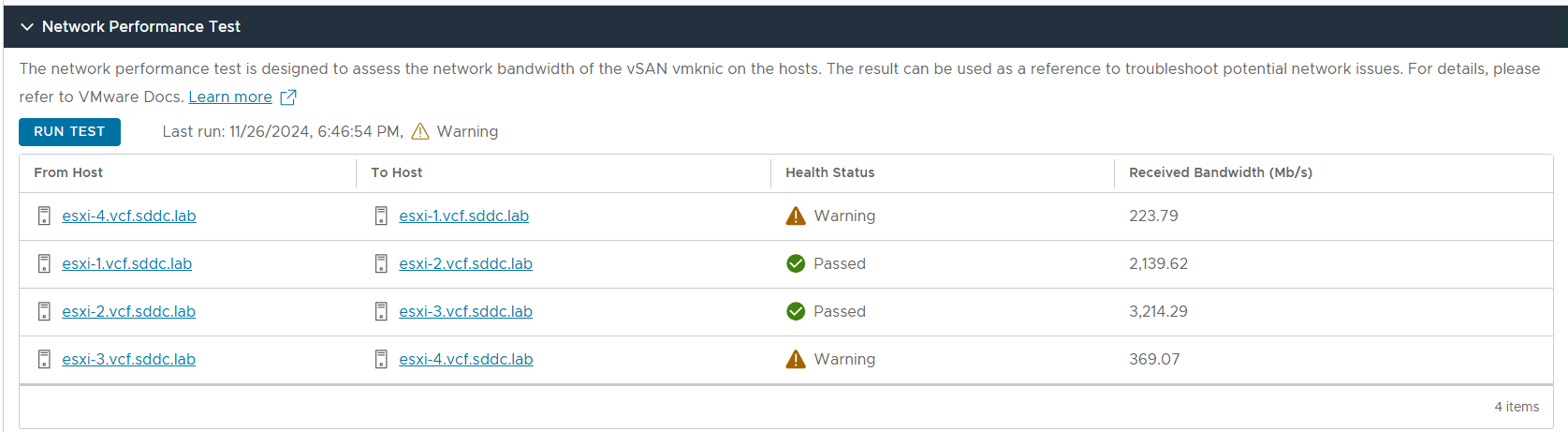
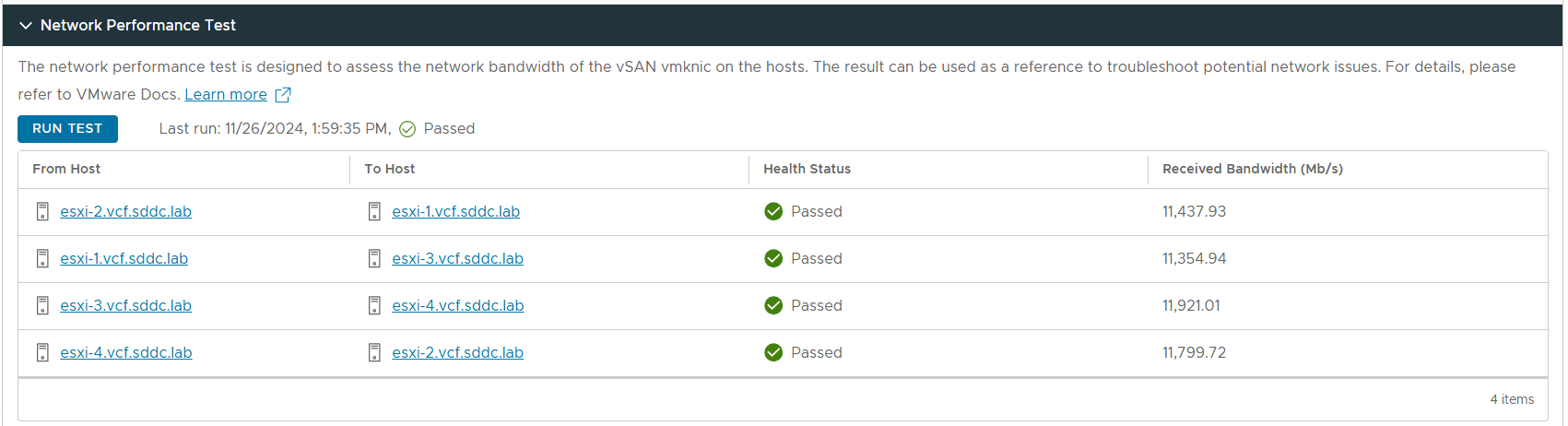
Below you can see the result from the vSAN Network Performance Test.

Promiscuous mode

MAC Learning

If you have to use Promiscuous mode on a VSS it seems that using a single Active NIC can minimize the performance impact. Take a look at Daniel Kriegers blog for more details: MAC Learning is your friend

FAILED_TO_VALIDATE_SDDC_MANAGER_COMPATIBILITY error message in SDDC Manager

When going to Lifecycle ManagementBundle Management in SDDC Manager, I saw the following two error messages:

Retrieving all applicable bundles failed. Encountered fetching http://127.0.0.1/lcm/inventory/upgrades api - FAILED_TO_VALIDATE_SDDC_MANAGER_COMPATIBILITY; Failed to validate if SDDC Manager with version 5.0.0.1-22485660 is compatible with system.

Retrieving available bundles failed. Unable to retrieve aggregated domains upgrade status: Encountered fetching http://127.0.0.1/lcm/inventory/upgrades api - FAILED_TO_VALIDATE_SDDC_MANAGER_COMPATIBILITY; Failed to validate if SDDC Manager with version 5.0.0.1-22485660 is compatible with system.

Research led me to the following KB:

SDDC UI throws error “COMPATIBILITY_MATRIX_CONTENT_FILE_NOT_FOUND” in 5.x versions

Going to AdministrationOnline Depot shows VMware Customer Connect Depot as Active.

The KB told me to verify that required URLs are not blocked, per this KB:

Public URL list for SDDC Manager

Trying to connect to all the URLs in the KB from SDDC Manager succeeded:

curl -v https://depot.vmware.com
curl -v https://vcsa.vmware.com
curl -v https://vmw-vvs-esp-resources.s3.us-west-2.amazonaws.com
curl -v https://vvs.esp.vmware.com
curl -v https://vsanhealth.vmware.com

Then I found a way to download the VmwareCompatibilityData.json file manually to see if that would work:

root@vcf001 [ /home/vcf ]# grep vcf.compatibility.controllers.vvs.api.endpoint= /opt/vmware/vcf/lcm/lcm-app/conf/application-prod.properties
vcf.compatibility.controllers.vvs.api.endpoint=vvs.esp.vmware.com
root@vcf001 [ /home/vcf ]# curl --location 'https://vvs.esp.vmware.com/v1/products/bundles/type/vcf-lcm-bundle?format=json' --header 'Content-type: application/json' --header 'X-Vmw-Esp-ClientId: vcf-lcm' > VmwareCompatibilityData.json
% Total % Received % Xferd Average Speed Time Time Time Current
Dload Upload Total Spent Left Speed
0 0 0 0 0 0 0 0 --:--:-- --:--:-- --:--:-- 0
0 0 0 0 0 0 0 0 --:--:-- 0:04:59 --:--:-- 0
curl: (28) Failed to connect to storage.googleapis.com port 443 after 298678 ms: Couldn't connect to server

As we can see I was trying to download from the allowed URL https://vvs.esp.vmware.com, but it fails to connect to storage.googleapis.com so it seems to redirect to a URL that is not listed in the KB. Allowing connections to storage.googleapis.com from SDDC Manager solved the issue and SDDC Manager was immediately able to download bundles again. I contacted Broadcom support who confirmed this and later updated the KB with the correct URL.

Upgrade to SDDC Manager 5.2.1.0 fails with “502 Bad Gateway”

A while after kicking off the SDDC Manager 5.2.1.0 upgrade I was presented with the nginx error “502 Bad Gateway” in my browser. Thinking that this was caused by the services being restarted as part of the upgrade I waited 15 more minutes but the error would not go away like it use to. Checking the log files on SDDC Manager didn’t show any progress and lcm-debug.log halted after this:

2024-10-25T06:23:02.415+0000 INFO  [vcf_lcm,0000000000000000,0000] [com.zaxxer.hikari.HikariDataSource,SpringApplicationShutdownHook] HikariPool-1 - Shutdown initiated...

2024-10-25T06:23:02.455+0000 INFO  [vcf_lcm,0000000000000000,0000] [com.zaxxer.hikari.HikariDataSource,SpringApplicationShutdownHook] HikariPool-1 - Shutdown completed.

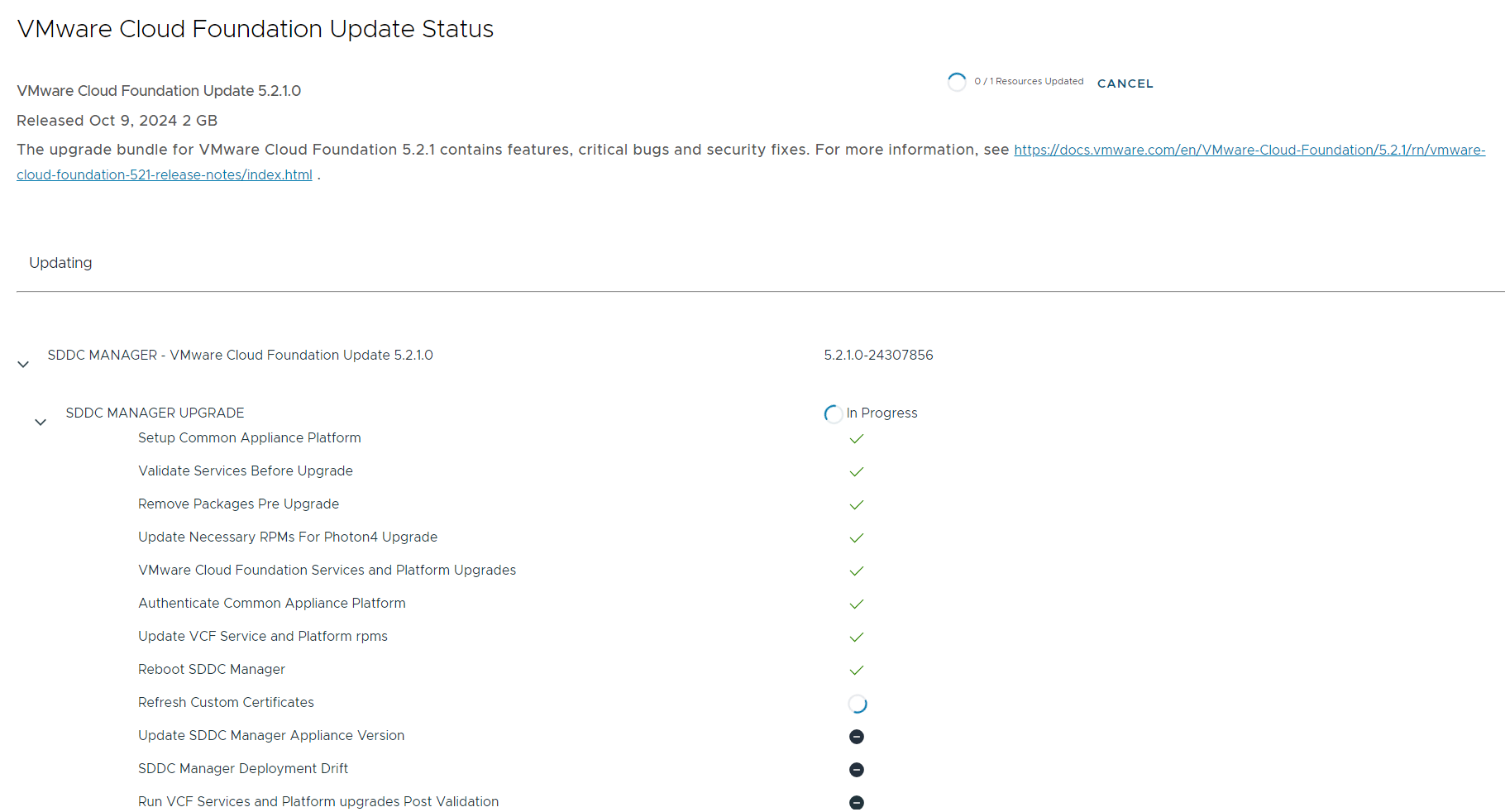
After waiting for another hour I figured that the appliance was supposed to reboot but didn’t manage to, so I rebooted it manually. After it was back up I was presented with this nice status page showing that it had expected a reboot to happen (Reboot SDDC Manager).

After about 10 more minutes the upgrade completed.

Failed uploading the update/upgrade patch files to VUM when upgrading to VCF 5.2

I did the precheck for a VCF 5.2 upgrade after uploading the HPE ProLiant custom iso for VMware ESXi 8.0 Update 3 Build 24022510 and was greeted with the following error:

Bundle validation for bundle of type HOST with upgrade version 8.0.3-24022510 failed due to error Failed uploading the update/upgrade patch files to VUM,performing compliance checks on the clusterFailed scanning hosts: [osl-xxx-xxx-esx01.xxxxx.xxx, osl-xxx-xxx-esx02.xxxxx.xxx, osl-xxx-xxx-esx03.xxxxx.xxx, osl-xxx-xxx-esx04.xxxxx.xxx] for the baseline groups associated with the cluster

I found the following in /var/log/vua.log on one of the hosts:

-->     <test>
-->       <name>VFAT_CORRUPTION</name>
-->       <expected>
-->         <value>True</value>
-->       </expected>
-->       <found>
-->         <value>False</value>
-->       </found>
-->       <result>ERROR</result>
-->     </test>

“VFAT_CORRUPTION” led me to the following KB article:

https://knowledge.broadcom.com/external/article/345227


The dirty but was set on all bootbank partions on every host in the environment that was booting from an SD-card. Any hosts booting from an SSD did not thave the dirty bit set. After removing the dirty bit from the partitions the precheck completed without any further complaining. I guess it is about time to move away from the SD-cards.