This post will show you how I deployed a new Workload Domain in VMware Cloud Foundation 9 (VCF 9) with the vSphere Supervisor enabled. vSphere Supervisor lets me provision and manage virtual machines, containers and full Kubernetes clusters through vSphere Kubernetes Service (VKS) on my VCF platform.
Broadcom’s documentation has a nice summary of what vSphere Supervisor provides:
“Having a Kubernetes control plane on the vSphere clusters enables the following capabilities in vSphere:
- As a vSphere administrator, you can create namespaces on the Supervisor, called vSphere Namespaces, and configure them with specified amount of memory, CPU, and storage. You provide vSphere Namespaces to DevOps engineers.
- As a DevOps engineer, you can run Kubernetes workloads on the same platform with shared resource pools within a vSphere Namespace. You can deploy and manage multiple upstream Kubernetes clusters created by using vSphere Kubernetes Service. You can also deploy Kubernetes containers directly on the Supervisor inside a special type of VM called vSphere Pod. You can also deploy regular VMs.
- As a vSphere administrator, you can manage and monitor vSphere Pods, VMs, and VKS clusters by using the vSphere Client.
- As a vSphere administrator, you have full visibility over vSphere Pods, VMs, and VKS clusters running within different namespaces, their placement in the environment, and how they consume resources.
Having Kubernetes running on vSphere clusters also eases the collaboration between vSphere administrators and DevOps teams, because both roles are working with the same objects.”
More details here: What Is vSphere Supervisor?
Deploying a new Workload Domain has the following two prerequisites:
- A vSphere Lifecycle Manager cluster image must be available for the default vSphere cluster of the workload domain.
- Hosts must be commissioned with the target principal storage type.
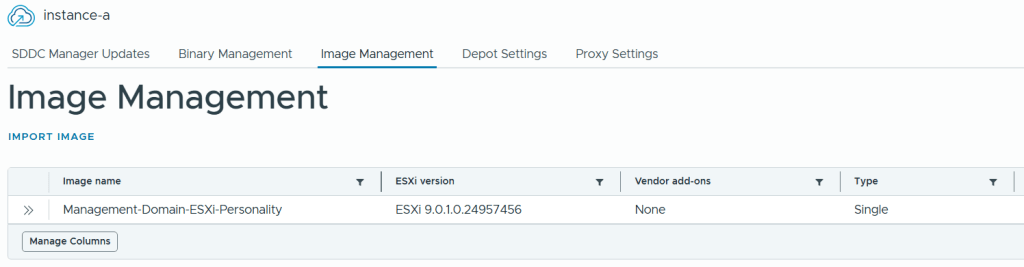
I already had a Lifecycle Manager cluster image in VCF Operations so I used that for my new Workload Domain.
To be able to commission new hosts in my instance, I first had to deploy them. Since I use Holodeck 9 that was easily done with this command:
New-HoloDeckESXiNodes -Nodes "3" -CPU "12" -MemoryInGb "96" -Site "a" -vSANMode "ESA"
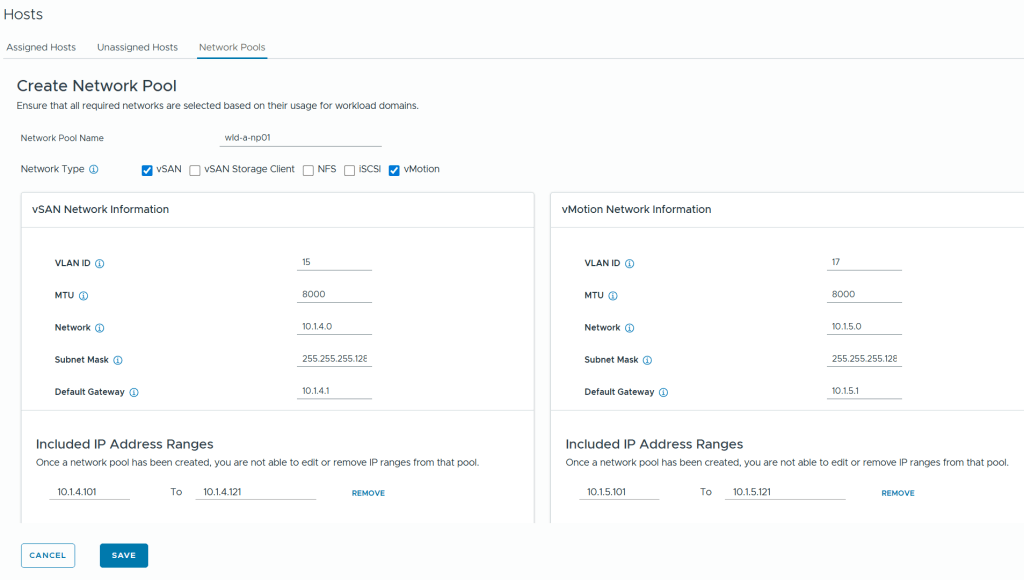
Then I had to create a new Network Pool to be used by the hosts in the new Workload Domain. This used to be done in SDDC Manager but now it is done in the vSphere Client by going to Global Inventory Lists, Hosts, Network Pools.
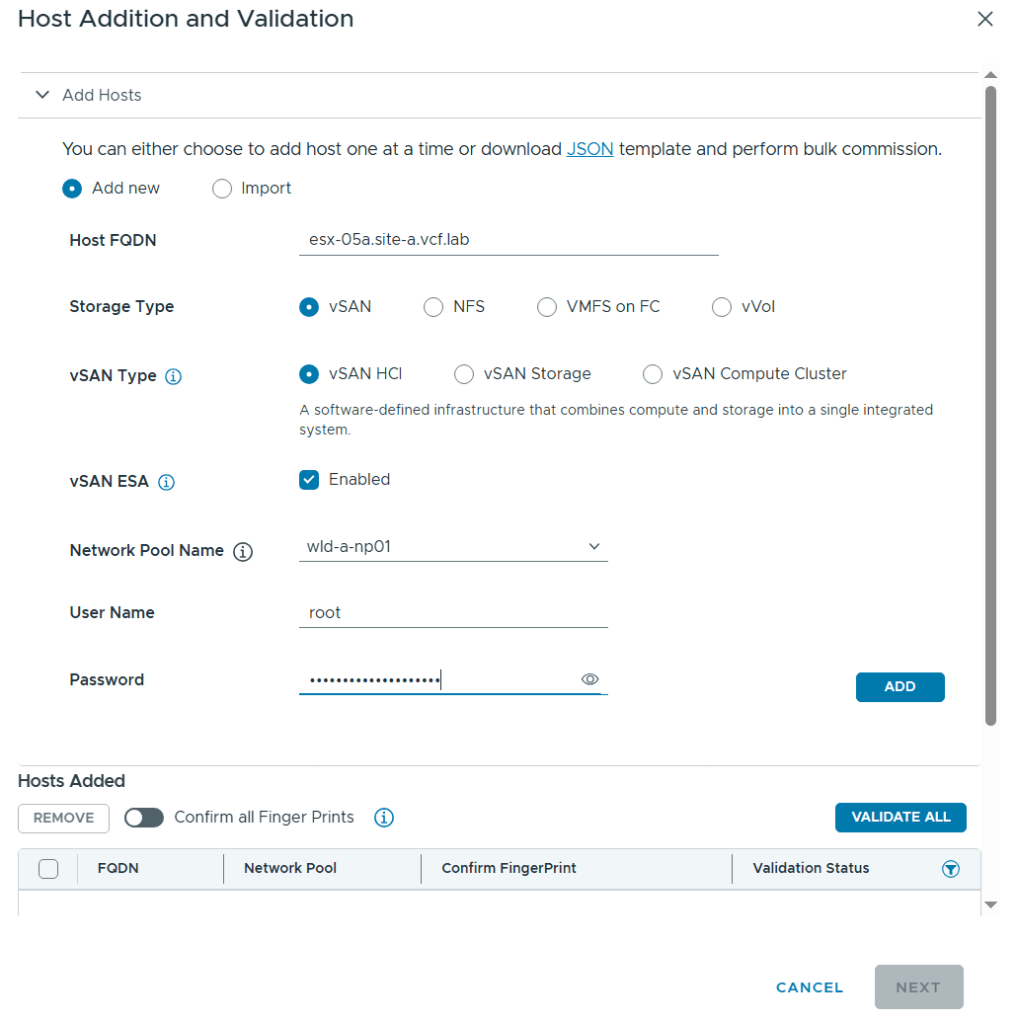
Host commissioning is also done in the vSphere Client now by going to Global Inventory Lists, Hosts, Unassigned Hosts.
After adding all my hosts in the wizard I had to confirm their fingerprints and choose to validate them by clicking on Validate All.
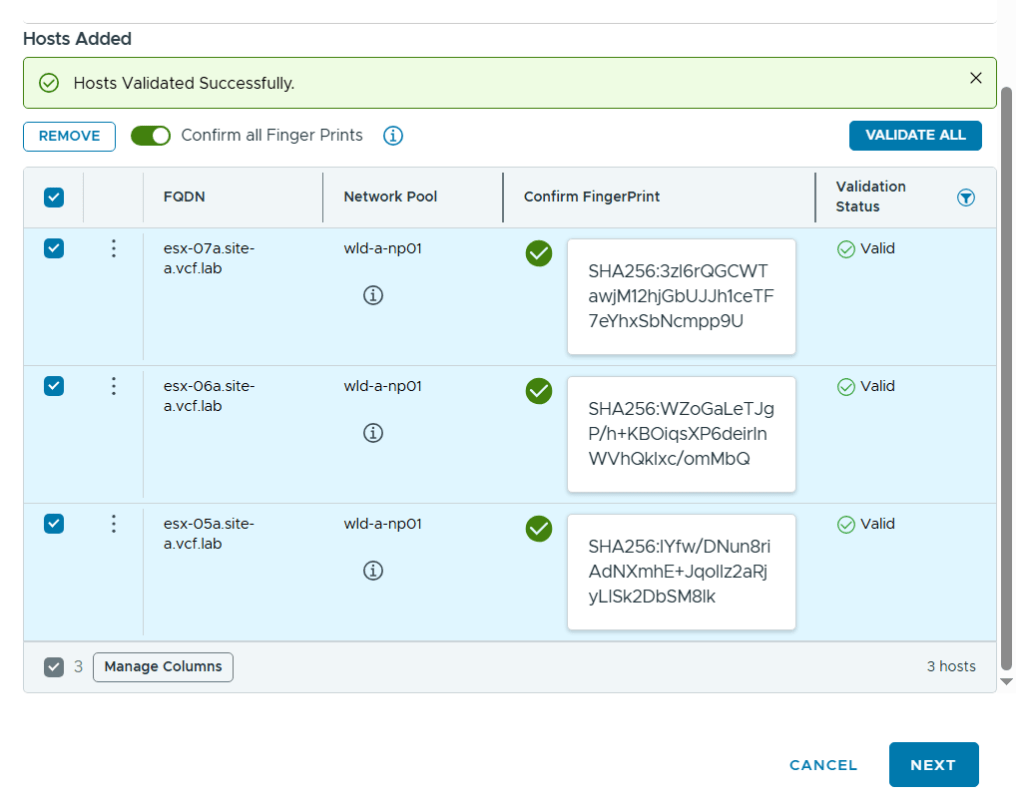
After clicking Next, and then Commission after reviewing the configuration, it kicks off a task that can be monitored in the vSphere Client, in the VCF Operations user interface and in the SDDC Manager user interface. The vSphere Client gives you the least amount of details as you can’t see all the subtasks.
After the task completed successfully I could see my new hosts under Unassigned Hosts in the vSphere Client.
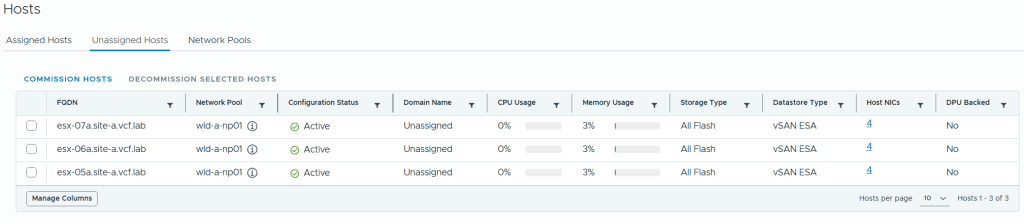
Creating a new Workload Domain is done in VCF Operations by going to Inventory, Detailed View, expand VCF Instances and browse to the VCF instance in which you want to create a new workload domain, then click on Add Workload Domain and Create New.
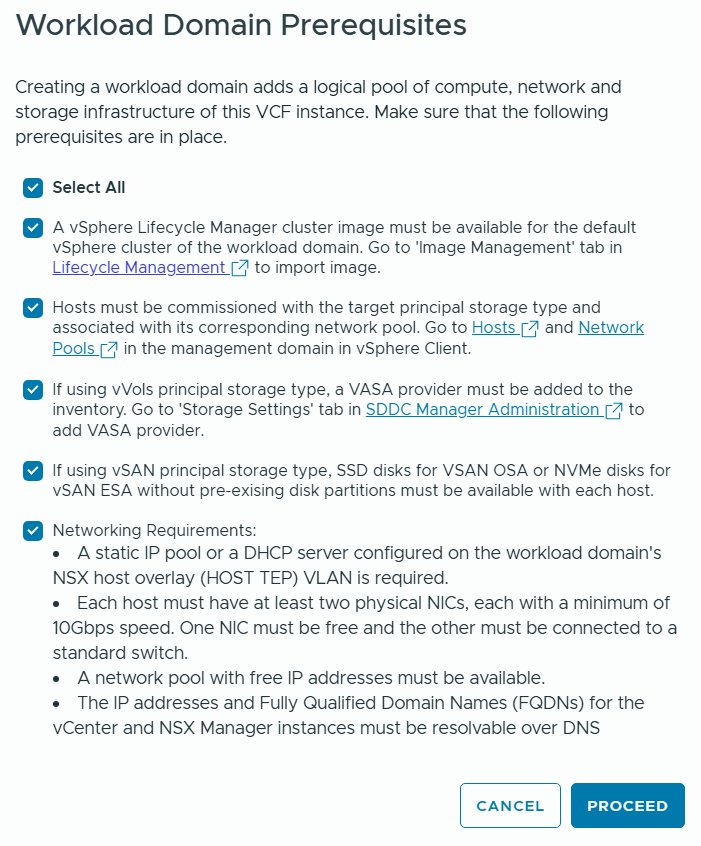
I was then presented with the following prerequisites checklist which I reviewed and chose to proceed.
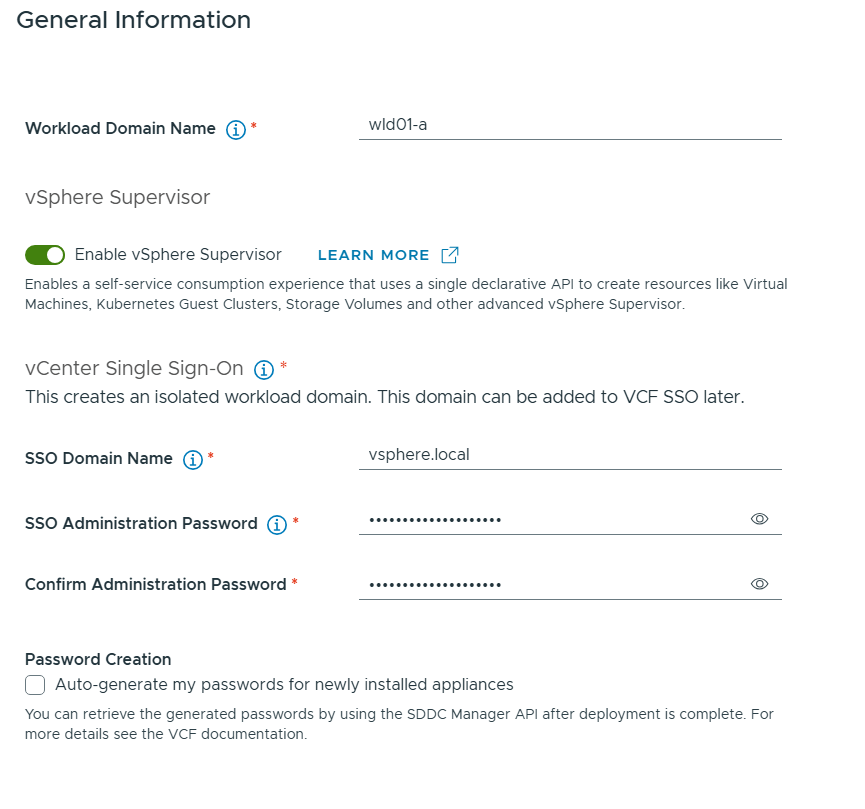
Then I had to enter some general information about my new Workload Domain.
Note that I have selected to enable vSphere Supervisor which will provide a platform for running Kubernetes workloads in vSphere as well as Virtual Machines.
You can see that I will get and isolated workload domain meaning no Enhanced Linked Mode with the vCenter in the Management Domain. This is the only way going forward. We can still use the same SSO Domain Name.
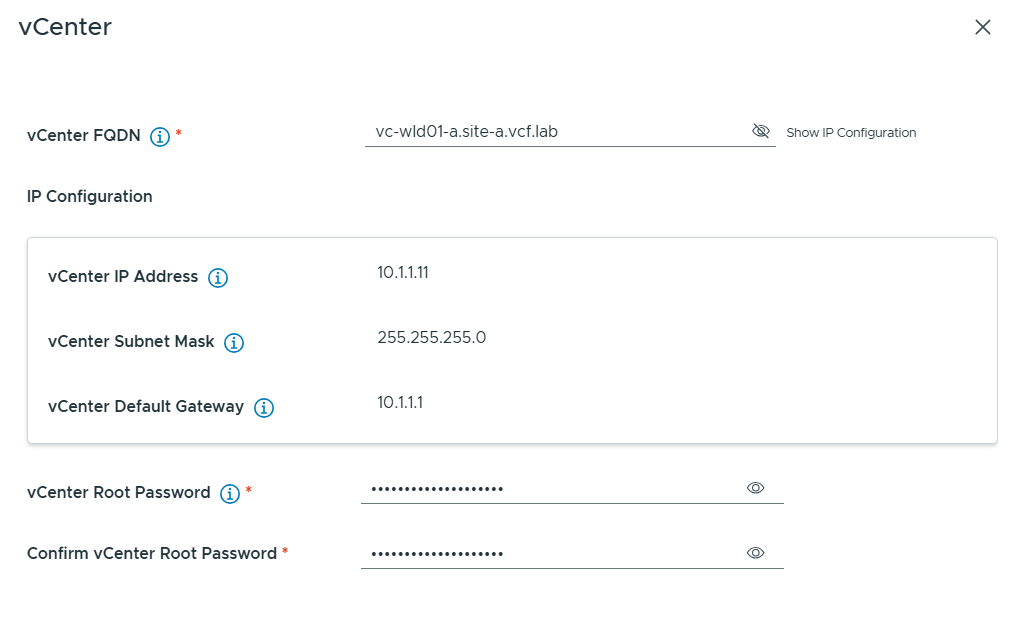
Next I had to provide the FQDN and password for the vCenter in my new Workload Domain. Note that the wizard looks up in DNS to find the IP address so make sure that is configured in advance.
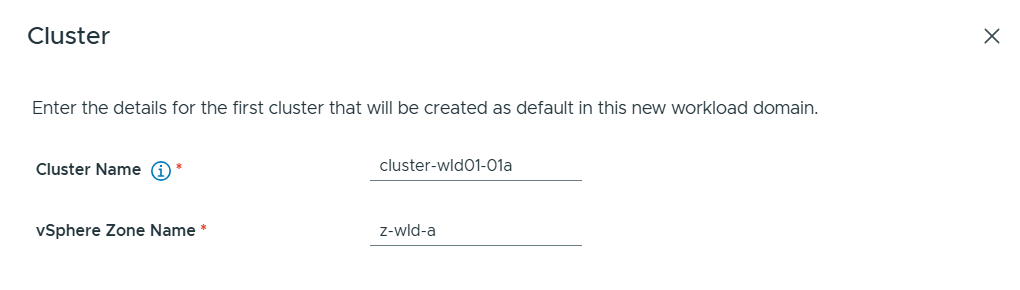
Then I had to provide Cluster details. vSphere Zone Name is used by the vSphere Supervisor to map to the vSphere cluster.
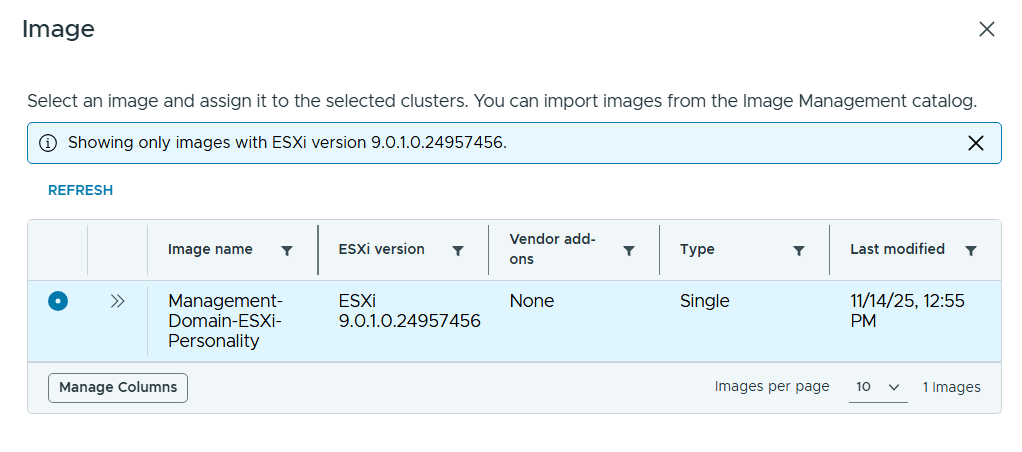
I selected the same image I used for my Management Domain.
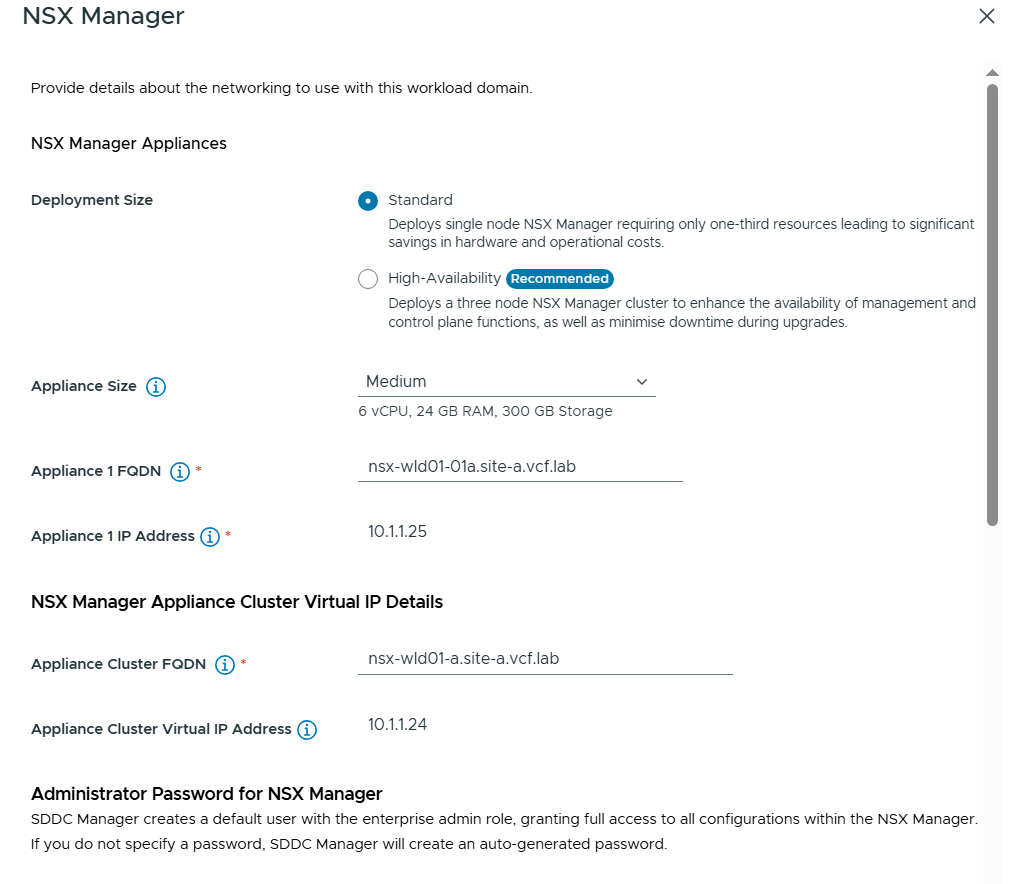
Next I had to enter details about NSX Manager. I chose to use the Standard deployment size since this was a lab deployment and I wanted to save some resources. Note that I still have to configure an Appliance Cluster FQDN and VIP so that we can easily expand the deployment into a three node cluster later if needed.
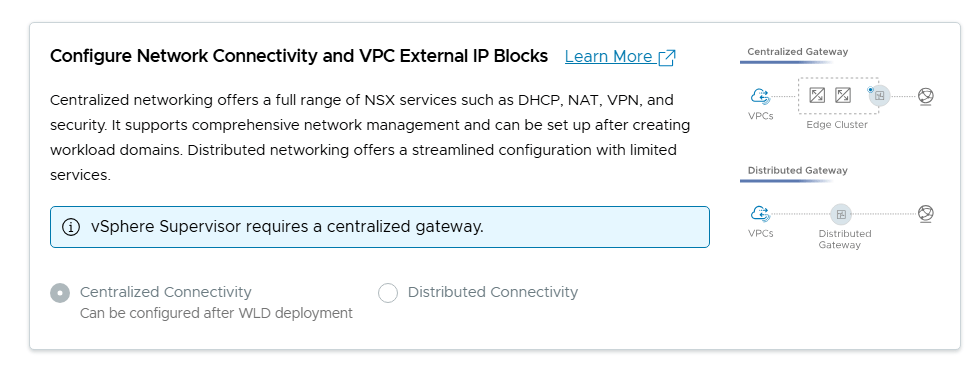
By scrolling down I could see that it was mandatory to configure the network connectivity with Centralized Connectivity since this is required by the vSphere Supervisor.
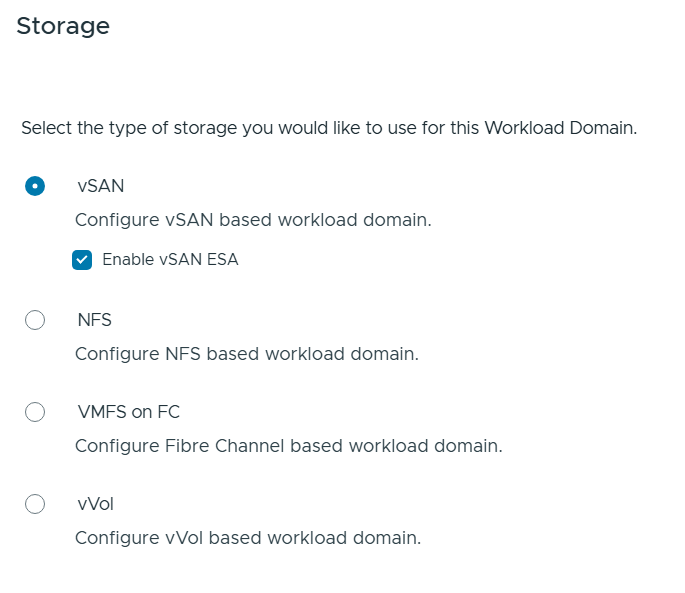
Then I had to choose my Storage type for the Workload Domain and since vSAN ESA is awesome I selected that.
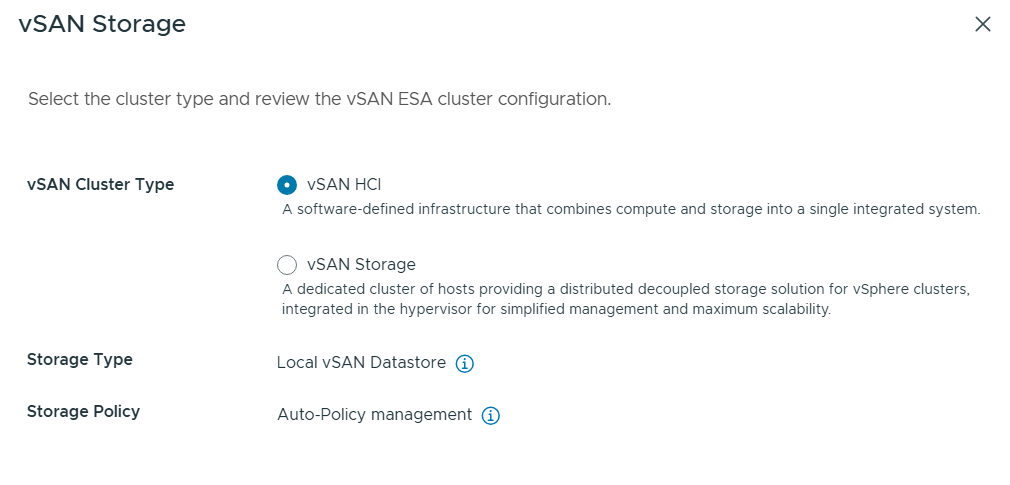
I also had to choose the type of vSAN Storage to use and selected vSAN HCI.
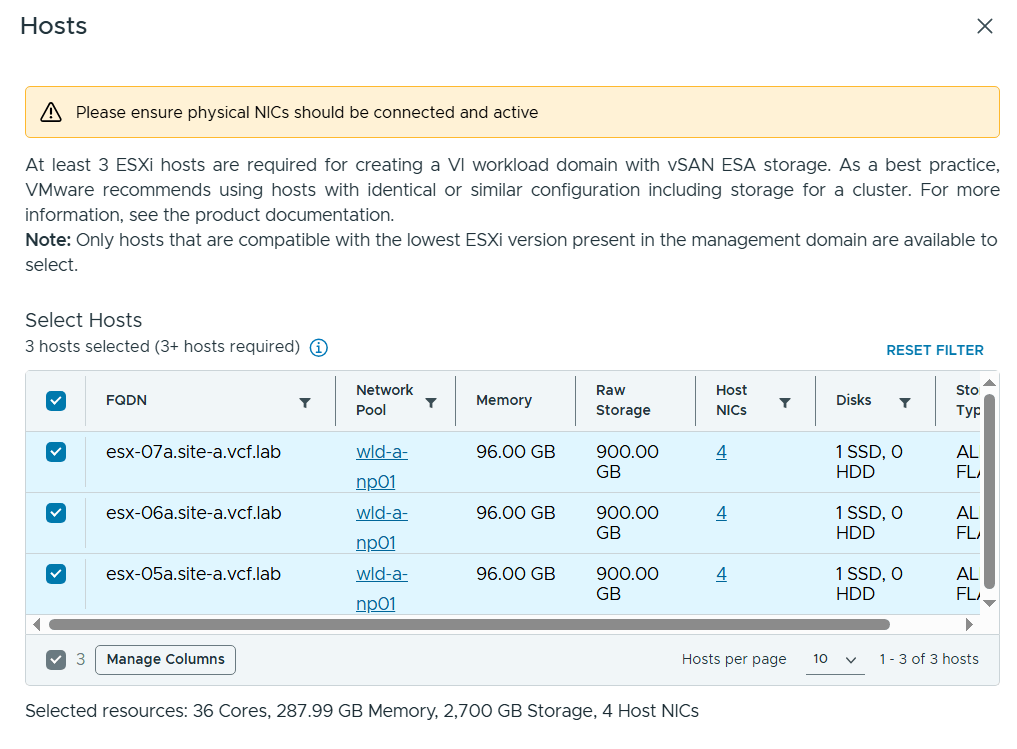
Next I had to select my three newly commissioned hosts to be used by the new Workload Domain.
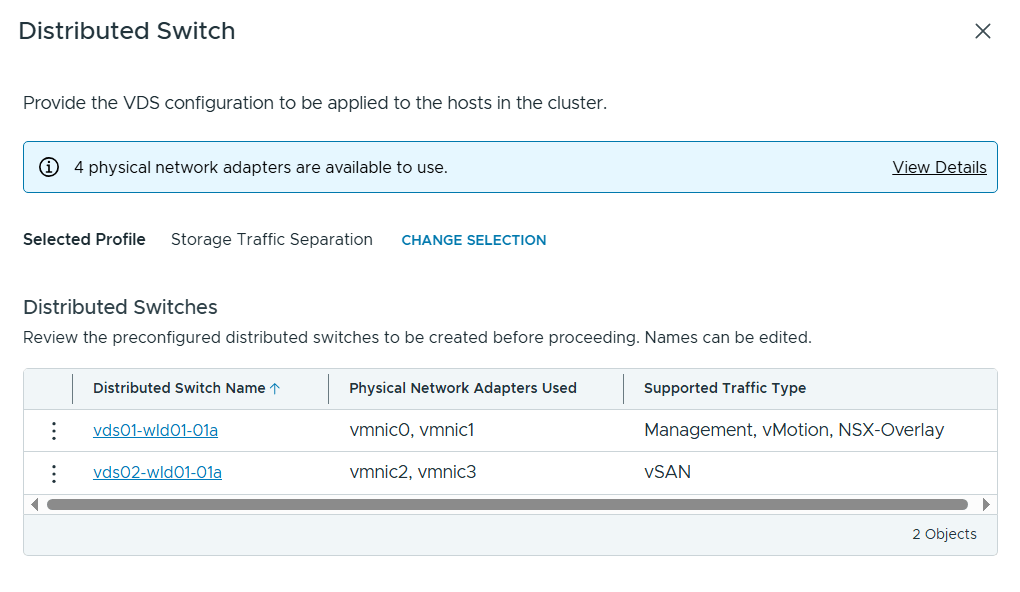
When configuring the Distributed Switch (VDS) I selected the Storage Traffic Separation profile to get vSAN traffic onto a separate VDS. I also had to edit the first VDS to specify my host transport VLAN for NSX.
vSphere Supervisor was then configured like this.
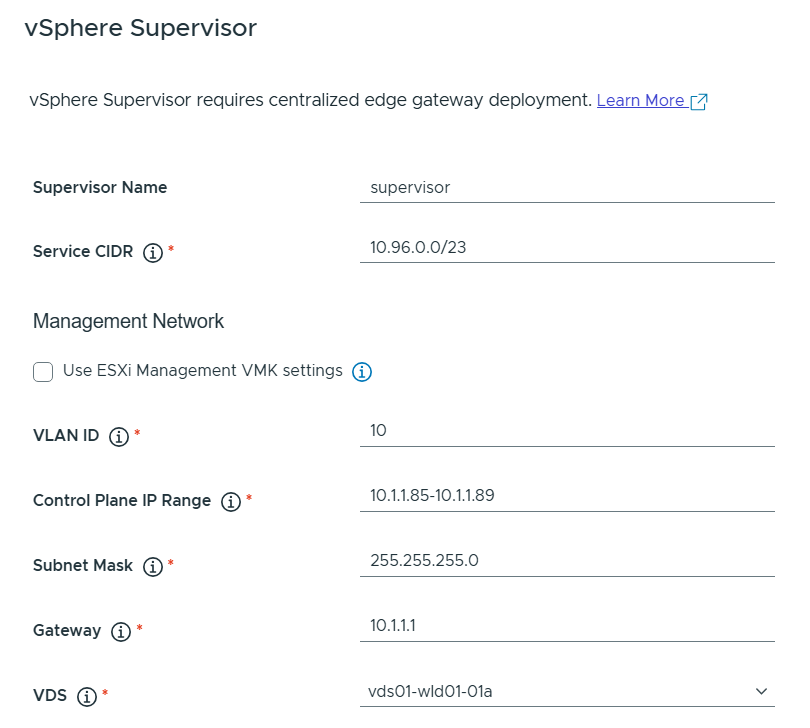
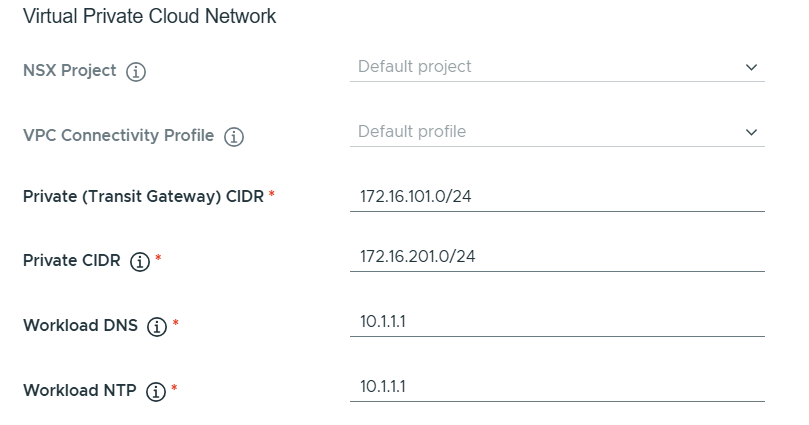
In the end I was able to review all my settings in a summary and also able to get a json preview as well as downloading the json file. The json file can be edited and used to deploy a Workload Domain in one step and is how I usually do it, but I wanted to get experience with all the steps in the wizard in VCF 9 first.
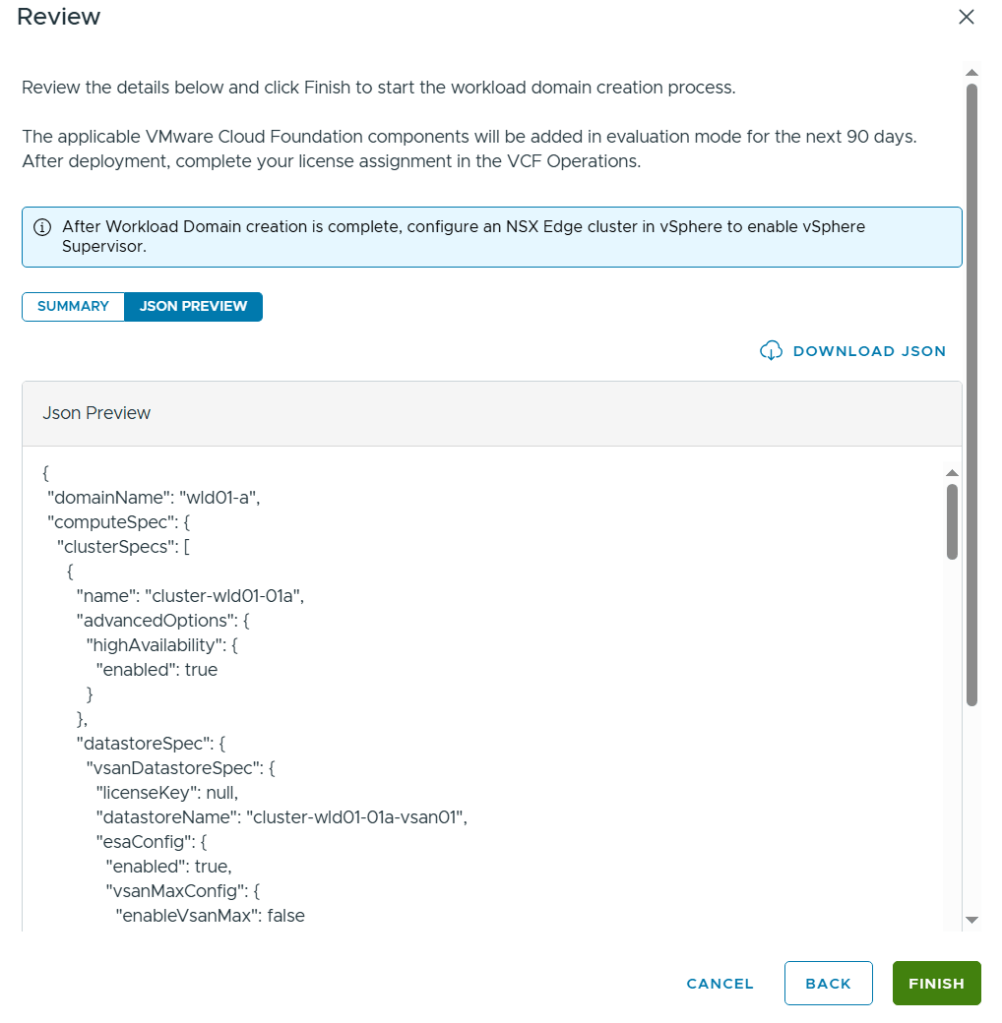
After clicking on Finish it kicks of a task and after some time the deployment is done. I got the following warning, but that was expected since I knew that Centralized Connectivity requires an NSX Edge Cluster.
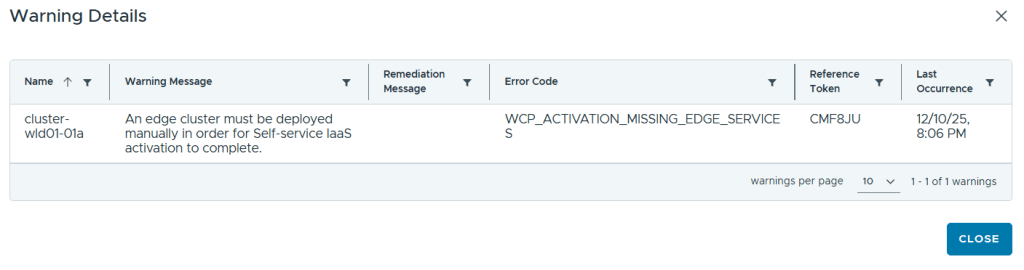
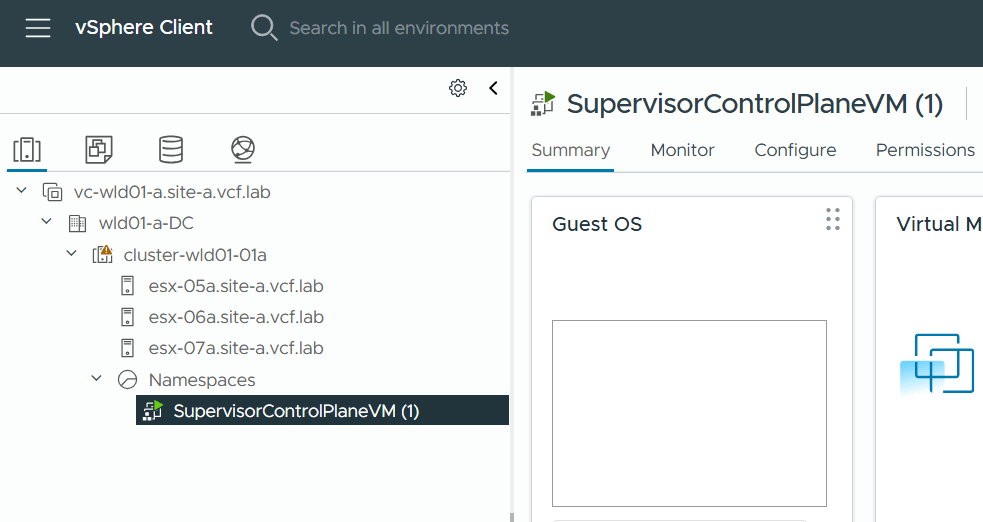
Logging into the new Workload Domain vCenter showed that I had one SupervisorControlPlaneVM running.
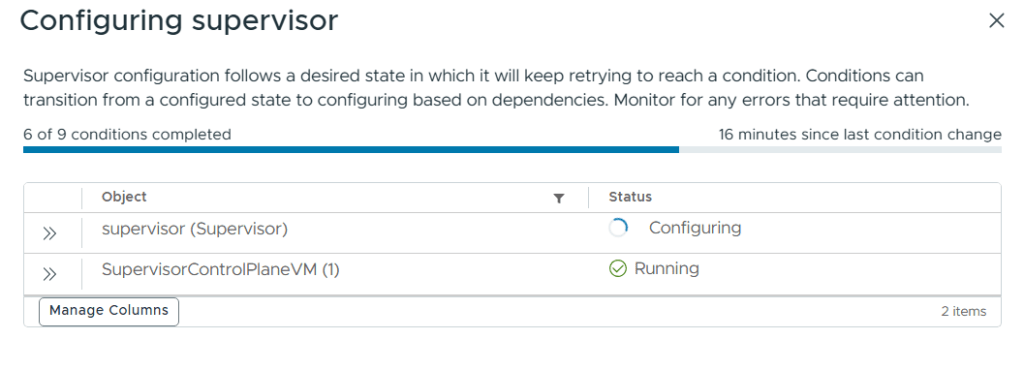
I went to Supervisor Management and could see that it was still configuring.
Next up is deploying the NSX Edge Cluster and looking into creating an All Apps Org in VCF Automation.
 CyberNils.net