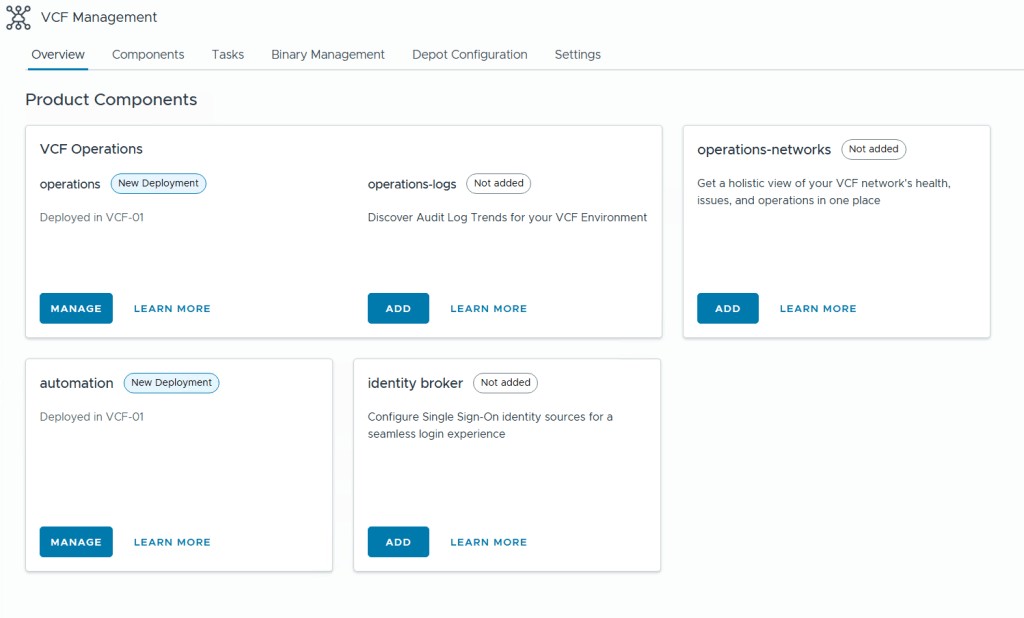
When deploying a new VCF Fleet, Operations for Logs is not deployed and needs to be done using VCF Operations later. As you can see from the image below, VCF Operations and VCF Automation (automation) are labeled with “New Deployment” since they are deployed, while VCF Operations for Logs (operations-logs), VCF Identity Broker (identity broker) and VCF Operations for Networks (operations-networks) are not deployed (Not added).
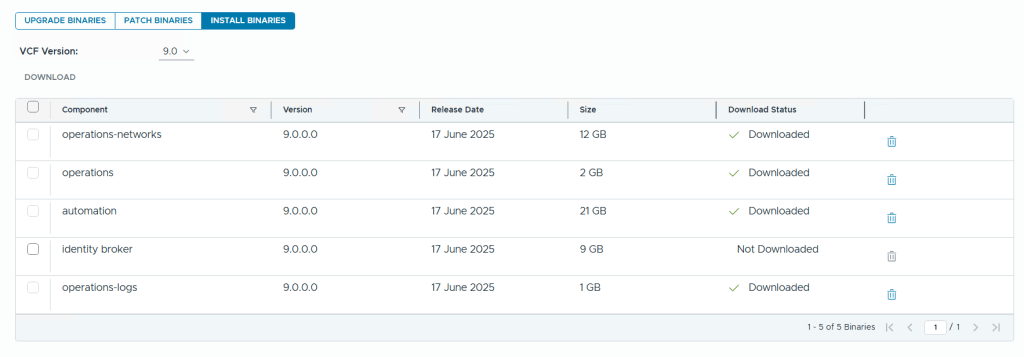
To be able to add product components we first have to add the binaries by going to Binary Management and download the required install binaries. Note that you can also download Upgrade Binaries and Patch Binaries here. After deployment you can choose to delete the binaries here to free up disk space on you Fleet Manager appliance.
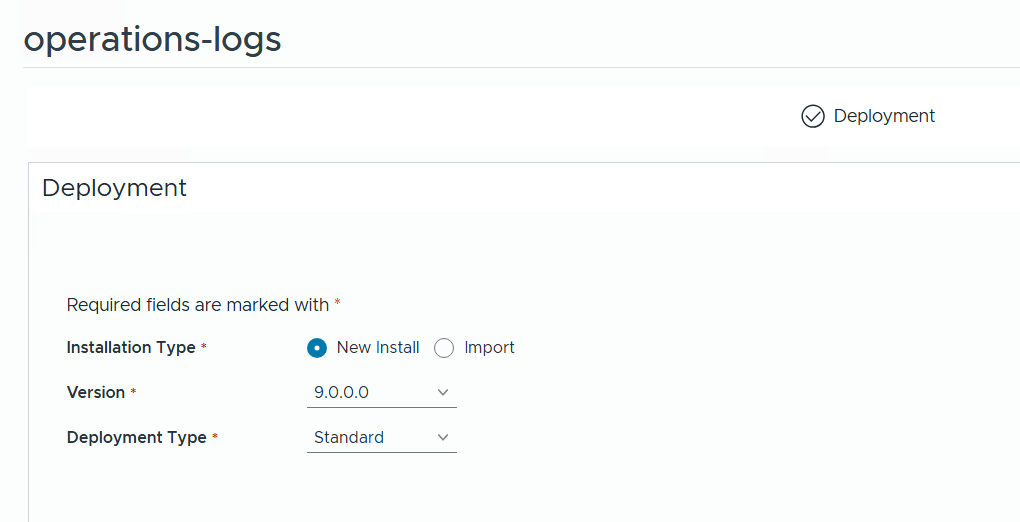
To deploy Operations for Logs we go back to the Overview page and click on Add which takes us to this page where we can choose between a new install, importing an existing deployment, what version we want, and if we want a standard or clustered deployment.
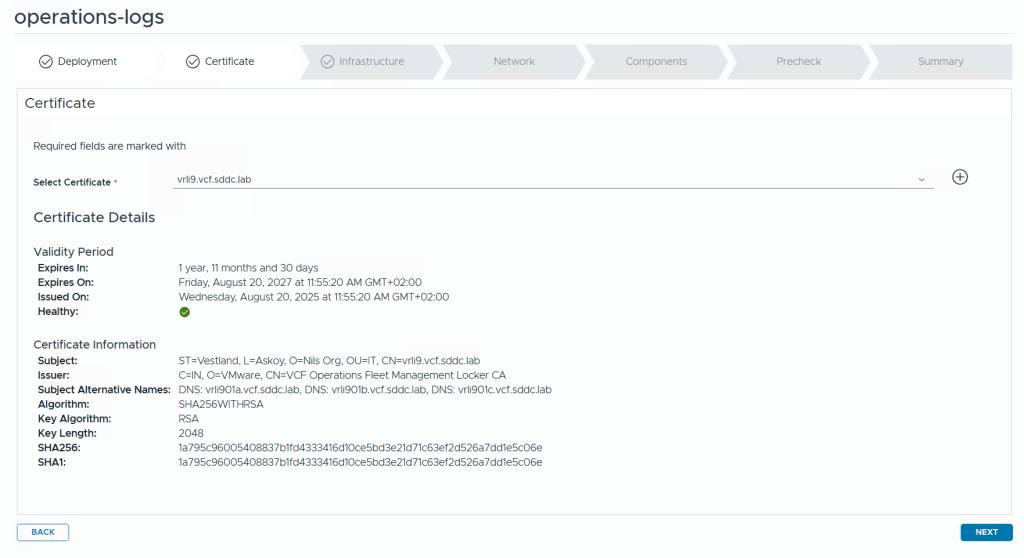
The first step is to select a certificate. If you don’t already have one you can click on the plus icon to create a new one directly in the wizard.
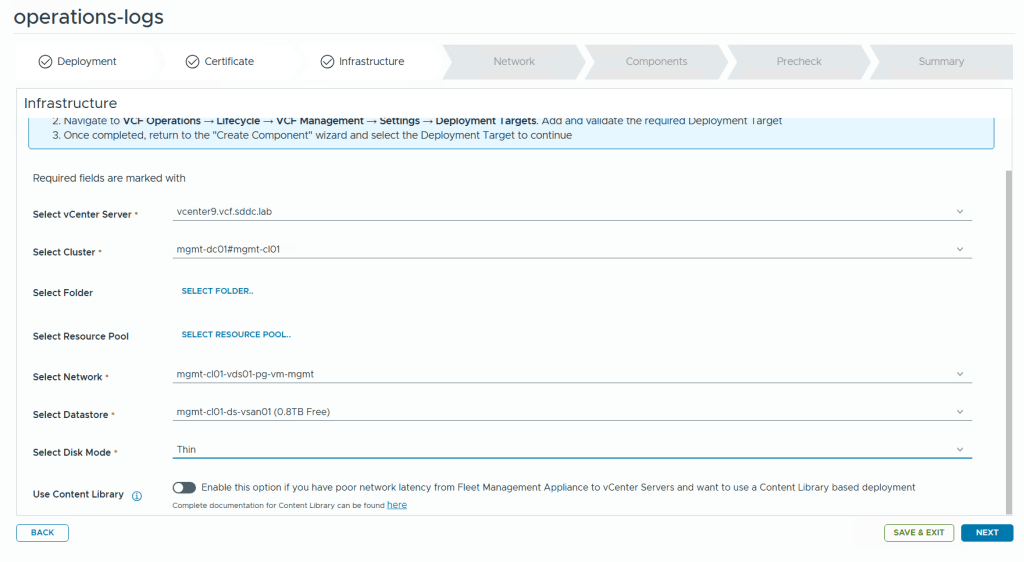
The next step needs details about the infrastructure you want to deploy to. Most of the information is populated automatically.
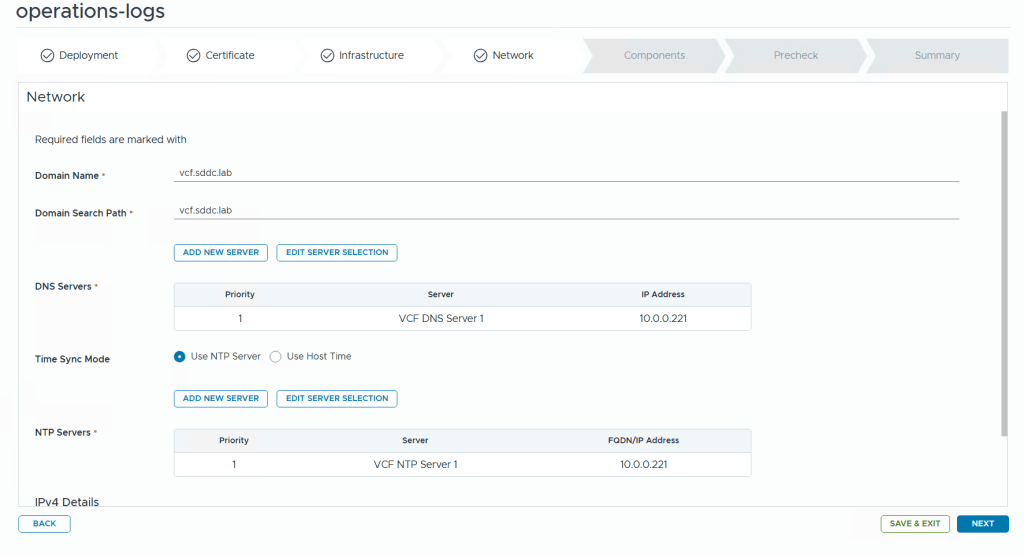
We are then asked to configure network settings like DNS domain name, DNS Servers, NTP Servers and so on.
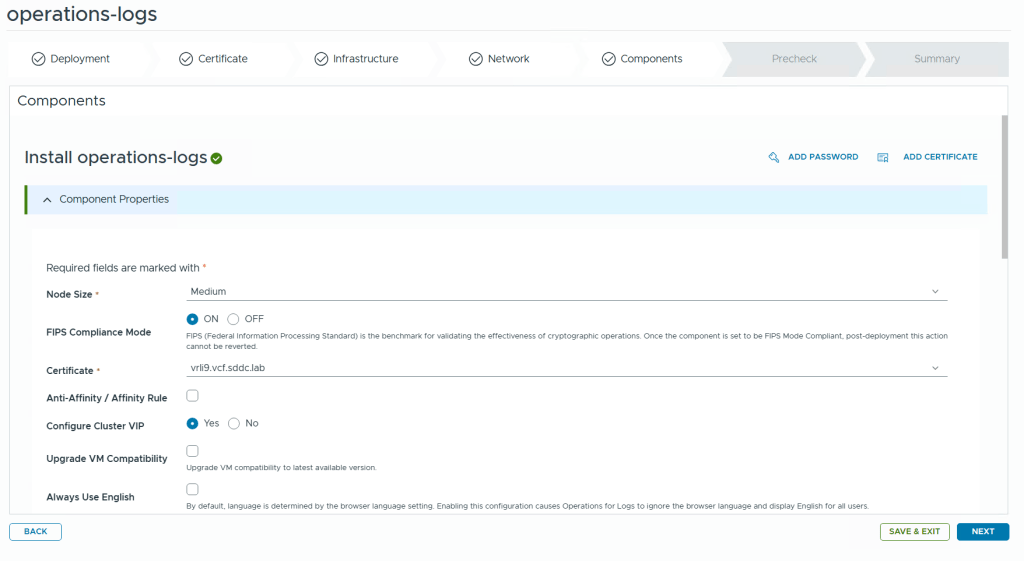
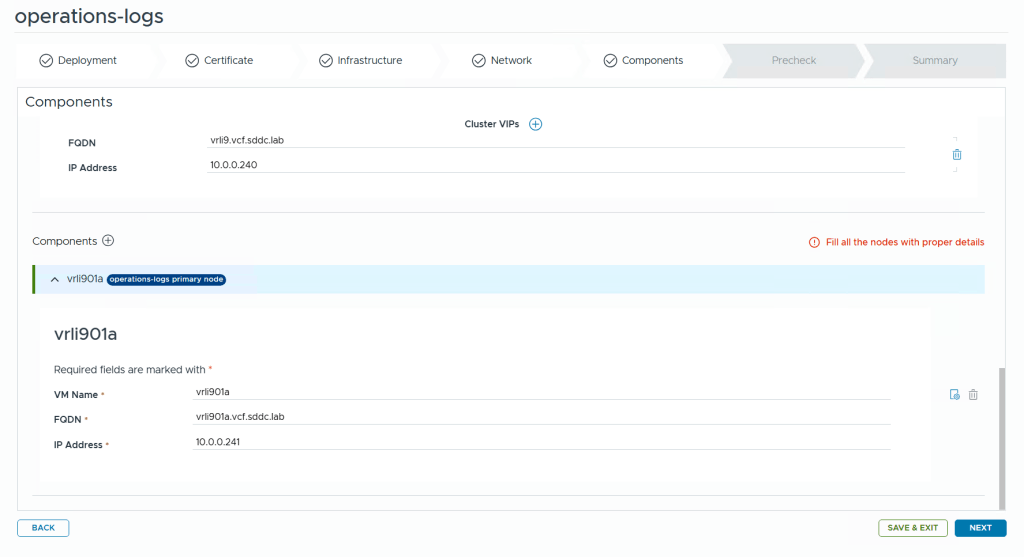
Finally we get to the components page where details about the appliance nodes are requested. Note that there is a tiny icon with a gear on the right side where you configure the VM name. Clicking on this takes us to the advanced settings where we can set things like root password and also choose a different network for each node if you deploy multiple nodes. This can be very useful when deploying other components like VCF Operations or VCF Operations for Networks where you also deploy collector nodes which often is to be deployed in a different network than the platform nodes.

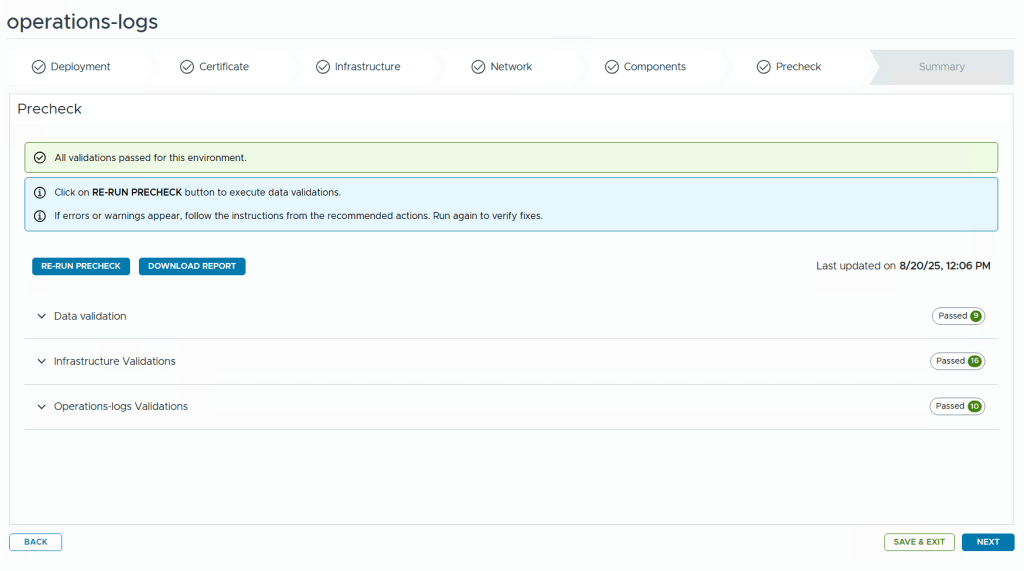
Before kicking off the deployment we get to run a pre-check. I highly recommend fixing any warnings or errors detected before starting the deployment or you will most likely be sorry later.
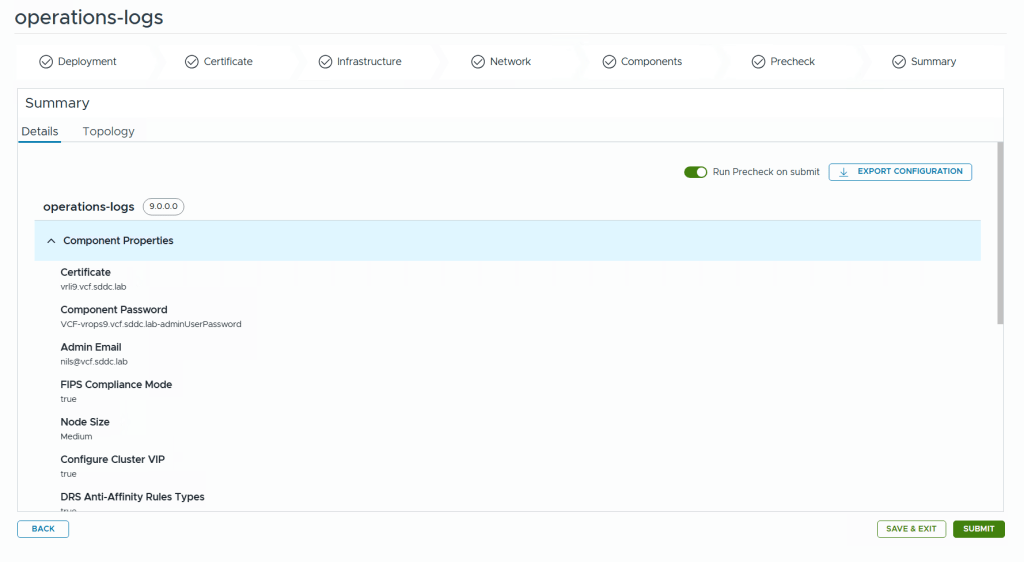
Note that you can export the configuration to a json file before submitting. You can also choose to Save and exit the wizard and continue at a later time.
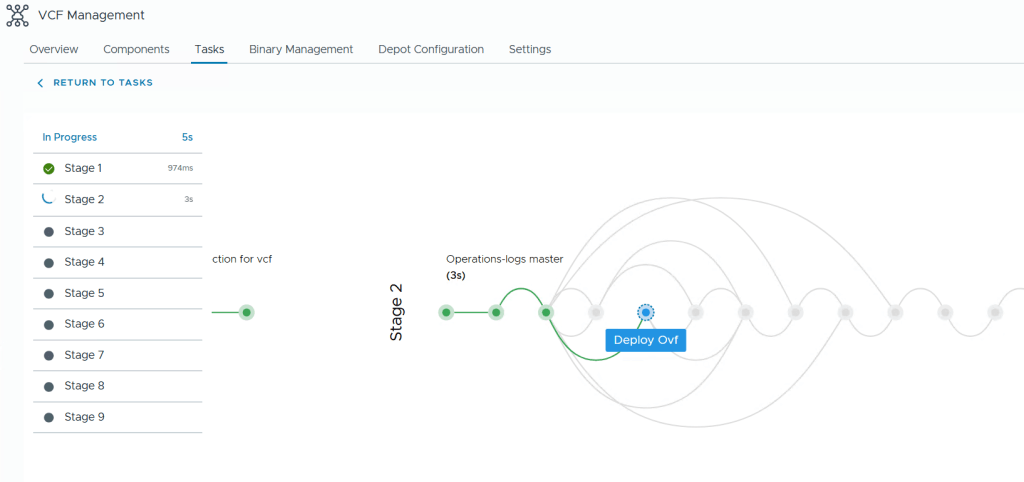
During the deployment you get this beautiful status page with fancy animations showing you how far it is in the process and a few words about what is currently doing.
When it fails though, like it did in my lab, the error messages are not very beautiful, but rather cryptic.
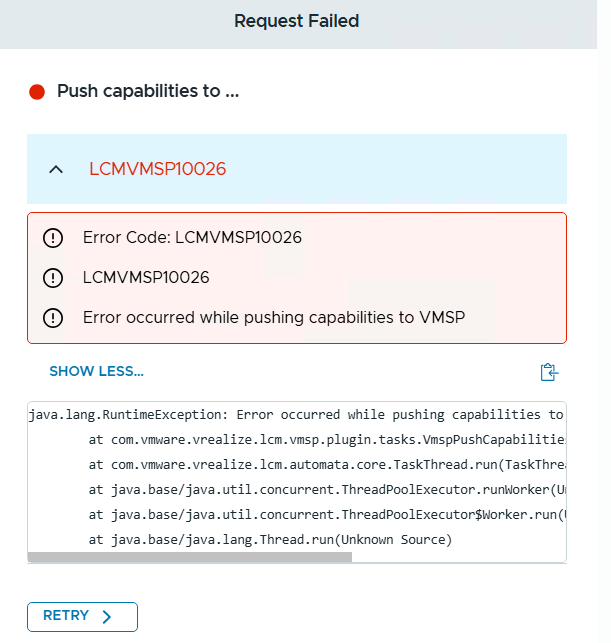
Even though we were logged into the VCF Operations interface, it is the VCF Fleet Manager appliance who is doing all the lifecycle work like deploying Operations for Logs. The log file /var/log/vrlcm/vmware_vrlcm.log on my Fleet Manager appliance showed me that it timed out trying to connect to 10.0.0.234 which is my VCF Automation appliance which was powered off at this time to save some resources. Looking back at which stage it failed on, I could see that it was when trying to “Push Capabilities to services platform”. Starting up VCF Automation and retrying the task made the deployment task complete successfully.
 CyberNils.net